

Appearance
Failed to query permissions
Troubleshooting
The problem
When you open the Sintel Apps page, you see the error Failed to query permissions.

The cause
Usually Sintel Apps doesn't have the permissions it needs in your tenant. A tenant administrator can check four things.
Step 1: Check App Permissions
Open https://app.sintelapps.com/admin and select App Permissions. If Sintel Apps under Required shows Not consented, send its link to a tenant administrator. See Admin Panel and App Permissions.
Step 2: Check that the app is deployed
Open the tenant app catalog: https://<your-tenant>-admin.sharepoint.com/_layouts/15/tenantAppCatalog.aspx (replace <your-tenant> with your tenant's name). Switch to the classic experience, select the Sintel Apps app, and on the Files tab select Deploy if it's offered. You don't need to add it to all sites.
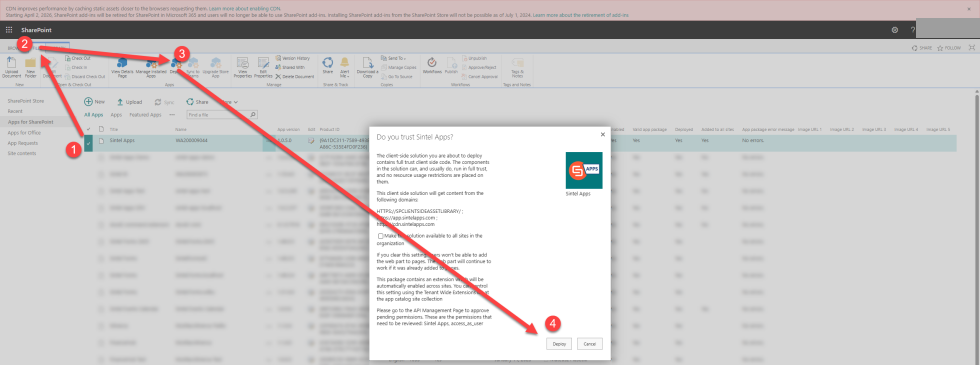
Step 3: Check that the API access is approved
Open the API access page: https://<your-tenant>-admin.sharepoint.com/_layouts/15/online/AdminHome.aspx#/webApiPermissionManagement. There should be a Sintel Apps entry, and it should be approved.

Step 4: Check the permissions in Entra ID
In Microsoft Entra ID, the Sintel Apps enterprise application should have its permissions granted.
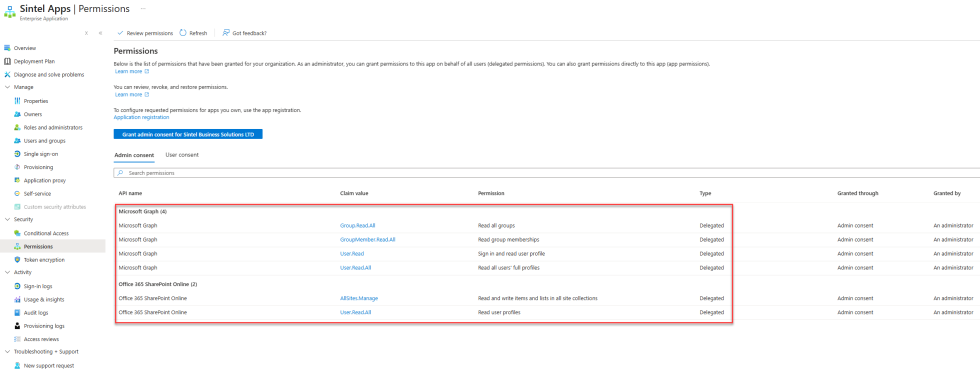
To give all permissions again, use https://app.sintelapps.com/admin-consent. See Add Sintel Apps to Your Microsoft 365 Tenant.