

Appearance
Conversations
Designer › Settings › Form viewer › Conversations
Conversations let people discuss an item right in the form. Comments are saved with the item, so everyone who opens it later sees the whole discussion.
Conversations are for people in your organisation. External users don't see them.
Turn it on
In the designer, go to Settings → Form viewer → Conversations and turn on Conversations. It's on by default.

Using conversations
Open a saved item. (New items that haven't been saved yet have no conversations.)
On the right of the top bar, select the Conversations icon (a speech bubble).

Type your comment and press Enter, or select the Submit icon (a paper plane). Shift+Enter starts a new line.
To bring someone into the discussion, type @ and start typing their name, then pick them from the list. They get an email with your comment and a link to the item.
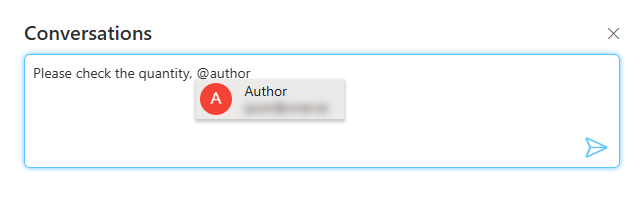
To notify the person who created the item, type @author and pick Author from the list. It's replaced by that person's name, so you don't need to know who it was.
Good to know
- The newest comments are at the top. Comments can't be edited or deleted after you post them.
- Only users who can edit the item can comment. Others see "You need to have edit rights to comment".
- Mention emails are sent only if Notifications is on (Settings → Email notifications). They come from the form's sender, see Custom Emails.
Related: Settings Tab (Overview).