

Appearance
Signature Field
Designer › Layout › Fields › Signature
A Signature field lets people sign an item in the form. They draw their signature with the mouse, a finger or a stylus. Or they type their name and pick a handwriting style. The signature is saved with the item, together with the signer's name and the date.
For example, the sample form Equipment Requests has a section Sign-off with a Signature field. The requester signs before sending the request.
Add a Signature field
- In the Layout tab, open Fields on the left.
- Drag Signature into a section.
- Select the field. Its settings appear in the Properties panel on the right.
The list column for the signature is created when you save the form.
Properties
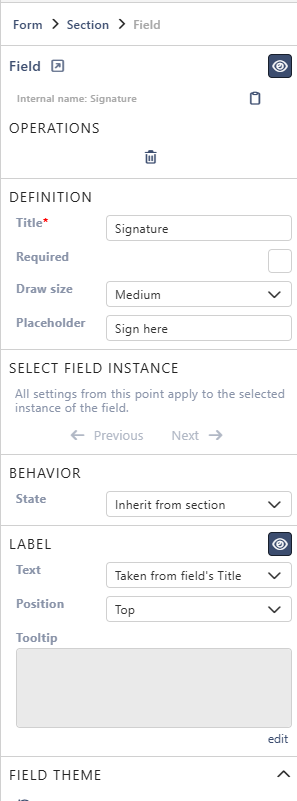
Each property is described in Field Properties. The Signature field has these under Definition:
| Property | Signature |
|---|---|
| Title | ✓ |
| Required | ✓ |
| Draw size | ✓ Small, Medium or Large: the height of the signing box |
| Placeholder | ✓ for example Sign here |
There is no Type. A Signature field can't be switched to another type.
Below them are the parts every field has: Select field instance, Behavior, Label and Field theme.
In the designer, the signing box is grey. You can sign only in the form itself.
Signing in the form
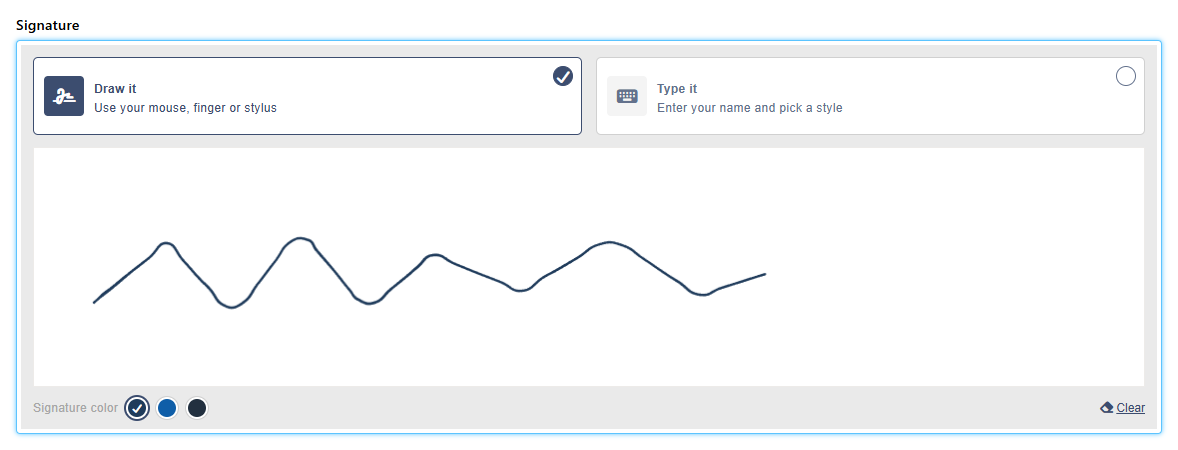
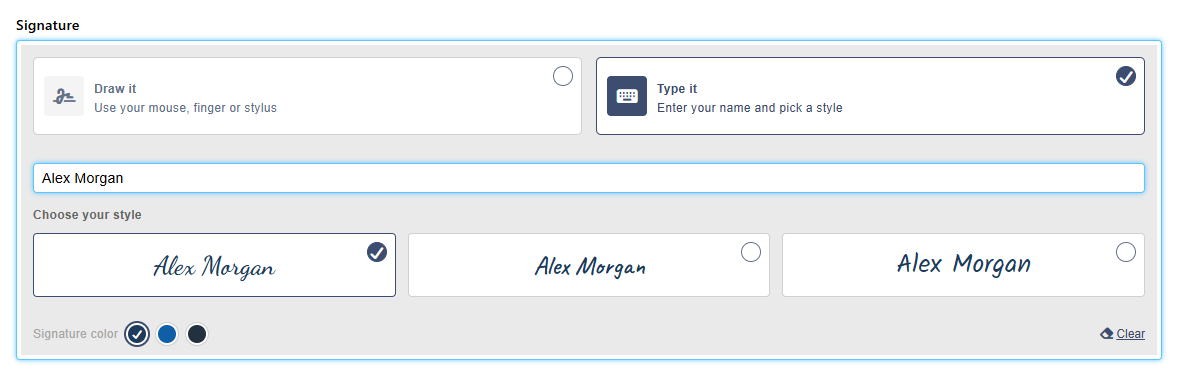
People choose one of two ways at the top of the field:
- Draw it: draw the signature in the box with the mouse, a finger or a stylus.
- Type it: for signed-in people, the box below is filled in with their name. They can change it, then pick one of three handwriting styles.
Under the box, Signature color offers three ink colours. Clear empties the box, so they can start again.
After saving
When the item is saved, the field shows the signature, the signer's name and the date and time. For example: Signed by Alex Morgan on 10/24/2026 5:03 PM.
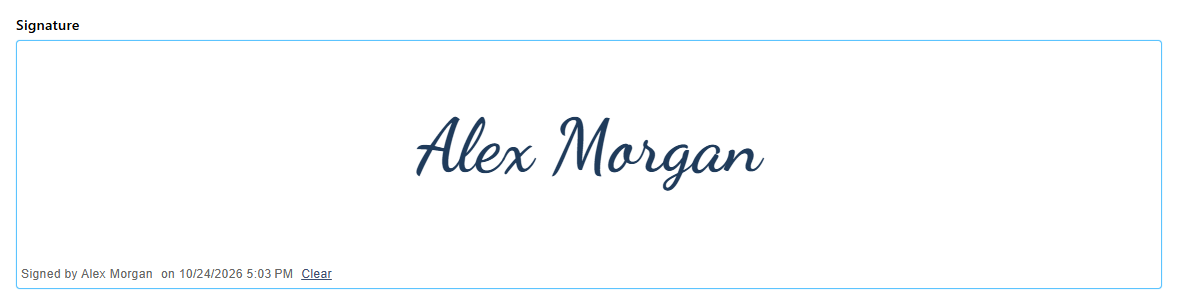
While the item can be edited, Clear removes the signature, so someone can sign again. When the field is read-only, there is no Clear. An empty read-only field shows No signature provided.
Good to know
- The name under the signature is the name of the signed-in person who signed. What they typed in Type it only changes the picture. On a form for anonymous people, the name shows as <Unknown user>.
- The Version History widget shows each signature as a picture, in the version where it was added.
- To stop changes after signing, for example once the item is approved, make the field read-only with a rule. Use the step Field state in the Logic tab.
Related: Layout Tab (Overview).