

Appearance
Attachments
Designer › Layout › Widgets › Attachments
The Attachments widget shows the item's attachments in the form. People add, open and delete files there. The files are the SharePoint list item's own attachments.
For files that need their own columns or a library, use a Related Library instead.
Add the widget
- In the Layout tab, open Widgets on the left.
- Drag Attachments into a section.
- Save the form.
The widget has the usual Title, Label and Field theme properties, and no settings of its own. The attachments themselves are set up in Settings (below).
On the form
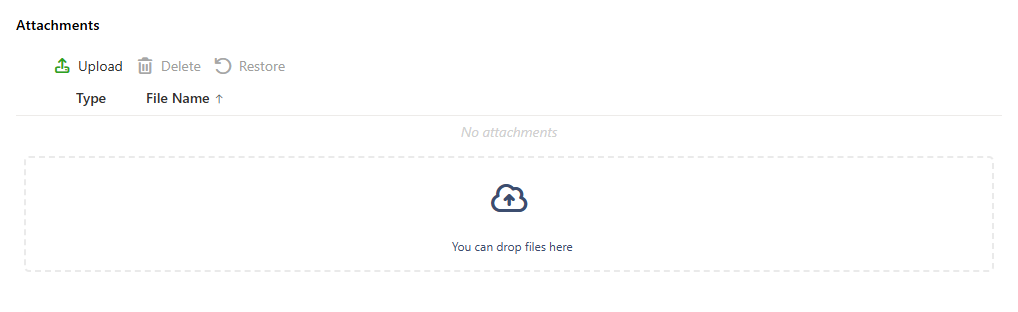
- Upload adds files. People can also drop files on the area You can drop files here.
- Selecting a file name opens the file in a new tab.
- Delete marks the selected file for deletion. Restore brings it back. A file that isn't saved yet is removed straight away.
- All changes are made when the item is saved. Files can be added to a new item before it's saved for the first time.
- In view mode, or when the section is read-only, there is no Upload, Delete or Restore.
When attachments are on, the Attachments icon in the form's top bar opens the same list, with the number of files.
Settings: file types and size
In Settings → List settings → Attachments:
| Setting | What it does |
|---|---|
| Enable attachments | Turns attachments on or off for the list in SharePoint. When off, the widget says Attachments are not enabled for this form. |
| Restrict attachment file types | Allows only the file extensions in Allowed file extensions, for example .pdf and .docx. Type an extension and press Enter. The dot and capital letters don't matter. Only the last part of a file name counts, so report.pdf.zip is a .zip file |
| Attachment size limit | Limits each file to Maximum attachment size (MB), from 1 to 250. Without it, the limit is 250 MB |
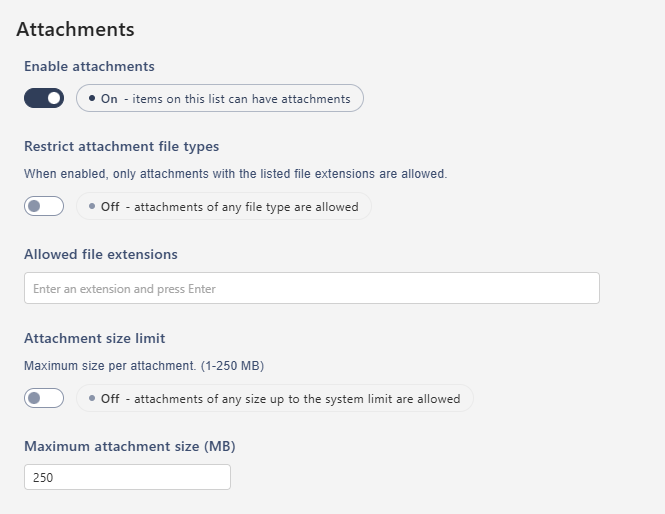
A form made for a new list starts with the restriction on (.docx, .xlsx, .pptx, .zip, .pdf, .txt, .png, .bmp, .jpeg, .jpg, .gif) and a 100 MB limit. A form on an existing list starts with both off. Files can never be larger than 250 MB.
With a restriction on, the drop area shows the accepted types. A file that doesn't fit isn't added. The form says The files listed below were not added. Try again with a file that meets the requirements., with the reason for each file, for example File type is not allowed. or File is too large.
Good to know
- To make attachments required, use a rule with the Logic condition Attachments count (equal to 0) and the step Field custom error on the widget.
- On a form for external users, people can't delete files that were already saved, and there is no Restore.
- If Restrict attachment file types is on but the list of extensions is empty, no file can be added. The settings warn you about this.
Related: Settings Tab (Overview), Related Library, Layout Tab (Overview).