

Appearance
External Access & Sharing
Designer › Settings › External access
External access lets people outside your organisation use your form, even if they have no access to your SharePoint. For example, customers can send a request, or a supplier can fill in and later update their own details.
This doesn't use SharePoint guest access. External users never sign in to Microsoft 365. They open the form from a link and, where needed, confirm their email with a one-time code.
Before you start:
- Your Sintel Apps plan must include the Anonymous Access or External Sharing feature. See License Information.
- Your tenant administrator needs to approve extra permissions once. Until then, Settings shows: "External access is an optional feature. To use it, your tenant administrator needs to grant additional permissions." See Configuring External Access Permissions.
All settings below are in the designer: Settings → External access. Save the form after you change them.
Three ways to give access
| Who | What they can do | How they get in | |
|---|---|---|---|
| Anonymous Submission | Anyone with the link | Submit a new item. They can't open it again later | The form link |
| External Collaboration | Anyone with the link who gives an email address | Submit a new item, and later open and edit their own items | First time: the form link. Later: the link in their email, plus a one-time code |
| External sharing | People your users invite | Open and edit one item that was shared with them | The link in the invitation email and a one-time code |
Pick Anonymous Submission or External Collaboration in Access mode. External sharing is a separate switch and works with either of them, or on its own.
Where to find the form link
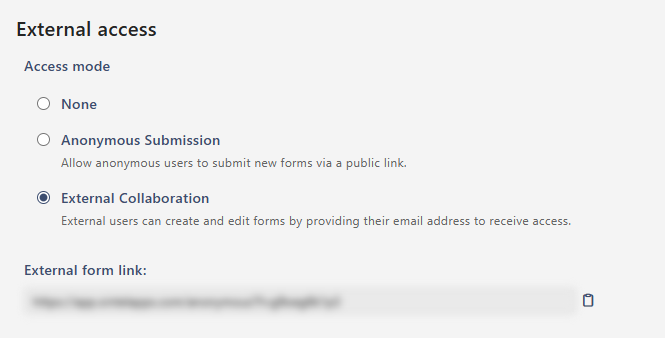
External users open the form from the External form link. You find it in Settings → External access, right under Access mode. It appears after you choose Anonymous Submission or External Collaboration and save the form. Select the copy icon next to it to copy the link.
Share the link wherever your external users will find it: on your website, in an email or as a QR code on a poster.
Anonymous Submission
Use it for simple public forms, such as a contact or feedback form.
- In Access mode, select Anonymous Submission.
- Save the form.
- Copy the External form link (see Where to find the form link) and share it.
The person opens the link, fills in the form and selects Save. If Captcha is on, they complete a captcha first. After saving they see a confirmation page.
They don't get an email and can't open the form again.
External Collaboration
Use it when external people need to come back to their item, for example to add information you ask for.
- In Access mode, select External Collaboration.
- Save the form.
- Copy the External form link (see Where to find the form link) and share it.
Submitting a new item. This is what the external person sees:
They fill in the form and select Save.
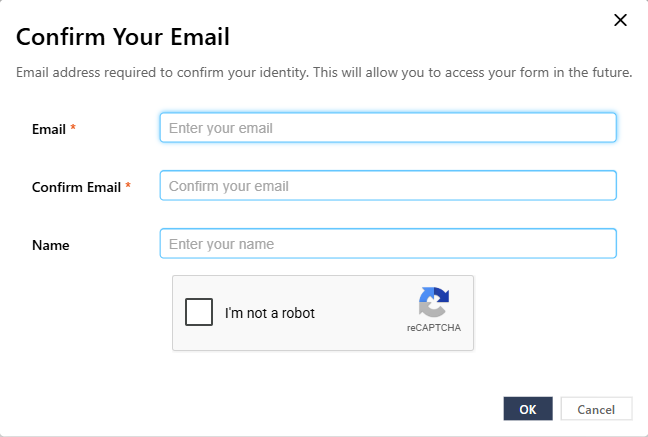
A Confirm Your Email window opens. They enter their email address twice and, optionally, their name. If Captcha is on, they also complete the captcha. Then they select OK.
The item is saved.
They get a confirmation email with a link to their item. This email is on by default. See Emails.
Coming back later. The person opens the link from their email. An Authentication Required page asks for their email address and sends them a new code. After they enter it, the item opens. Access lasts 60 minutes. After that, they ask for a new code.
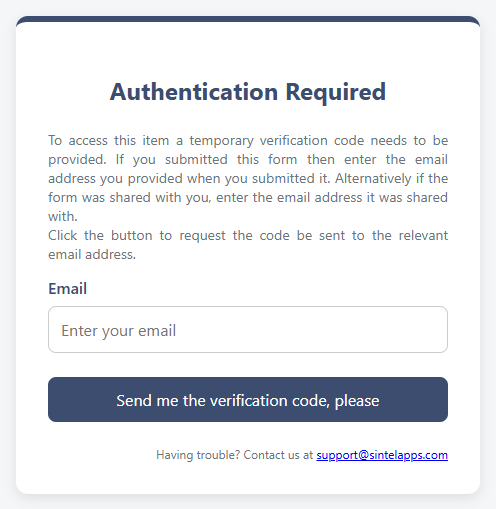
Only the person who submitted the item, and people it was shared with, can get a code for it. If no code arrives, check that you used the email address the item was submitted with or shared with.
External sharing
Use it when your users need to bring an external person into a single item, for example to ask a supplier for a quote on one request.
Turn it on: in Settings → External access → External sharing, turn on External sharing and save the form.
Share an item:
- Open the item in edit mode.
- In the top bar, select the External Sharing icon (a person with a plus sign).
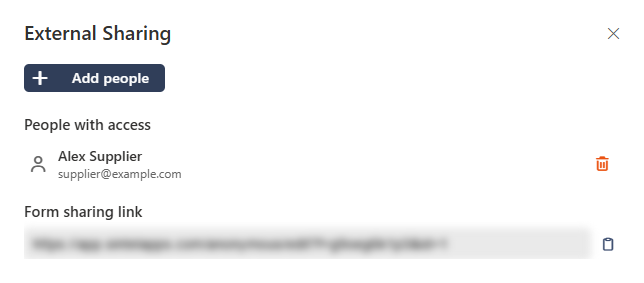
- Select Add people, enter the Email (and optionally the Display name) and select Add. Add more people the same way.
- Save the item.
After the save, each new person gets an invitation email with a link to the item. This needs Invitation email, which is on by default. They open the link and confirm their email with a one-time code, on the same Authentication Required page as in Coming back later. Then they can view and edit the item.
The External Sharing panel also shows:
- People with access: the external people who can open the item. To remove someone, select the bin icon and save the item. The person who submitted the item is marked Author and can't be removed.
- Form sharing link: the link to the item, if you want to send it yourself.
The number on the icon shows how many external people have access. To change the list, open the item in edit mode.
External form behaviour
These settings apply whenever external users open the form. They are in Settings → External access → External form behaviour.
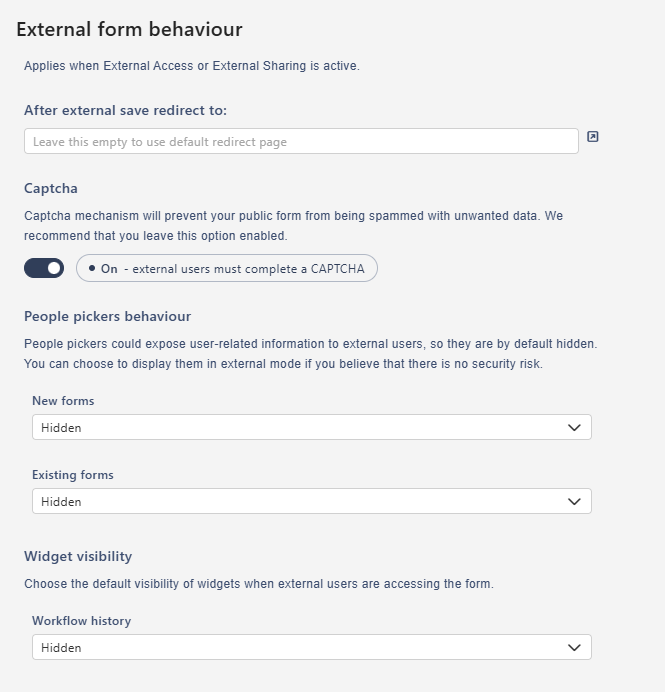
| Setting | What it does |
|---|---|
| After external save redirect to | The page external users go to after they save. See After an external user saves |
| Captcha | People submitting a new item complete a captcha when they save. Keeps spam out of public forms. We recommend leaving it on |
| People pickers behaviour | How people fields look to external users, separately for New forms and Existing forms: Hidden, Disabled (shown, read-only) or Enabled. People pickers can show names and email addresses of your users, so they are hidden by default |
| Widget visibility | Whether external users see the Workflow history widget: Hidden or Visible |
Emails
External users get two kinds of emails from the form. Both are on by default. Each comes with a ready-made Subject and Body, which you can change, and you can turn each one off.
| When it's sent | Settings | |
|---|---|---|
| Confirmation email | After an external user submits a new item. Only with External Collaboration | Confirmation email → New item submission confirmation email to author, Subject, Body |
| Invitation email | After a user shares an item with an external person and saves it | Sharing invitation email → Invitation email, Subject, Body |
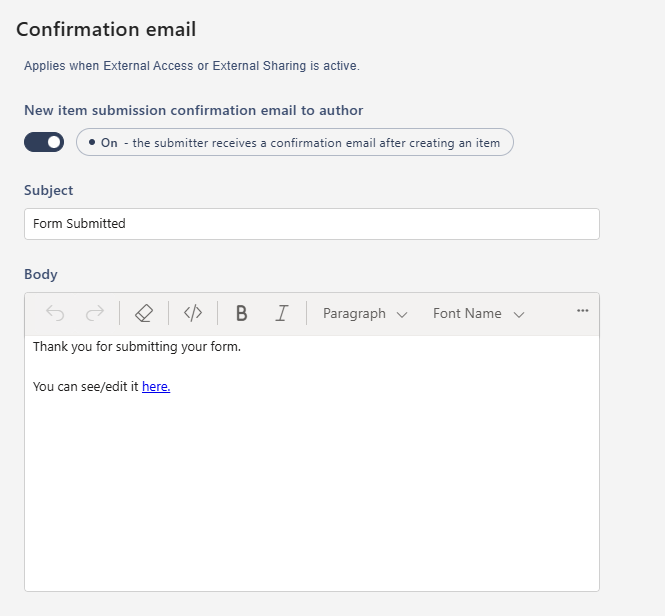
In Body, type {{ to insert a field value or a token. It appears as a small tag in the text. The most useful token is [editUrl], the link to the item. For example:
Subject: Your request has been received
Body: Thank you for your request Title. You can check and update it here: [editUrl]
In the editor, Title and [editUrl] show as tags after you insert them with {{.
Emails are sent from Sintel Apps unless you set up your own mailbox, see Custom Emails. If Notifications (in Settings → Email notifications) is off, these emails aren't sent either. One-time codes are always sent.
After an external user saves
- If a confirmation screen is on, they see it first.
- After they select OK, they go to the page in After external save redirect to (in External form behaviour). If it's empty, they see the standard confirmation page.
The redirect settings in Form viewer apply only to your own users, not to external users.
What's different for external users
- They don't see conversations, version history or the External Sharing icon.
- They see the Workflow history widget only if Widget visibility allows it. The top bar has no Workflow History icon for them.
- They have one Save button and no Close button.
- They can remove a file they've just added, before they save. They can't delete attachments already saved on the item.
- To show or hide parts of the form for them, use the External user condition in a rule ("Current user is an external user"). See Understanding Conditions.