

Appearance
Related List
Designer › Layout › Fields › Related list
A Related list shows a table of items from another SharePoint list inside the form. Each row belongs to the item that is open. For example, an equipment request can have one row for each thing that is ordered:
| Main item (the form) | Rows in the related list |
|---|---|
| Equipment request | Docking station, 1; USB-C cable, 2 |
| Expense claim | One row for each receipt |
| Project | One row for each task |
People add, change and remove the rows in the form, and save them together with the item.
Add a related list
- In the Layout tab, open Fields on the left.
- Drag Related list into a section. Give it a Title, for example Order lines.
- Select edit fields to choose the columns.
- Save the form.
When you save, Sintel Apps creates a new SharePoint list with the field's title. The new list gets a column Parent. It's a lookup to the form's list, and links each row to its item. Sintel Apps fills it in for you.
To use a list you already have, open Existing on the left instead. It shows the lists and libraries of the site that have a lookup column to the form's list. Drag one into a section. See Good to know for what to check first.
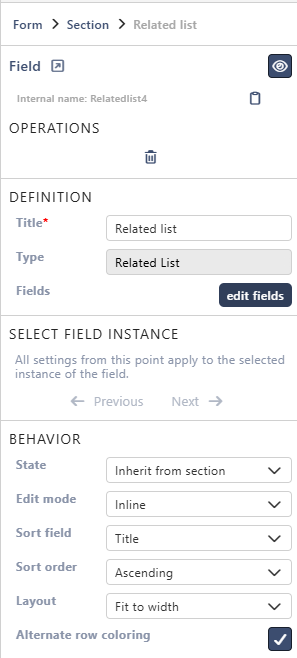
Choose the columns
edit fields opens a panel with all columns of the related list. A new list starts with the standard SharePoint columns. Only Title is shown in the table.
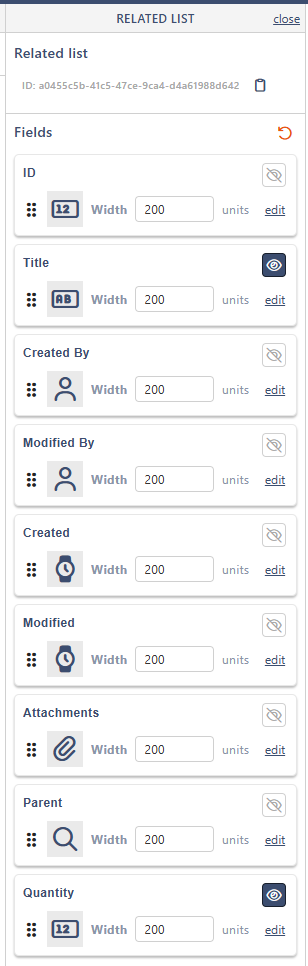
For each column:
- The eye icon shows or hides the column in the table.
- Drag the handle on the left to change the order of the columns.
- Width sets how wide the column is (1 to 500, 200 to start with). With the layout Fit to width, the widths are shares of the table's width ("units"). With Single row with scroll, they are pixels.
- edit opens the column's own properties, for example whether it must be filled in.
To add a new column, drag a field type from Fields on the left into this panel, for example Number for a Quantity column. You can add any field type from Fields except Related list and Related library. The column is created in the related list when you save the form.
Apply field changes from the list (the refresh icon) reads the columns again from SharePoint, for example after someone added a column there. Columns deleted in SharePoint are removed from the form, and this can't be undone. It works once the form is saved.
Properties
Each property is described in Field Properties. The Related list has these:
| Property | Related list |
|---|---|
| Title | ✓ also the name of the new list |
| Type | ✓ (can't be changed) |
| Fields | ✓ edit fields |
| State (Behavior) | ✓ |
| Edit mode (Behavior) | ✓ Inline or Embedded dialog |
| Sort field, Sort order (Behavior) | ✓ |
| Layout (Behavior) | ✓ Fit to width or Single row with scroll |
| Alternate row coloring (Behavior) | ✓ |
Select field instance, Label and Field theme are the same as for every field. Once the form is saved, the link icon at the top of the panel (Go to SharePoint list) opens the related list.
Edit mode decides where people edit a row:
- Inline (the default): in the table itself.
- Embedded dialog: in the related list's own Sintel Apps form, which opens over the main form. Use it when a row has many columns. Once the form is saved, Open designer for this list opens that form's designer in a new tab. Allow inline editing (on to start with) lets people edit in the table as well. Turn it off to allow editing only in the dialog. If the related list has no Sintel Apps form yet, editing stays Inline.
On the form
The related list of the demo form, with two rows:
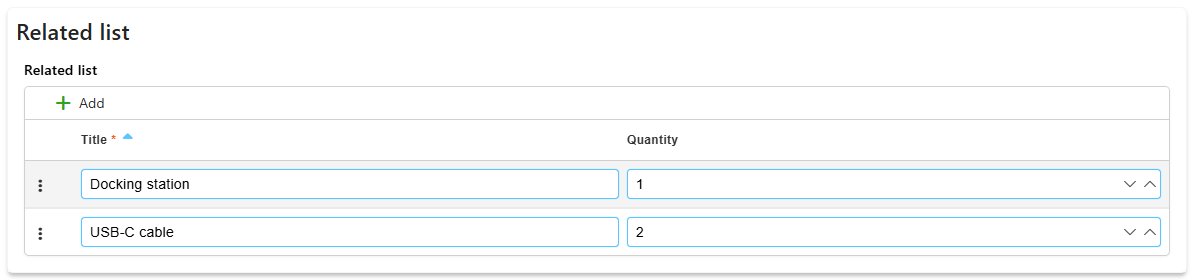
- Add adds an empty row, or opens the dialog with Embedded dialog.
- The row menu (the three dots on the left) has Remove. With Embedded dialog it also has Open, and each row has a pencil icon that opens it.
- People sort the table by selecting a column header.
- Rows can be added to a new item too. Everything is saved with one Save of the form.
In view mode, or when the field is read-only, there is no Add, and rows can't be changed or removed. With Embedded dialog, people can still open a row to read it.
Good to know
- People need permissions to add, change and remove items in the related list itself. Without them, Add and Remove are greyed out.
- The form shows only rows that were added through the form. Sintel Apps keeps the rows of each item in a folder of its own in the related list. Items added directly in SharePoint, outside these folders, don't show in the form, even when their Parent is set. Keep this in mind when you use an existing list from Existing.
- For an existing list, Sintel Apps turns on content types and folders in the list when you save the form.
- In the Logic tab, the condition Related list items count checks the number of rows, for example to require at least one. The step Related list behaviour can turn off adding, editing or deleting rows.
- For files instead of rows, use a Related Library.
Related: Field Properties, Related Library, Layout Tab (Overview).