

Appearance
Importing and Exporting Form Configuration
Designer › top bar › Export Configuration
You can copy a form to another SharePoint site with an export file. For example, build and test a form on a test site, then import it on the production site. The file has the extension .sintelforms.
The file holds:
- the list's columns and views,
- the whole form: layout, logic, workflow and settings,
- custom CSS and email templates,
- the lists the form uses, such as lookup lists and related lists.
List items aren't included unless you choose to include them. See Data Import/Export.
Export a form
- Open the form in the designer and save it. The export only includes saved changes.
- In the top bar, next to Save, select the Export Configuration icon (a download arrow).
- Enter a Title for the file. A title with today's date is suggested. Add a Description if you like.
- Select Export. The file downloads to your computer, with the extension
.sintelforms.
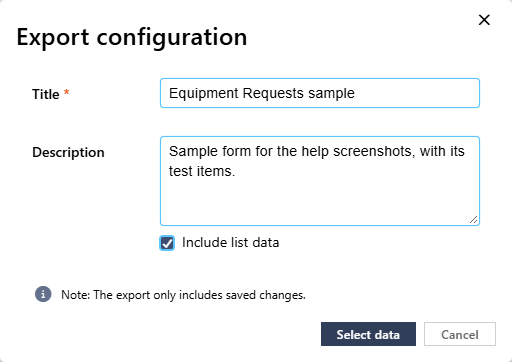
The picture shows Include list data turned on, so the button reads Select data. Leave it off to export only the form.
Import a form
On the target site, open the designer.
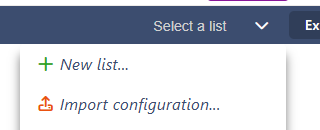
In the top bar, open the list menu and select Import configuration...
Select Select, or drop the
.sintelformsfile into the box. Other files aren't accepted. Read the notice about what isn't included, then select Proceed.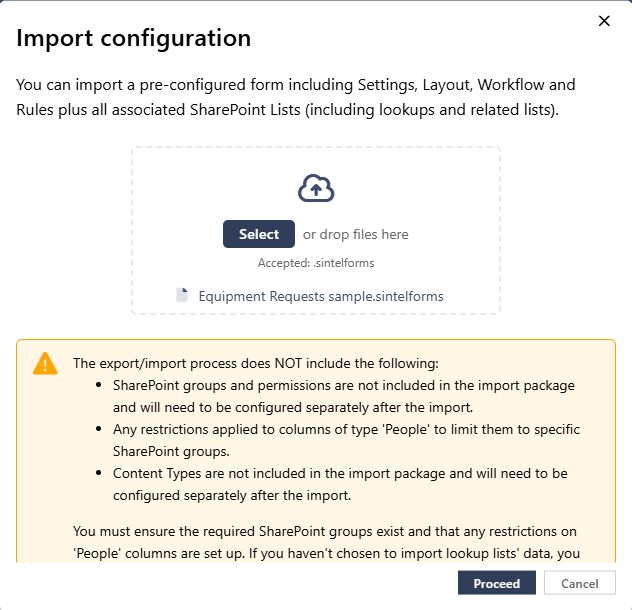
The summary shows each list in the file and what will be imported for it: Schema, Configuration, Custom CSS, Email Definitions and Views. Leave the Data boxes empty to import only the form.
Select Import.
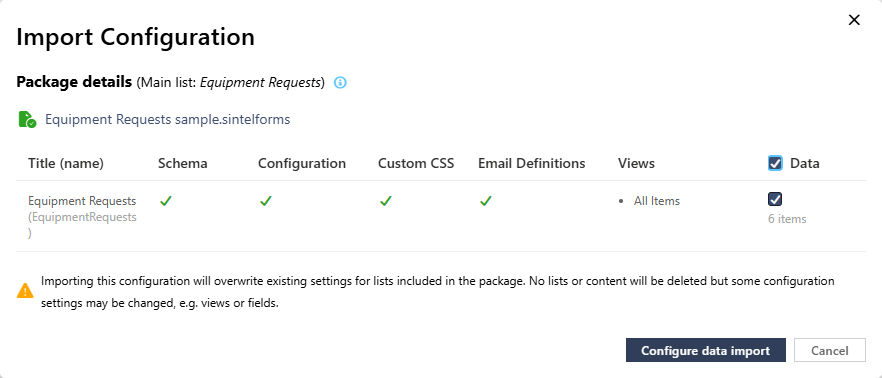
In the picture, Data is ticked, so the button reads Configure data import.
After the import, the list and its form are ready on the target site.
What happens to existing lists
The import looks for each list by its internal name (the name in the list's address), not by its title.
- A list that doesn't exist yet is created with its columns, views and form.
- A list that already exists gets the form from the file. New columns and views are added and existing ones are updated. The list also takes its title from the file.
Nothing is deleted: no lists, no columns and no items.
What isn't included
Set these up on the target site yourself:
- SharePoint groups and permissions. Create the groups the form uses, for example in rules or workflow, before people use the form.
- Restrictions on person columns that limit them to a SharePoint group.
- Content types.
You need permission to create lists on the target site to import a form.
Related: Data Import/Export.