

Appearance
Actions Menu Behavior
Designer › Settings › Form viewer
The Actions menu sits at the left of the form's top bar. It lists the workflow actions the current user can run on the item in its current status, for example Approve or Reject. Running an action saves the item. Then the form closes, or users go where After save/action redirect to says.
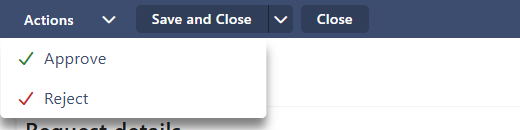
Actions menu behavior decides when this menu is shown. You find it in the designer: Settings → Form viewer.

| Option | The Actions menu is… |
|---|---|
| Show always | Always shown. If the user can't run any action, the menu says No actions available |
| Hide if no actions | Shown only when the user can run at least one action |
| Always hidden | Never shown |
Show always is the default.
The menu only appears when Workflow is turned on (Settings → Features) and the workflow has statuses. Rules in the Logic tab can also hide or disable the whole menu.
Actions can appear greyed out when the form has errors to fix first, or when the user can't edit the item.
Tip: with Always hidden, users can still run actions from action buttons you add with the Buttons widget. Use this when you want your own buttons in the form instead of the menu, for example a large Submit for approval button at the end of the form.
Related: Workflow Actions – Configuration and Settings, Settings Tab (Overview).