

Appearance
Workflow Statuses – Configuration and Settings
Designer › Workflow › a status card
A status is a stage of the process, for example Submitted, Approved or Rejected. Each item is in one status at a time. The status decides which actions people can do next. People see the item's status at the top of the form, in its colour.
Every workflow has one initial status, the status a new item starts in.
Add a status
- Open the Workflow tab.
- Select the + button (Add) at the bottom right. A new status card appears, named New.
- Select the card. Its properties appear in the panel on the right.
- Give it a name and a colour. Then add its actions with Add Action on the card.
- Save the form.
The first status you add becomes the initial status.
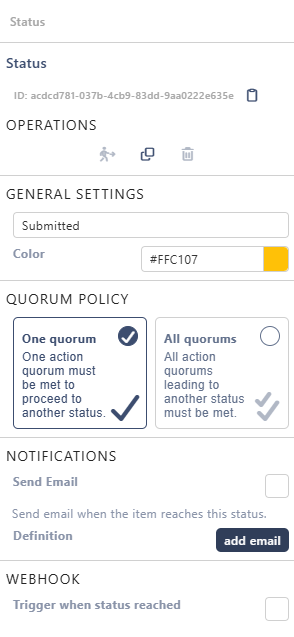
Operations
At the top of the panel:
- Initial status makes this the status new items start in.
- Clone copies the status.
- Delete removes it.
You can't delete a saved status while items are in it. You see the warning Workflow status is in use and cannot be removed. Move those items to another status first. Statuses you haven't saved yet can always be deleted. The initial status can be deleted only when it's the only status. Delete doesn't ask for confirmation.
General Settings
- Name (the box Name your status): what people see at the top of the form and in the Workflow Status widget. Up to 255 characters.
- Color: the colour of the status. Use colours the same way in all your forms, for example green for Approved, red for Rejected, yellow for waiting, blue for in review.
Quorum policy
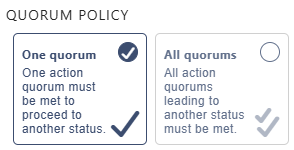
This matters only when two or more actions lead to the same target status, for example Approve by manager and Approve by finance, both to Approved:
- One quorum: the item moves as soon as one of these actions has its quorum.
- All quorums: all of them must have their quorum before the item moves.
Notifications
Send Email sends an email when an item reaches this status. Select add email to write it. Without the email, nothing is sent. See Workflow Email Notifications.
Webhook
Trigger when status reached calls a web address when an item reaches this status, for example a Power Automate flow. Put the address in URL.
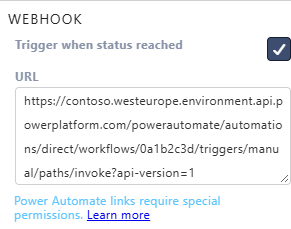
See Configuring Power Automate Webhook.
Good to know
- A status without actions ends the process, like Approved or Rejected.
- Items saved before you added the workflow have no status yet. The next time someone saves such an item, it gets the initial status.
Best practices
- Keep status names short and clear.
- Avoid too many in-between statuses.
- Use colours the same way across forms.
Related: Workflow Tab (Overview), Workflow Actions.