

Appearance
Person and Group Fields
Designer › Layout › Fields › Person, Group, Person or group
People fields let people pick someone from your organisation, a SharePoint group, or both. There are three types:
| Type | People can pick | Example |
|---|---|---|
| Person | People only | Requested by, Line manager |
| Group | SharePoint groups only | Approving team |
| Person or group | People or SharePoint groups | Assigned to, a person or a whole team |
When you save the form, each field gets a Person or Group column in the SharePoint list.
Add a people field
- In the Layout tab, open Fields on the left.
- Drag Person, Group or Person or group into a section.
- Select the field. Its properties appear in the panel on the right.
The list column is created when you save the form.
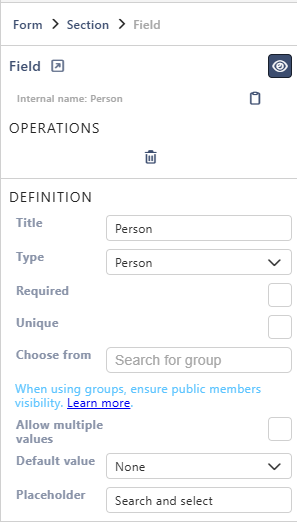
Properties
Each property is described in Field Properties. People fields have these under Definition:
| Property | Person | Group | Person or group |
|---|---|---|---|
| Title | ✓ | ✓ | ✓ |
| Type | ✓ | ✓ | ✓ |
| Required | ✓ | ✓ | ✓ |
| Unique | ✓ | ✓ | ✓ |
| Choose from | ✓ | (greyed out) | (greyed out) |
| Allow multiple values | ✓ | ✓ | ✓ |
| Default value | ✓ | ✓ | |
| Placeholder | ✓ | ✓ | ✓ |
Below them are the parts every field has: Select field instance, Behavior, Label and Field theme.
Good to know
For people fields:
- Default value: with Custom, type an email address, for example alex.morgan@contoso.com. For Person or group, a SharePoint group name also works. For several, separate them with commas. Current User fills in the person who creates the item. Default values are filled in on new items only. The Group type has no default value.
- Unique: not with Allow multiple values.
- Choose from works only for the Person type. The picker then offers only the members of that group. Use it, for example, to let people pick an approver from the Managers group.
On the form
One field of each type side by side, each named after its type:

People type at least 3 letters of a name or email address, then pick from the list. Each choice shows as a name with a picture, or with initials. The cross removes it. With Allow multiple values, people can add more names.
In view mode the names show without the cross:

Use SharePoint groups correctly
If a form uses SharePoint groups (a Group or Person or group field, or Choose from), set each group so that everyone can view its membership. Otherwise the field, workflow actions and emails may not work as expected for people who can't see the members. See Using SharePoint Groups.
Good to know
- The picker finds people in your organisation's directory, not only people who already use the site. Whether guests show up depends on your organisation's SharePoint settings.
- On an external form, people fields are hidden by default, because they could show information about your users. To change this, use People pickers behaviour in Settings → External access → External form behaviour: Hidden, Disabled or Enabled, separately for new and existing items. See External Access & Sharing.
- In the Workflow tab, a people field can decide who gets an action or an email. In an email's recipients, type
{{and pick the field. For an action's audience, use the field button next to the people box. - In a Logic condition on a Person field,
[me]means the person filling in the form.
Related: Field Properties, Layout Tab (Overview).