

Appearance
JavaScript Example: Working with Related Lists
Designer › Logic › Custom JS
This example builds an order form with a related list of order lines. The code:
- Totals the lines into a field on the order.
- Adds a first line on a new order.
- Checks that every line has a quantity.
- Locks lines that are already saved.
- Adds a button that gives a discount on all lines.
For each method used here, see Using the JavaScript API in Logic.
You need:
| Field | Type |
|---|---|
Order total (OrderTotal) | Number |
Order lines (OrderLines) | Related list |
The related list's list has the columns Title (Title, Text), Quantity (Quantity, Number) and Unit price (UnitPrice, Number). At first the related list shows only Title: show the other two columns in edit fields.
Each row of a related list is an object with the columns' internal names and an ID. Rows the user removed stay in the list with _deleted: true until the item is saved, so the code skips them. See Related lists.
Step 1: total the lines
Add a Continuous rule, so the total updates whenever a line changes, with a Custom JS step:
js
const lines = (getRelatedListFieldValue("OrderLines") || []).filter(line => !line._deleted);

const total = sum(...lines.map(line => (line.Quantity || 0) * (line.UnitPrice || 0)));

setNumberFieldValue("OrderTotal", Math.round(total * 100) / 100);
|| []covers a list with no rows yet..filter(line => !line._deleted)skips removed lines.sum(...)adds the line values. Empty values count as 0.
Step 2: add a first line on a new order
Add a Run once rule with the condition Form Mode is New, and a Custom JS step:
js
const lines = getRelatedListFieldValue("OrderLines") || [];

if (lines.length === 0) {
  insertSublistItems("OrderLines", [
    { Title: "Item 1", Quantity: 1, UnitPrice: 0 }
  ]);
}
Without the condition, the line would also be added to existing orders without lines, even when someone only views them. The check lines.length === 0 matters too: a Run once rule can run again, for example after a new item is saved without closing the form.
Rows added by code don't get the column default values set in the form. Set every value you need, as above.
Step 3: check that every line has a quantity
Add this to the Custom JS step of the Continuous rule from step 1. The error shows under the related list:
js
const missing = (getRelatedListFieldValue("OrderLines") || [])
  .filter(line => !line._deleted && !(line.Quantity > 0));

setErrorMessage(
  "OrderLines",
  missing.length > 0 ? "Every line needs a quantity greater than 0." : ""
);
While the error is shown, the order can't be saved.
Step 4: lock lines that are already saved
Saved lines have a positive ID, new ones a negative ID. Add another Custom JS step to the Continuous rule:
js
updateLinkedListItemFieldState(
  "OrderLines",
  line => line.ID > 0,
  [
    { fieldName: "Quantity", isEditable: false },
    { fieldName: "UnitPrice", isEditable: false }
  ]
);
This locks the columns for the user only. Code can still change them, as in step 5.
Step 5: a discount button
Add a Buttons widget with a Custom Button labelled Apply 10% discount, and give it this code:
js
const lines = (getRelatedListFieldValue("OrderLines") || []).filter(line => !line._deleted);

if (lines.length === 0) {
  showMessage("There are no lines to discount.", "info");
} else {
  updateSublistItems("OrderLines", lines.map(line => ({
    ID: line.ID,
    UnitPrice: Math.round((line.UnitPrice || 0) * 0.9 * 100) / 100
  })));
  showMessage("Discount applied to " + lines.length + " lines.", "success");
}
updateSublistItems changes only the columns you pass, here UnitPrice. The total from step 1 updates by itself, because the change makes the Continuous rule run again.
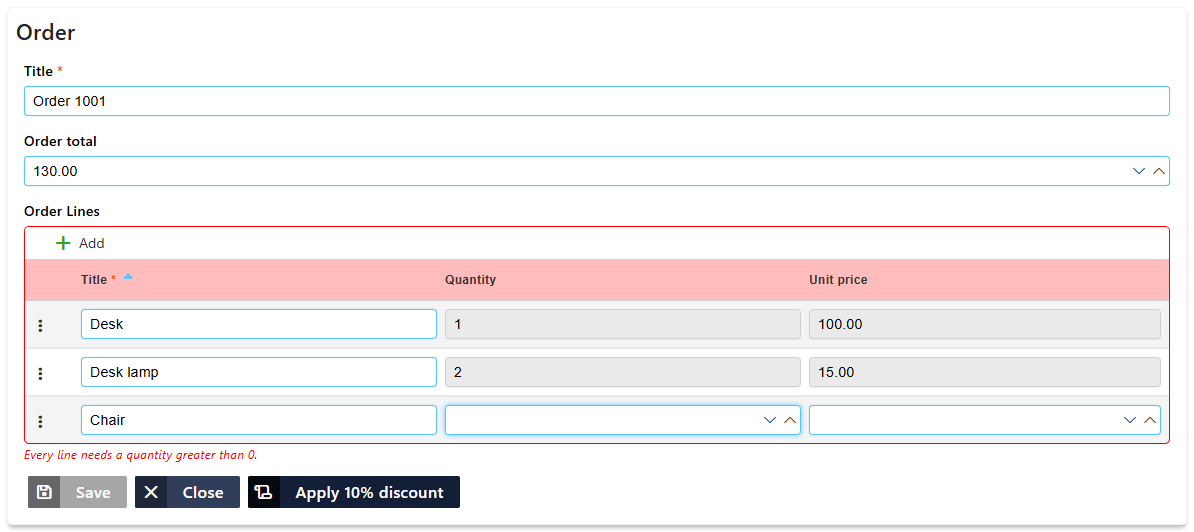
The order form with all five steps: the total, the saved lines locked, an error for the new line without a quantity, and the discount button.
Good to know
- Changes to the related list are saved to SharePoint when the item is saved.
- To remove lines, use
deleteSublistItems. - Use
setRelatedListFieldValueonly to replace all lines: every saved line you leave out is deleted when the item is saved. - If the code doesn't work, see Troubleshooting JavaScript.
Related: JavaScript Example: Data from Other Lists, JavaScript Example: Validation and Saving.