

Appearance
Lookup Fields
Designer › Layout › Fields › Lookup
A Lookup field takes its options from another SharePoint list on the same site. For example, a Department field can offer the departments from a Departments list. When someone adds a department to that list, the form offers it straight away. You don't have to change the form.
Lookup or Choice?
| Use a Choice field when | Use a Lookup field when |
|---|---|
| The options rarely change | The options change, or someone else looks after them |
| There are only a few options | There are many options |
| Only this form uses them | Several forms or lists use the same options |
See Choice Fields.
Add a Lookup field
- In the Layout tab, open Fields on the left.
- Drag Lookup into a section.
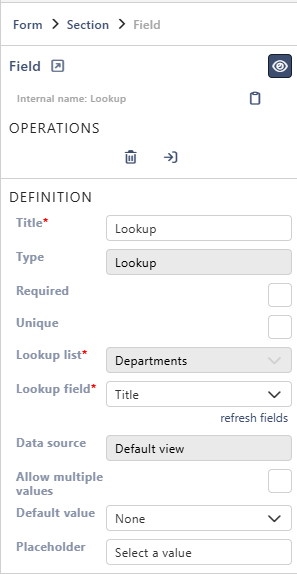
- Select the field. Under Lookup list, choose the list with the options. Or choose New list... and type a List title. The list is created, empty, when you save the form.
- Under Lookup field, choose the column people see, for example Title.
The list column is created when you save the form. After that, the Lookup list can't be changed.
Properties
Each property is described in Field Properties. The Lookup field has these under Definition:
| Property | Lookup |
|---|---|
| Title | ✓ |
| Type | ✓ (can't be changed) |
| Required | ✓ |
| Unique | ✓ |
| Lookup list | ✓ (only while the field is new) |
| Lookup field | ✓ |
| Data source | ✓ (always Default view) |
| Allow multiple values | ✓ |
| Default value | ✓ |
| Placeholder | ✓ |
Below them are the parts every field has: Select field instance, Behavior, Label and Field theme.
Good to know
For lookup fields:
- Default value: with Custom, type the ID of an item in the lookup list, for example 3. With multiple values: 1, 2, 3. You find the ID in the list's ID column.
- Unique: not with Allow multiple values.
At the top of the panel, Go to target SharePoint list opens the lookup list, so you can add or change its items.
On the form
The Lookup field of the demo form, with IT picked from the Departments list:

People open the list and pick an option. The Search box at the top finds options that contain the typed text. If the field isn't required, (None) empties it.
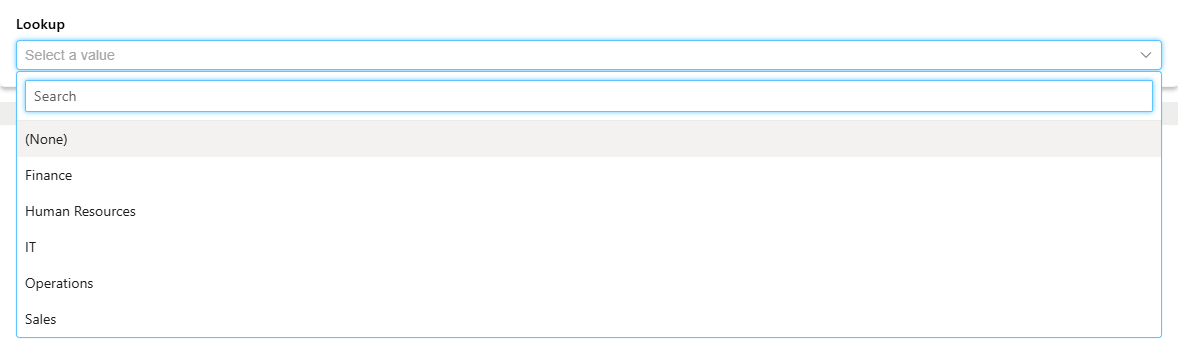
With Allow multiple values, people tick several options instead. In view mode, the field shows the picked value, and it can't be changed.
Good to know
- The default view of the lookup list decides what people see. The options follow its filter and its sort order. The Lookup field list offers only ID and the columns that are in that view. If a column is missing, add it to the default view in SharePoint, then select refresh fields.
- The lookup list must be on the same site as the form's list.
- All items of the default view are loaded, even with an item limit on the view. A very long lookup list, or many lookups on one form, can make the form slower.
- Extra columns of a lookup that were added in SharePoint (for example Department: Manager) show on the form as read-only fields. They fill in by themselves when someone picks a value.
Related: Field Properties, Choice Fields, Layout Tab (Overview).