

Appearance
License Information
Designer › Settings › Admin › License
To see your Sintel Apps licence, open any form in the designer and go to Settings → Admin → License. Select View license information.

The License Information window shows:
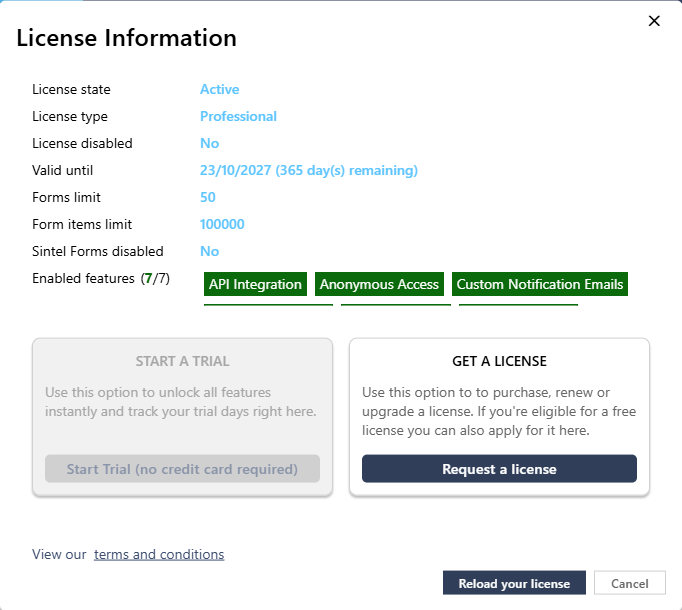
| Row | What it tells you |
|---|---|
| License state | Whether your licence is active, expired or missing |
| License type | Your plan, for example Professional or Enterprise |
| Valid until | The end date and how many days are left |
| Forms limit, Form items limit | How many forms and items your plan allows |
| Enabled features | Which optional features your plan includes |
The buttons in the window:
- Start Trial (no credit card required), in the middle: starts a trial when you have no licence yet.
- Request a license, in the middle: buy, renew or upgrade a licence.
- Reload your license, at the bottom: loads your licence again after a change.
Features that need a licence
Some settings work only if your plan includes them:
| Feature | Settings it unlocks |
|---|---|
| PDF Export | PDF Export |
| Custom Notification Emails | Outgoing email sender, see Custom Emails |
| Anonymous Access | External access, see External Access & Sharing |
| External Sharing | External sharing and the External Sharing panel in the form, see External Access & Sharing |
| Anonymous Access or External Sharing | External form behaviour, Confirmation email and Sharing invitation email |
| API Integration | Allow automated submission in a workflow action's API Integration section, so another system can run the action. See The Workflow Actions API Integration | | Data Import/Export | Include list data when you export a form configuration, see Data Import/Export |
If your plan doesn't include a feature, its settings are greyed out with a message such as "PDF Export is not available in your current license." and a link to View license information.
When the licence runs out
If the licence has a problem, the form shows a message at the top, above the status. People who fill in the form see it too, not only you. The designer doesn't show it.
| Message in the form | What it means |
|---|---|
| Your license has expired but you're in a grace period. Please contact the form owner for assistance. | The licence expired less than 7 days ago. The form still works. Renew the licence now |
| Your license is not valid. It may be Inactive, Expired or have exceeded the usage limits. Please contact the form owner for assistance. | The 7 days are over, the licence is disabled, or you have more forms than Forms limit allows. Items can't be saved |
| Failed to load license information. Some features may not work as expected. | The licence couldn't be checked, for example because of a connection problem. Reload the form |
When the list has more items than Form items limit allows, saving fails too, with the error Invalid license.
To fix it, open License Information as described above. Select Request a license to renew or upgrade, then Reload your license.
Related: Settings Tab (Overview).