

Appearance
How to Create a New List
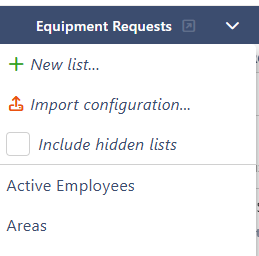
Designer › list selector › New list...
Every Sintel Apps form works on a SharePoint list. You don't need to create the list in SharePoint first. The designer creates it for you when you save the new form.
Create the list
Open the Sintel Apps designer on your site.
At the top right, select the arrow next to the list name. This is the list selector.
Select New list... It's greyed out if you aren't allowed to create lists on the site.
In Launch Your New Form, type a name for the list, for example Field Examples. It becomes the name of the SharePoint list and of the form.
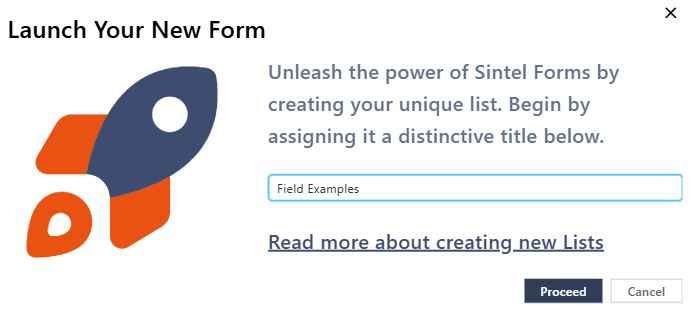
Select Proceed.
The designer opens with an empty form and one section. A message at the top says that the list doesn't exist yet:

Add fields and save
- Drag fields from Fields on the left into the section. The Existing tab already holds the standard columns of every list, such as Title and Created. See Layout Tab (Overview).
- Select Save at the top right.
Sintel Apps now creates the SharePoint list, with a column for each field. It also adds a few columns of its own, for the workflow and external access. The message at the top disappears. Save & Exit, under the arrow next to Save, works the same way.
Important: until you select Save, nothing is created in SharePoint. If you close the page first, the new list and its form are lost.
The result
- The list appears in the list selector and in the site's Site contents.
- When people select New in the list, or open an item, they see your Sintel Apps form. This works while Sintel Forms is on in the Settings tab. It's on by default.
- You can keep changing the form. Each Save updates the list too.
Good to know
- The name must not be empty. No other list or library on the site may have the same name. Capitals and spaces don't count, so Field Examples and fieldexamples are the same name. Otherwise the dialog shows Title cannot be empty. or A list with this name already exists.
- The list's web address is made from the name. A short, plain name works best.
- To build a form for a list that already exists, pick that list in the list selector. Select Include hidden lists to see hidden lists too. Document libraries aren't in the list. The list's own SharePoint forms are replaced when you save the form.
- To start from another form's design, use Import configuration... in the same menu. See Importing and Exporting Form Configuration.
Related: Layout Tab (Overview), Settings Tab (Overview).