

Appearance
Enhanced Rich Text Editor
Designer › Layout › Fields › Enhanced rich text
An Enhanced rich text field is a small text editor in the form. Besides bold, italic and lists, people can add headings, fonts and colours, links, tables, pictures and videos. Use it for content that needs more than formatted text, for example setup instructions with a picture of the equipment.
For notes and comments, a Multiline text or Rich text field is simpler, and easier to use in reports and other systems.
Add an Enhanced rich text field
- In the Layout tab, open Fields on the left.
- Drag Enhanced rich text into a section.
- Select the field. Its properties appear in the panel on the right.
The list column is created when you save the form. The field has the same properties as the other multiline text types. See Text Fields.
On the form
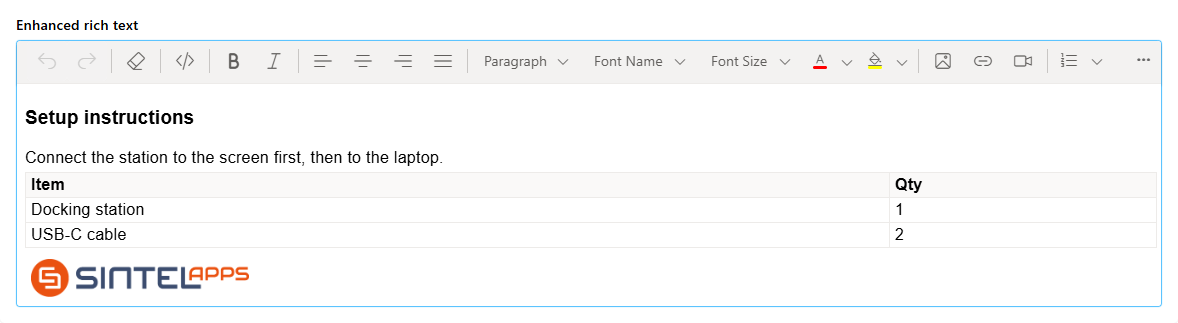
The toolbar shows while the field can be edited. It has everything from the Rich text toolbar (undo and redo, clear all, source code, bold and italic, alignment, lists, indent and outdent), plus:
- Formats (paragraph and headings), font name, font size, font colour and background colour
- Image: a picture from a web address
- Link
- Video: a video file from a web address, such as a link to an .mp4 file. Embed codes, for example from YouTube, are removed when you insert them
- Table
When the field is narrow, the toolbar wraps. Select ... at the end of the toolbar to show all its buttons.
In view mode, the content shows with all its formatting, tables and pictures, without the toolbar.
Pasted pictures
People can also paste a picture straight into the editor, for example a screenshot. Sintel Apps stores pasted pictures for you:
- When you save a form design with an Enhanced rich text field, Sintel Apps creates the library Sintel Apps Images on the site, if it isn't there yet. It is hidden, and one library serves all forms on the site.
- A pasted picture is uploaded to this library when the item is saved, in a folder for the form. The field keeps a link to it.
- People who fill in the form must be able to add files to this library. If the upload fails, the form shows An error occurred while uploading an image which was pasted into the form. The usual cause is missing permissions to the library. Ask the site owner to give people access.
Good to know
- The field stores its content as HTML. Reports, exports and other systems get the HTML, not plain text.
- Don't use the field for values you want to filter on or calculate with.
- Changing the Type to Rich text or Multiline text removes formatting and pictures from existing items. If the field is already saved, the designer asks you to confirm.
Related: Text Fields, Field Properties, Layout Tab (Overview).