

Appearance
Using the Same Field More Than Once
Designer › Layout › Existing › On the form
A field can be on the form more than once. Each place is a copy of the same field. All copies show and save the same value, in the same list column. For example:
- Requested by at the top of the form, and again, read-only, in an Approval section.
- The same field in two tabs, so people see it whichever tab they're on.
Add another copy
- In the Layout tab, open Existing on the left.
- Under On the form, find the field. A field you've just added and not saved yet is under New unsaved.
- Drag it into another section or column.
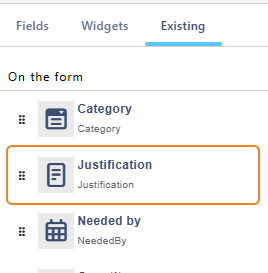
To copy a whole section with its fields, use Clone › Link to existing fields. See Sections and Tabs.
What each copy can change
Select a copy on the form to see its properties. The Field and Definition parts belong to the field itself, so they're the same for all copies. Everything from Select field instance down can be different for each copy:
- Behavior: for example, read-only in one place and editable in another.
- Label: its own text, position, width and tooltip.
- Field theme: its own fonts and colours.
Previous and Next under Select field instance move between the copies. They're greyed out when the field is on the form only once.
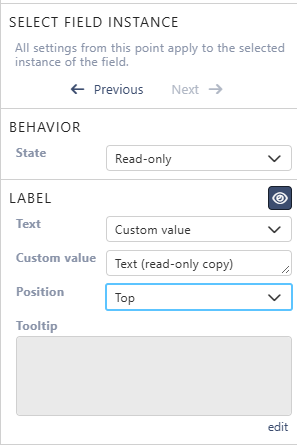
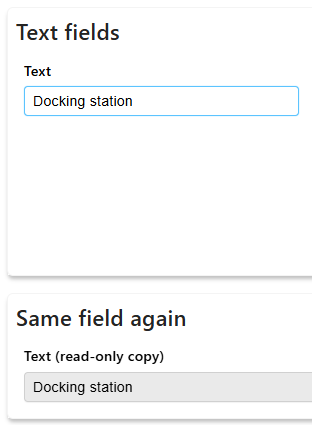
In the example, the field Text is on the form twice. The second copy is read-only and has its own label. Both show the same value:
What applies to all copies
- The value. There is one value. A change in one copy shows in the others.
- Rules. Steps in the Logic tab, such as Field visibility, Field state, Field value or Field custom error, change every copy at once. A Field state step overrides each copy's own Behavior state.
- Hiding. The eye icon next to Field hides every copy. To hide only one copy, hide its section.
- Mandatory. If one visible copy is mandatory, the item can't be saved without a value. A field that is Required is mandatory in every copy.
Remove a copy
Select the copy and choose the bin icon › Delete from layout. Only that copy goes. The other copies, the list column and its data stay. For a new field that isn't saved yet, the bin removes the copy directly.
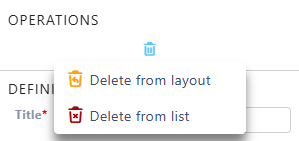
Delete from list removes every copy, the list column and its data.
Good to know
- Widgets, such as Buttons or HTML, can also be on the form more than once. They have the same Select field instance part.
- Fields inside a related list can't have copies.
- Clone › Link to existing fields names the new section after the original, followed by - Copy. Its copies start with the same label, behavior and theme as the originals.
Related: Field Properties, Layout Tab (Overview).