

Appearance
JavaScript Example: Data from Other Lists
Designer › Logic › Custom JS
This example uses data from other SharePoint lists to help the user fill in a form:
- Cascading dropdowns: the City dropdown shows only the cities of the selected Country.
- Details from another list: when the user picks a project, the form fills in its project manager.
- Autocomplete: suggestions from a list while the user types.
For each method used here, see Using the JavaScript API in Logic.
You need these lists on the same SharePoint site:
| List (internal name) | Columns (internal names) |
|---|---|
Countries (Countries) | Title |
Cities (Cities) | Title; CountryLookup, a lookup to Countries; PostalCode (Text) |
Projects (Projects) | Title; ProjectManager (Person) |
and these fields on your form:
| Field | Type |
|---|---|
Country | Lookup to Countries |
City | Lookup to Cities |
Project | Lookup to Projects |
ProjectManager | Person |
DeliveryCity | Text |
DeliveryPostalCode | Text |
Step 1: cascading dropdowns
Add a Run once rule with a Custom JS step:
js
cascadingDropdowns("Country", "City", "CountryLookup");The three names are:
- The parent field on the form (
Country). - The child field on the form (
City). - The column in the child's list (Cities) that points to the parent's list (
CountryLookup).
City shows no options until a country is chosen, and then only that country's cities. If the user picks another country, a city that doesn't fit is cleared.
If your code sets the country, for example with setValue, the city isn't cleared. Add setValue("City", undefined); after it.
Step 2: fill in details from another list
When the user picks a project, look up its manager in the Projects list. Use a Continuous rule, so the code reacts to the change, and hasFieldChanged, so it asks the server only when Project changes, not after every change on the form:
js
if (hasFieldChanged("Project")) {
  const project = getValue("Project");

  if (!project) {
    setUserFieldValue("ProjectManager", undefined);
  } else {
    const requestedProjectId = project.ID;

    getListItems({
      listInternalName: "Projects",
      search: { fieldInternalName: "ID", value: requestedProjectId, operator: "equals" },
      itemsLimit: 1,
      returnedFieldInternalNames: ["ID", "ProjectManager"]
    })
      .then(items => {
        // Ignore the result if the user picked another project in the meantime
        const currentProject = getValue("Project");
        if (!currentProject || currentProject.ID !== requestedProjectId) return;

        const manager = items.length > 0 ? items[0].ProjectManager : undefined;
        setUserFieldValue("ProjectManager", manager ? [manager.emailAddress] : undefined);
      })
      .catch(error => console.log("Couldn't load the project", error)); // the form already shows an error
  }
}
How it works:
getValue("Project")returns the chosen item as{ ID, value }. TheIDfinds it in the Projects list.getListItemswaits for the server, so the result is handled in.then(...). If the user picks another project in the meantime, the old result is ignored.itemsLimit: 1andreturnedFieldInternalNameskeep the request small and fast.- A person column comes back as an object with
displayNameandemailAddress.setUserFieldValueneeds the email address.
Step 3: autocomplete
Suggest cities while the user types in Delivery city, and fill in the postal code when they pick one. Add this to the Custom JS step of the Run once rule from step 1:
js
autocomplete(
  "DeliveryCity",
  (typedText) => {
    if (!typedText) return Promise.resolve([]);
    return getListItems({
      listInternalName: "Cities",
      search: { fieldInternalName: "Title", value: typedText, operator: "beginswith" },
      itemsLimit: 10,
      returnedFieldInternalNames: ["Title", "PostalCode"]
    });
  },
  {
    textProperty: "Title",
    valueProperty: "Title",
    minLength: 2,
    onSelect: (city) => {
      if (city) setTextFieldValue("DeliveryPostalCode", city.PostalCode || "");
    }
  }
);
How it works:
- After the user types 2 characters (
minLength), the function gets the typed text and loads up to 10 matching cities. textProperty: "Title"shows each city's title in the suggestions.valueProperty: "Title"puts it into the field when the user picks one.onSelectgets the whole city, so you can use its other columns.
The function must have exactly one parameter, like (typedText) => …. See autocomplete.
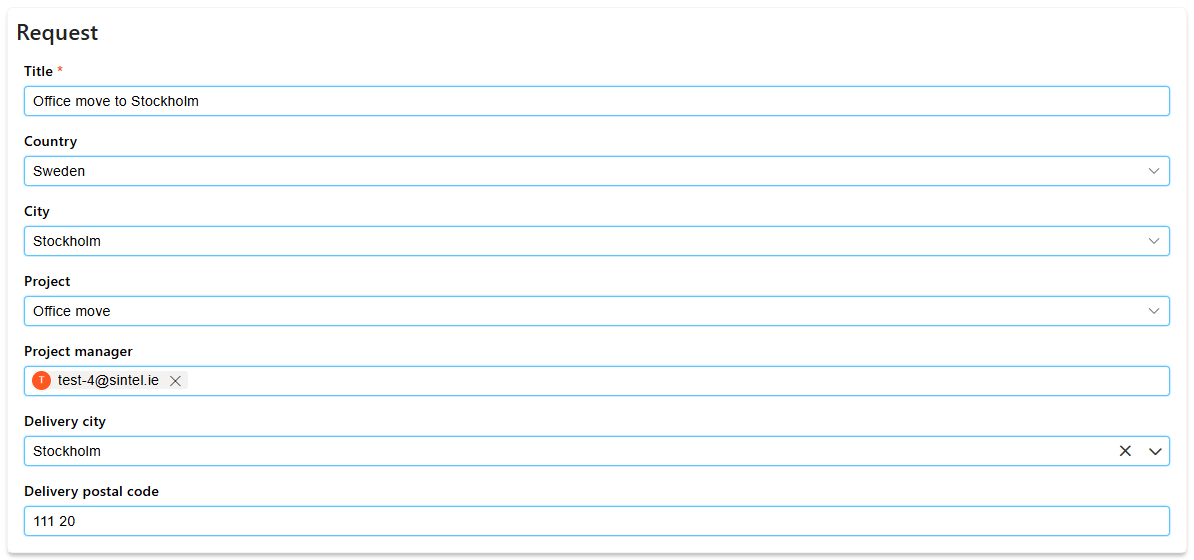
The form after the three steps:
Also possible: limit a dropdown to some items
To show only some items in a lookup, load them and pass them to updateLookupOptions. For example, only countries whose title starts with "S":
js
// Run once rule
getListItems({
  listInternalName: "Countries",
  search: { fieldInternalName: "Title", value: "S", operator: "beginswith" },
  returnedFieldInternalNames: ["ID", "Title"]
})
  .then(items => updateLookupOptions("Country", items.map(item => ({ ID: item.ID, value: item.Title }))))
  .catch(error => console.log("Couldn't load the countries", error));
Good to know
- When
getListItemsfails, for example because of a wrong list name, the form shows an error message to the user. In.catch(), only log the error, or the user sees two messages. - If the code doesn't work, see Troubleshooting JavaScript.
Related: JavaScript Example: Working with Related Lists, Lookup Fields.