

Appearance
How to Build Common Workflow Patterns in Sintel Apps
Designer › Workflow
Five patterns cover most business processes. Each one lists the statuses and actions to create. To learn how to create them, see Workflow Statuses and Workflow Actions.
For every action in these patterns, set the Audience. A new action is Public: anyone who can edit the item can do it. Approve and Reject actions should go to Specific users.
To use a people field of the form, such as Created By, select the field button next to the audience box and pick the field. It shows with its internal name, for example Created By as {{Author}}.
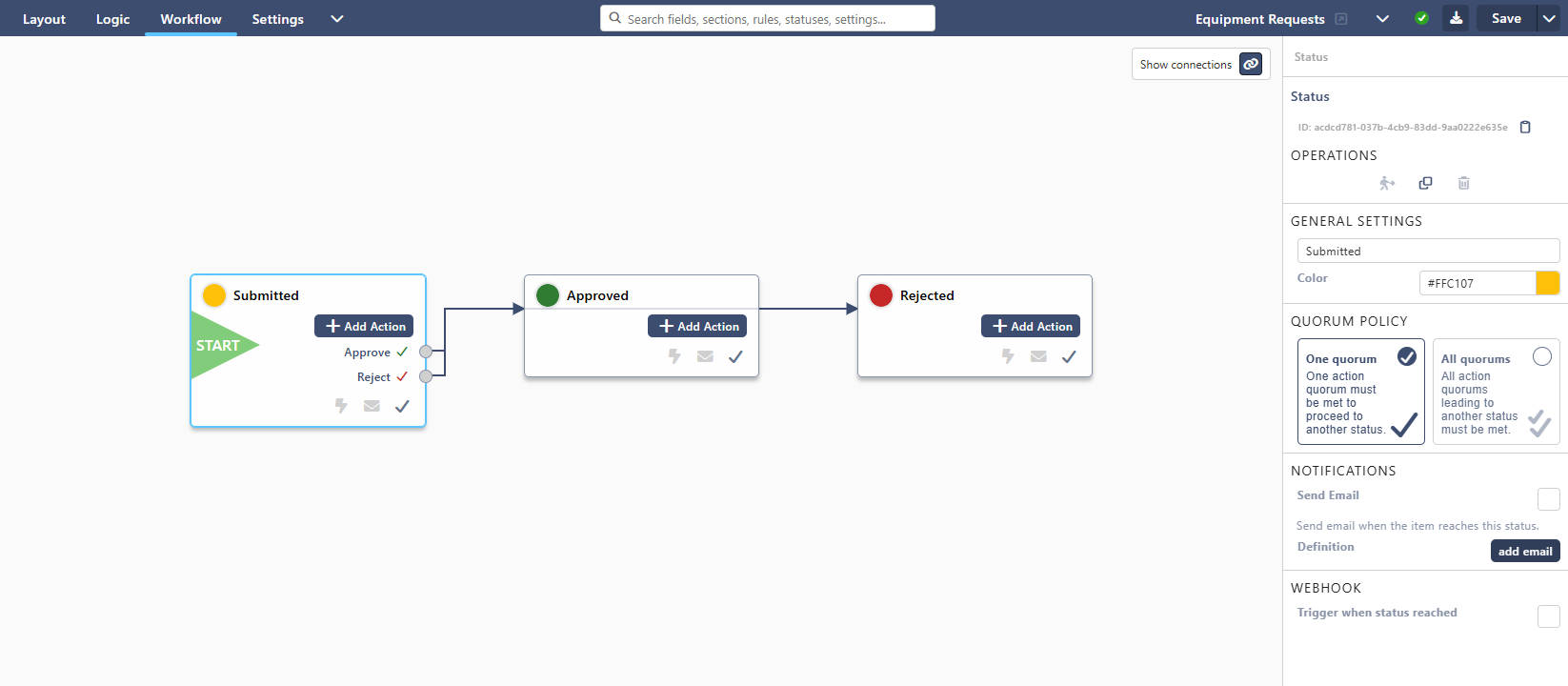
1. Simple approval
One person or team approves or rejects. For example: leave requests, small purchases, access requests.
| Status | Actions | Audience |
|---|---|---|
| Draft (initial) | Submit → Submitted | Created By (the person who created the item) |
| Submitted | Approve → Approved; Reject → Rejected | A group, for example Approvers |
| Approved, Rejected | none: the process ends |
On Reject, turn on Show confirmation popup with Comment set to Required, so the approver gives a reason.
2. Approval in levels
Several people approve one after the other, for example the manager and then finance.
| Status | Actions | Audience |
|---|---|---|
| Draft (initial) | Submit → Manager Review | Created By |
| Manager Review | Approve → Finance Review; Reject → Rejected | {{Manager}} |
| Finance Review | Approve → Approved; Reject → Rejected | The Finance group |
There is no built-in "manager". Add a Person field Manager to the form, and pick it in the audience with the field button. It shows as {{Manager}}. The requester, or a default value, fills it in.
3. Approval by several people at once
A committee or board decides together.
| Status | Actions | Audience | Quorum |
|---|---|---|---|
| Draft (initial) | Submit → Review | Created By | |
| Review | Approve → Approved | The committee members or their group | Fixed number 2, or Everyone |
| Review | Reject → Rejected | The same | Fixed number 1 |
With Fixed number 2, any two members move the item. With Everyone, all of them must approve. Everyone works only with Specific users. See Quorum.
4. Approval that depends on a value
Large amounts need a director, small ones don't. For example: above £10,000, the director approves too. The form has a Number field Amount.
| Status | Actions |
|---|---|
| Draft (initial) | Submit → Manager Review |
| Manager Review | Approve (High Value) → Director Review; Approve (Low Value) → Approved; Reject → Rejected |
| Director Review | Approve → Approved; Reject → Rejected |
Then, in the Logic tab, show only the right approve action with two rules:
| Rule | Condition | Steps |
|---|---|---|
| High value | Field Value Check: Amount is greater than 10000 | Workflow Action Approve (Low Value): Hidden |
| Low value | Field Value Check: Amount is less than or equal to 10000 | Workflow Action Approve (High Value): Hidden |
Use is less than or equal to in the second rule. With is less than, an amount of exactly 10,000 matches neither rule, and both actions show.
In the form, at Manager Review:
- Amount £15,000: only Approve (High Value) shows, and the item goes to Director Review.
- Amount £5,000: only Approve (Low Value) shows, and the item goes straight to Approved.
Tip: to show both as just Approve, add a Buttons widget with two action buttons, one for each action. On each button, turn off Inherit properties from action and set the label to Approve. The Actions menu still lists the actions by their real names. To show only the buttons, set Actions menu behavior to Always hidden (see Actions Menu Behavior).
5. Send back for changes
The reviewer returns the item to the requester instead of rejecting it.
| Status | Actions | Audience |
|---|---|---|
| Draft (initial) | Submit → Submitted | Created By |
| Submitted | Approve → Approved; Send back → Draft | Approvers |
On Send back, require a comment, so the requester knows what to change. The comment shows in the Workflow History. The requester changes the item and selects Submit again.
Good to know
- Keep the number of statuses small. Each status should be a real stage someone waits for.
- Test each path with a test item. Do every action yourself, or use a test account in the audience.
- An email on a status tells people the item has arrived there. See Workflow Email Notifications.
Related: Workflow Tab (Overview), Workflow Actions, Workflow Statuses.