

Appearance
Number, Currency & Percentage Fields
Designer › Layout › Fields › Number, Currency, Percentage
Number fields collect amounts and counts. There are three types:
| Type | Use it for | Example |
|---|---|---|
| Number | Counts and measurements | Quantity: 12 |
| Currency | Money, shown with a currency symbol | Unit Price: $1,250 |
| Percentage | Shares and rates, shown with % | Discount: 75% |
Add a number field
- In the Layout tab, open Fields on the left.
- Drag Number, Currency or Percentage into a section.
- Select the field. Its properties appear in the panel on the right.
The list column is created when you save the form.
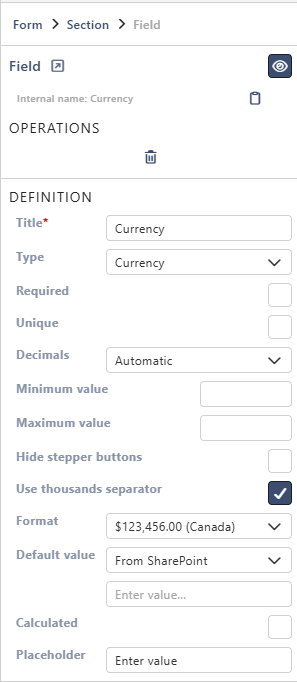
Properties
Each property is described in Field Properties. Number fields have these under Definition:
| Property | Number | Currency | Percentage |
|---|---|---|---|
| Title | ✓ | ✓ | ✓ |
| Type | ✓ | ✓ | ✓ |
| Required | ✓ | ✓ | ✓ |
| Unique | ✓ | ✓ | ✓ |
| Decimals | ✓ | ✓ | ✓ |
| Minimum value | ✓ | ✓ | ✓ |
| Maximum value | ✓ | ✓ | ✓ |
| Hide stepper buttons | ✓ | ✓ | ✓ |
| Use thousands separator | ✓ | ✓ | ✓ |
| Format | ✓ | ||
| Default value | ✓ | ✓ | ✓ |
| Calculated | ✓ | ✓ | ✓ |
| Placeholder | ✓ | ✓ | ✓ |
Below them are the parts every field has: Select field instance, Behavior, Label and Field theme.
Good to know
For number fields:
- Minimum value, Maximum value: a value outside the range shows an error under the field, and the item can't be saved. For Percentage, type the percent: 50 for 50%.
- Decimals starts on Automatic, which shows as many decimals as the number has.
- Format exists only for Currency. It starts with your site's regional setting. Change it for another currency.
- Default value: with Custom, type the number. For Percentage, type 50 for 50%. With Query Parameter, the link takes a number with a dot for decimals, and for Percentage a fraction:
form_Discount=0.5for 50%.
On the form
One field of each type side by side, each named after its type:

People type a number, or use the arrows at the right of the box. Hide stepper buttons removes the arrows. For Percentage, people type 75 for 75%.
Good to know
- SharePoint stores a percentage as a fraction, so 75% is saved as 0.75. In a rule condition, 50% is 0.5. In the designer's own boxes, such as Minimum value, Default value and the Logic step Field value, you type 50.
- A calculated number field can compute a total, for example Quantity times Unit Price.
Related: Field Properties, Layout Tab (Overview).