

Appearance
Understanding Steps
Designer › Logic › Steps
Steps decide what happens. Put them into Steps when conditions are met, Steps when conditions are NOT met, or both.
Drag a step from the Build panel (Steps) into the rule, then set it up in the Properties panel.
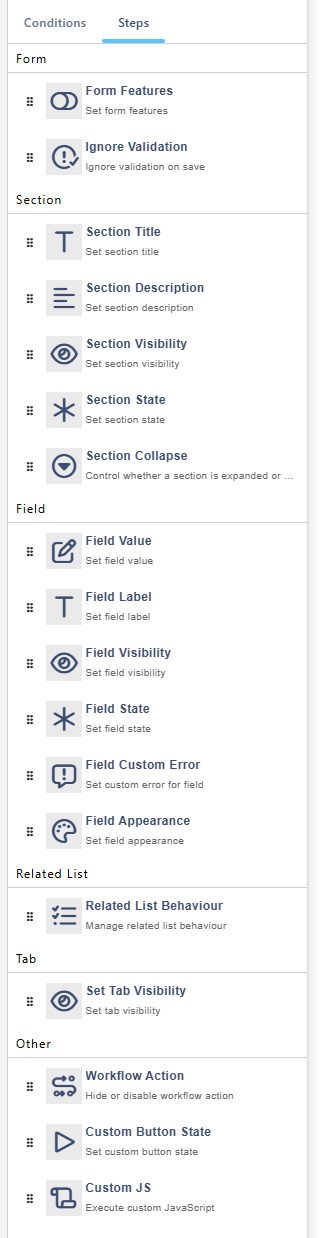
Each time the rules run, the form starts from the settings in the Layout tab. So you add the opposite step to the other area only when you want something different from that setting. See How rules run.
Form
Form Features
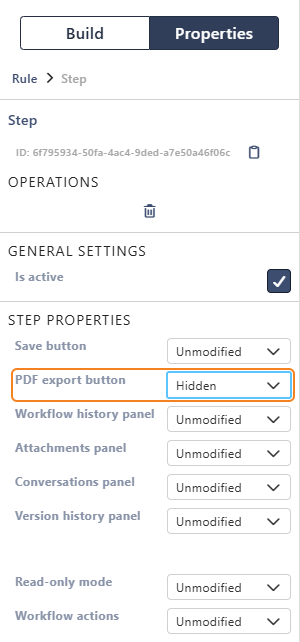
Controls parts of the whole form. For each row, choose Unmodified, Available, Disabled (shown but can't be used) or Hidden:
- Save button
- PDF export button
- Workflow history panel
- Attachments panel
- Conversations panel
- Version history panel
- Workflow actions
Read-only mode has Unmodified, On and Off. With On, fields and attachments can't be changed. The Save button and workflow actions stay, unless you hide them.
For example, lock the whole form once the status is Approved, or hide the PDF export button until then.
Ignore Validation
While the rule applies, the Save button saves even if some fields have errors or required fields are empty. The step has no settings.
For example, allow saving a draft while the status is Draft.
Good to know:
- A required field that had a value and was cleared still blocks saving.
- Workflow action buttons aren't affected. Each action has its own Ignore validation setting.
Section
Section Title
Changes the section's title, for example Project Details or Purchase Details depending on the request type. The title is plain text: field tokens such as {{Title}} aren't replaced.
Section Description
Changes the text under the section title. It can show field values: type a field token such as {{Title}}, as in the HTML widget.
Section Visibility
Visible or Hidden (also for tabbed sections).
Section State
Optional, Mandatory or Read-only. Fields set to Inherit from section (the default) follow it.
Section Collapse
Collapse or Expand a collapsible section. Use it in a Run once rule. In a Continuous rule, the section is collapsed or expanded again after every change.
Field
Field Value
Sets a field's value. The Assignment mode options depend on the field type:
| Field type | Assignment modes |
|---|---|
| Text, Number | Direct (a fixed value), From field (copy another field), Formula (as in calculated fields) |
| Choice | Direct |
| Lookup, Person, Yes/No | Direct, From field |
| Date | Relative - from now, Relative - from field, with an Offset in hours, days, weeks or months |
In Direct mode you pick the value: an option, a lookup item, a person or Yes / No. You type it only for text and number fields.
From field offers only fields whose value fits:
| Field to set | Can copy from |
|---|---|
| Text | Text, number, choice or date |
| Multiline text, rich text | Text, or a multiline field with the same or less formatting (Multiline text → Rich text → Enhanced rich text) |
| Number | Number |
| Yes/No | Yes/No |
| Lookup | Lookup, both with or both without multiple values |
| Person or group | The same people type, both with or both without multiple values. Person or group also takes Person and Group |
Hyperlink, Picture and related lists can't be set with this step. Use setValue in a Custom JS step.
For example, in a Run once rule with the condition Form Mode = New, set Due date to 14 days from now.
In a Continuous rule, Field Value sets the value again after every change, so users can't change that field while the conditions are met. To set a value once, use Run once or the Field Value Changed condition.
Field Label
Changes the field's label, for example Booking Reference instead of Reference. The label is plain text: field tokens aren't replaced.
Field Visibility
Visible or Hidden.
Field State
Inherit from section, Mandatory, Optional or Read-only.
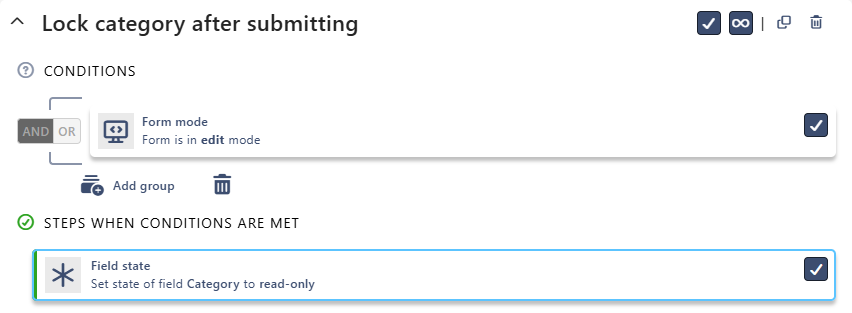
For example, this rule makes Category read-only when an existing item is opened for editing. People choose the category when they create a request, and can't change it later:

Field Custom Error
Shows your error message under the field. While it's shown, the form can't be saved (unless Ignore Validation applies). Works on visible fields and on the Attachments widget. The message is plain text: field tokens aren't replaced.
For example, this rule shows an error under Quantity when someone orders more than 20 items:
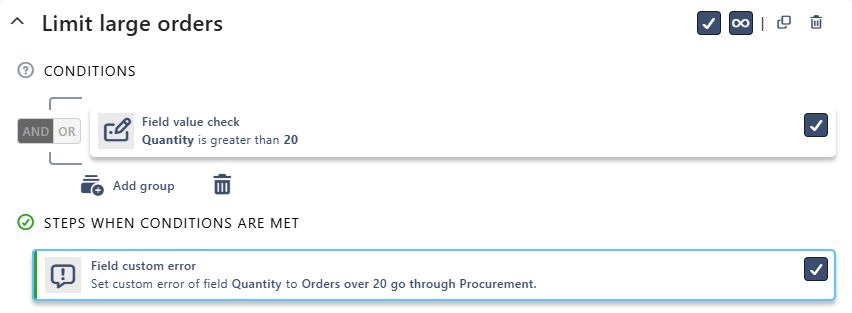
In the form, the error appears as soon as the quantity is over 20. The item can't be saved until the quantity is 20 or less.
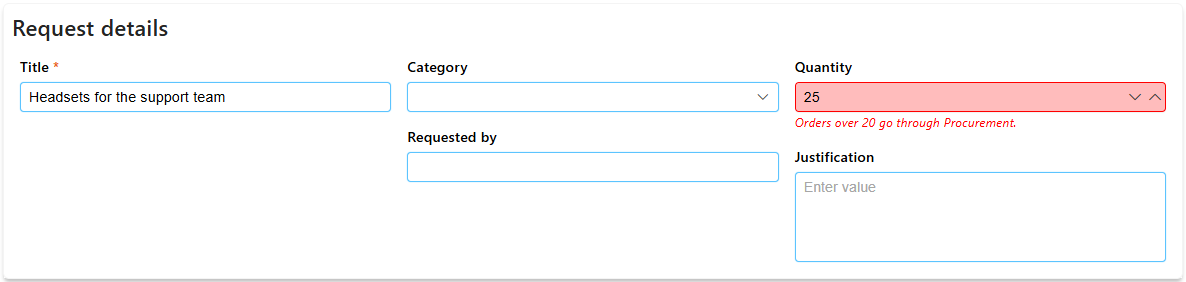
Several Field Custom Error messages for the same field are all shown. For other steps, the later one wins, see How rules run.
Field Appearance
Changes the label's font, size and colour, and the colour of the field's body.
Related List
Related List Behaviour
Controls Adding, Editing and Deleting rows of a related list. For each, choose Unmodified, Revert to default (the related list's own setting from the Layout tab) or Disabled. For example, stop changes to order lines once the order is submitted.
Tab
Set Tab Visibility
Shows or hides a tab: Visible or Hidden. For example, show the Finance tab only to the Finance group.
Other
Workflow Action
Sets a workflow action to Unmodified, Available, Disabled or Hidden. For example, show Approve only to the Approvers group.
Custom Button State
Sets buttons from the Buttons widget to Visible, Hidden or Disabled. You can pick several buttons.
Custom JS
Runs your JavaScript, see Using the JavaScript API in Logic.
Related: Logic Tab (Overview), Understanding Conditions.