

Appearance
Admin Panel and App Permissions
Admin panel › App Permissions
The Admin panel is where you check and set up Sintel Apps for your whole organisation, not for one form. Open it at https://app.sintelapps.com/admin and sign in with your work account.
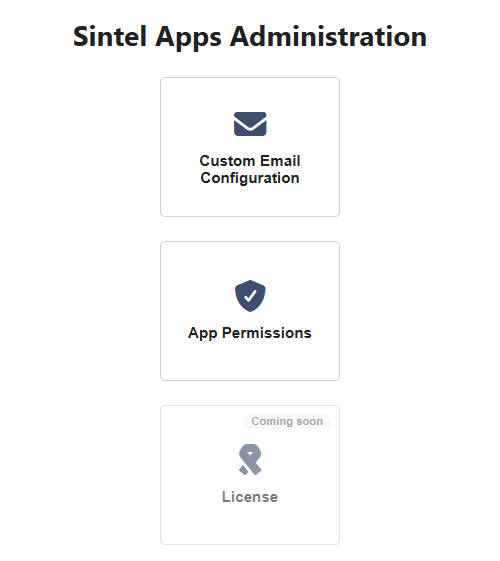
| Tile | What it's for |
|---|---|
| Custom Email Configuration | Send Sintel Apps emails from your own mailbox. See Custom Emails |
| App Permissions | Check that your organisation has given Sintel Apps the permissions it needs (below) |
| License | Not available yet |
App Permissions
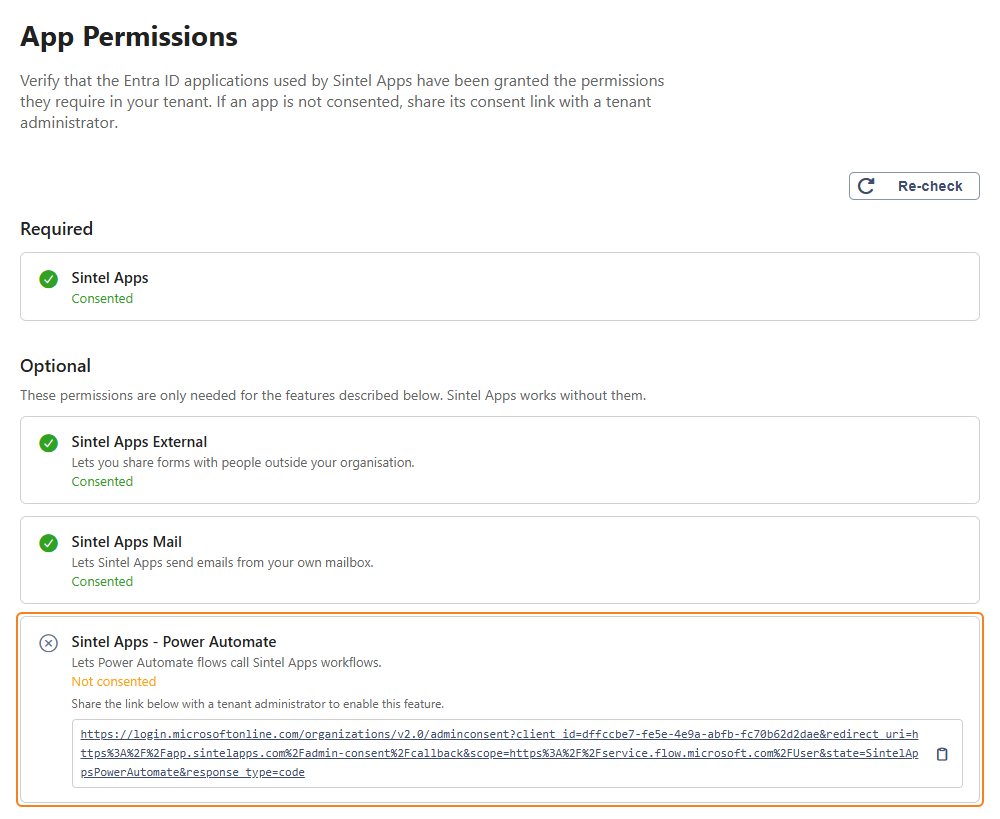
Sintel Apps works through Microsoft Entra ID applications. Each one needs your organisation's consent once. A tenant administrator approves it on a Microsoft page. App Permissions shows which ones have it.
| App | Needed for | Without it |
|---|---|---|
| Sintel Apps (Required) | Everything: the designer and the forms | Sintel Apps doesn't work. Messages say API consent is required |
| Sintel Apps External (Optional) | Sharing forms with people outside your organisation. See External Access & Sharing | In the designer, external access is greyed out with a note |
| Sintel Apps Mail (Optional) | Sending emails from your own mailbox. See Custom Emails | The email configuration page warns that the app isn't consented, and so does the designer when a form uses your own mailbox |
| Sintel Apps - Power Automate (Optional) | Webhooks that start Power Automate flows. See Configuring Power Automate Webhook | Webhooks to Power Automate flows aren't sent, and no message is shown |
Each app shows Consented, Not consented or Could not verify permissions (Checking permissions… while the page loads).
Give the consent
- On App Permissions, find the app that shows Not consented.
- Copy the link below it with the copy button.
- Send the link to a tenant administrator of your organisation. Which Microsoft 365 roles can approve it is set by Microsoft. Usually it's a Global Administrator.
- The administrator opens the link, signs in, reviews the permissions on the Microsoft page and accepts. A page Consent granted confirms it.
- Back on App Permissions, select Re-check. The app now shows Consented.
If something goes wrong, the page says Consent failed! with an error code from Microsoft. Try again, or contact Sintel support with the code.
If Sintel Apps says "Insufficient Permissions"
The message Sintel Apps does not have all the permissions it requires to function means that a consent is missing. Open App Permissions as above, and send the consent link of the app marked Not consented to your tenant administrator.
Related: Custom Emails, External Access & Sharing, Configuring Power Automate Webhook.