

Appearance
Using a Form
A list with a Sintel Apps form › New, or an item
When a list has a Sintel Apps form, it opens instead of the standard SharePoint form. That happens when someone selects New in the list, and when they open an item. This article shows what people see and do in the form. It's the same for every form, but each form shows only the parts its designer turned on.
The form owner turns the Sintel Apps form on or off for a list in the designer, with the Sintel Forms switch under Settings → Features. When it's off, SharePoint's own forms are used.
View mode and edit mode
Opening an item shows it in view mode. People can read it, but not change it.
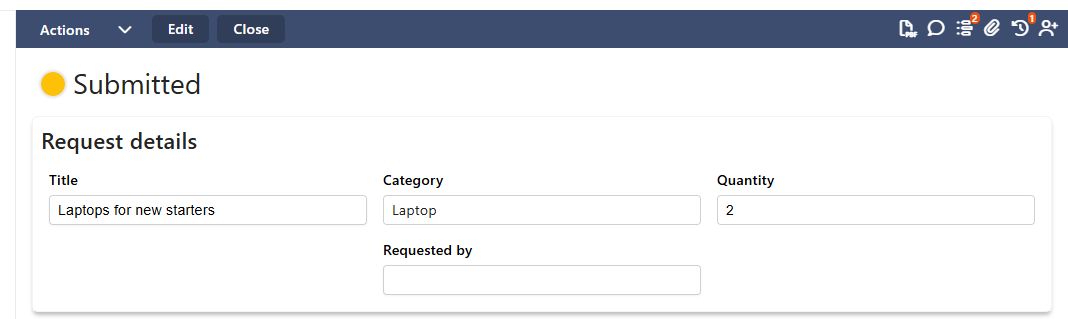
Select Edit to change the item. If you can't edit it, Edit is greyed out, with the message You do not have permissions to edit this form.
In edit mode, and for a new item, the fields can be changed and the bar shows Save and Close:
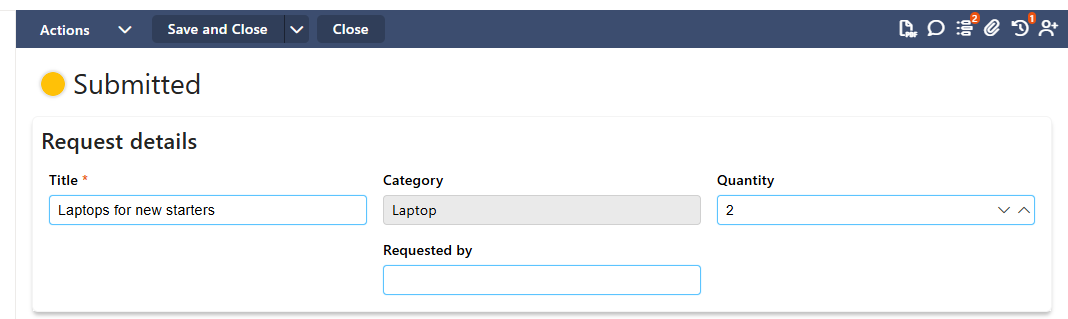
Save and close
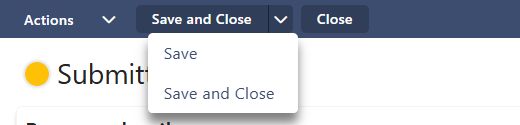
- Save and Close saves the item and closes the form.
- The arrow next to it also offers Save, which saves and keeps the form open.
- Close closes the form. If there are unsaved changes, the form asks first: There are unsaved changes on this form. Are you sure you want to exit?
A field with a red star is required. If something is missing or wrong, the field shows an error and the item isn't saved until it's fixed.
Where people go after saving or closing is set by the form. See After save/action redirect to and After close redirect to. A form can also show a confirmation screen after saving.
The status and the Actions menu
If the form has a workflow, its current status shows at the top, in its colour, for example Submitted. The Actions menu at the top left lists what you can do next, for example Approve or Reject. Doing an action saves the item and moves it on. See Workflow Tab (Overview).
The icons on the right
Each icon opens a panel. A number on an icon shows how many there are. On Version History, it's the item's current version. Icons appear only when the form uses them, and some only after the item is saved.
| Icon | Opens | More |
|---|---|---|
| Export PDF | A PDF of the item | PDF Export |
| Conversations | Comments about the item, with @mentions | Conversations |
| Version History | Earlier versions of the item and what changed | Version History Widget |
| Attachments | The item's files | Attachments |
| Workflow History | The statuses the item has been through, and who did each action | Workflow History Widget |
| External Sharing | The people outside your organisation who can open the item | External Access & Sharing |
Good to know
- If someone else saved the item while you had it open, saving can show The form has already been altered by someone else. with Reload form. See Concurrent Access.
- On a form for anonymous people, the bar shows Save only (no Close), and there is no Conversations, Version History, Workflow History or External Sharing.
- The form owner can hide or disable Save, the Actions menu and most icons with rules in the Logic tab, so a form can show fewer of them than described here.
Related: Settings Tab (Overview), Workflow Tab (Overview).