

Appearance
Workflow Actions – Configuration and Settings
Designer › Workflow › an action on a status card
An action moves an item from one status to the next. For example, Approve moves a request from Submitted to Approved. People find the actions of the item's current status in the Actions menu at the top of the form. You decide who can do each action, whether the form asks for a confirmation, and where people go next.
For the whole workflow, see Workflow Tab (Overview).
Add an action
- In the Workflow tab, find the status the item is in before the action, for example Submitted.
- Select Add Action on its card.
- Select the new action on the card. Its properties appear in the panel on the right.
- Give it a name and a Target status, then set the other parts below.
- Save the form.

Operations
At the top of the panel, you can move the action up or down, clone it, or delete it. The order is the order in the Actions menu.
General Settings
| Setting | What it does |
|---|---|
| Name (the first box) | The name people see in the Actions menu, for example Approve. Use a verb |
| Target status | The status the item moves to. Every action needs one |
| Icon | The icon next to the name, a check mark to start with |
| Tooltip | A hint when people point at the action |
Validation
Ignore validation lets people do the action even when the form has errors, for example a missing required field. Without it, the action is greyed out until the errors are fixed. Use it for actions such as Cancel request.
Audience
Who can do the action. People outside the audience don't see it.
- Public: every SharePoint user who can edit the item. With Include external users, also external users of the form (see External Access & Sharing).
- Specific users: only the people and SharePoint groups you add under Action visible to following users. Type a name to find people and groups. Select the field button next to the box to add a people field of the form, for example Line manager or Created By.
- Turn on Participants of previous actions to also let the people whose action moved the item into this status do it.
Important: a new action is Public. For approvals, choose Specific users, or anyone who can edit the item can approve it.
Quorum
How many people must do the action before the item moves on:
- Fixed number: the number in People needed. For example, with five approvers and People needed 2, any two approvals move the item.
- Everyone: every person in the audience must do it. This works only with Specific users.
Until the quorum is reached, the item stays in its status. Each person can do the same action only once in a status.
Confirmation
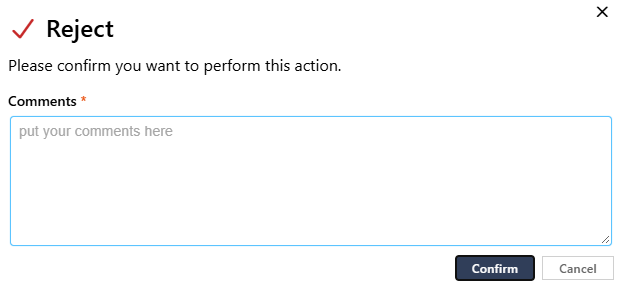
Show confirmation popup asks people before the action runs. You can add:
| Setting | What it does |
|---|---|
| add message | Your own text. Type {{ to show a field value, for example the request's Title. Without a message, the popup says Please confirm you want to perform this action. |
| Comment | Hidden, Optional or Required. The comment is kept in the workflow history |
| Signature required | People sign in the popup |
| Authentication required | People must sign in again, on a page that opens in a new tab, before the action runs |
Examples:
- Reject with Comment set to Required. The approver must give a reason, and it shows in the Workflow History.
- A final Approve with Signature required, for approvals that need accountability, such as finance or compliance.
- Escalate to Director with the message This sends the request to senior management. Continue?, so nobody escalates by accident.
Input fields
Ask for field values lets the popup ask for values of chosen fields, for example a delivery date or a cost centre. See Action Input Fields.
Redirect
Where people go after the action, under Post-action redirect URL:
| Option | People go to |
|---|---|
| Default | The page in the form's setting After save/action redirect to |
| Form in edit mode | The same item, ready to edit again |
| Form in view mode | The same item, read-only |
| Custom URL | A page you choose, for example a page with the next steps. {{ID}} in the address is replaced with the item's ID. Other field tokens aren't replaced in an address |
| Site Home Page | The home page of the site |
Redirects don't apply to anonymous users of the form.
Notifications
Send Email sends an email when the action becomes available, that is when the item reaches its status. By default it goes to everyone who can do the action. You can add people under Cc and Bcc. Select add email to write it. See Workflow Email Notifications.
Emails can't be sent for Public actions, because there is no list of people to send to.
API Integration
Allow automated submission lets a flow or another system do the action, without anyone opening the form. Your licence must include API integration. See The Workflow Actions API Integration.
In the form
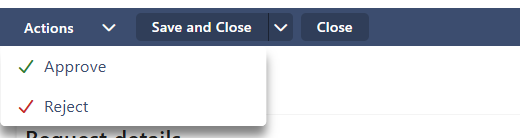
- People see only the actions of the item's current status that they are allowed to do.
- A new item already shows the actions of the initial status, before it's saved for the first time.
- People who can only view the item can't do actions.
- Doing an action saves the item, moves it to the target status and closes the form. Then Redirect applies.
- An action can also be a button on the form, in a Buttons widget.
- To show the path of an item, add the Workflow Status or Workflow History widget on the Layout tab.
- A rule in the Logic tab can hide or disable an action, with the step Workflow Action.
Related: Workflow Tab (Overview), Action Input Fields, Workflow Statuses.