

Appearance
Using the JavaScript API in Logic
Designer › Logic › Custom JS
With JavaScript you can go beyond the built-in logic steps: calculate values, check data before saving, load items from other lists, react to what the user picks, and add your own buttons.
You don't install or import anything. Call the methods directly by name, for example getValue("Title").
Where you write code
| Place | When the code runs | Typical use |
|---|---|---|
| Logic → rule → step Custom JS | Once when the form opens (Run once rule) or after every change (Continuous rule), if the rule's conditions are met | Set field values or work them out from other fields, show error messages, open a tab or fold a section |
| Logic → rule → condition Custom JS | Every time the rule is checked. The code must return a truthy value (for example true) for the condition to be met | Decide whether the rule's steps run |
| Buttons widget → button of type Custom | When the user clicks the button | Anything the user starts on purpose: save, open a tab, copy data |
On the rule card, a Custom JS step is shown as Execute custom JS code.
Calculated fields use JavaScript too, in a formula. See Calculated Fields. The after save script is JavaScript as well, but it runs on the server and has its own few functions.
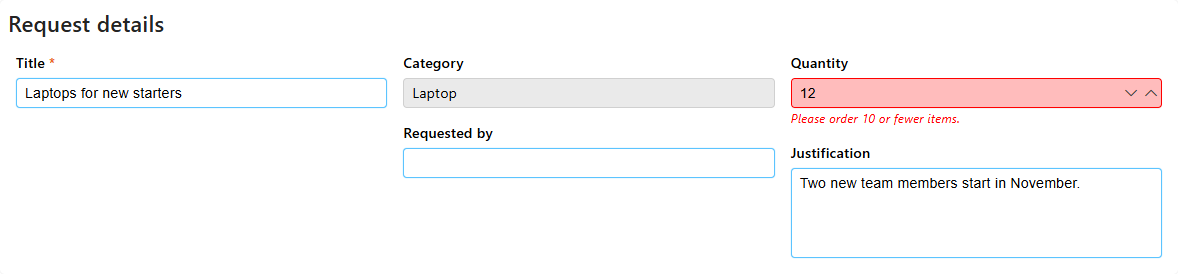
For example, this Continuous rule has no conditions and one Custom JS step. It shows an error under Quantity when someone orders more than 10 items:
js
const quantity = getNumberFieldValue("Quantity") || 0;
setErrorMessage("Quantity", quantity > 10 ? "Please order 10 or fewer items." : "");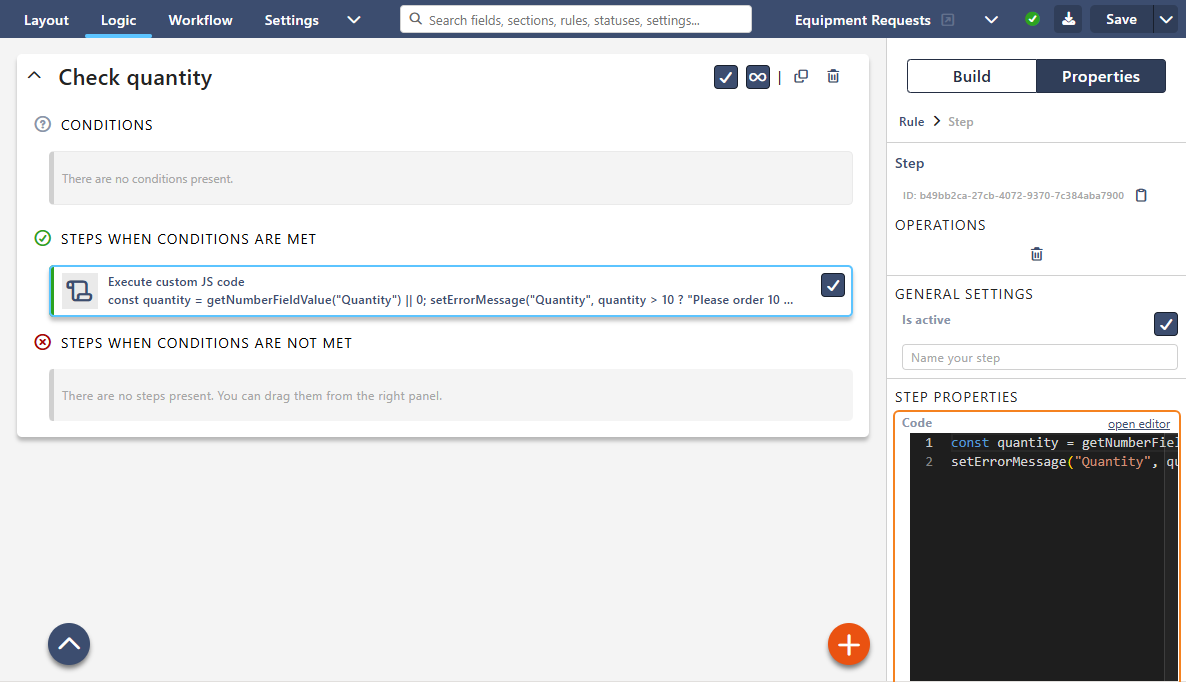
In the form:
The basics
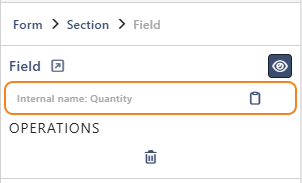
Internal names. Methods refer to fields by their internal name (the SharePoint column name), not the label. Select a field in the designer to see its Internal name with a copy button. Sections, tabs, widgets and workflow actions show an ID in the same place. Names are case-sensitive.
Refer to related lists and other lists by their internal name too, not by a list ID. Internal names stay the same when you export the form configuration and import it on another site; list IDs change.
Run once or Continuous. Code in a Run once rule runs when the form opens; in a Continuous rule, also after every change. See Logic Tab (Overview). Two things matter for your code:
- A Run once rule can run twice for the same item, for example after the first save. So make its code safe to run again: set a default only if the field is still empty.
- In a Continuous rule, code that sets a different value every time, such as a counter, runs again and again without stopping. Setting a field to the value it already has is fine. To react to one field only, use
hasFieldChanged.
Conditions return a value. A Custom JS condition must end with return. A truthy value means "met". No return value, a falsy value or an error means "not met".
A condition can't wait for the server. An async condition always counts as met. So load the data in a step, save it in a field, and check that field in the condition.
js
return getNumberFieldValue("Amount") > 1000;Some methods wait for the server. getListItems, getUserProperties, getUserManager, getRelatedItemAttachments, getRelatedListAttachments, saveForm and executeAction return a Promise. Use .then() and .catch(), or await inside an async function. await directly in your code is a syntax error and stops the script:
js
(async () => {
  const manager = await getUserManager(getCurrentUser().emailAddress);
  setUserFieldValue("Manager", [manager.emailAddress]);
})().catch(() => showMessage("Couldn't load your manager.", "warning"));
After waiting, report problems with showMessage. setErrorMessage doesn't work there.
When something doesn't work. Open the browser's developer tools (F12 → Console). Errors in your code appear as [SINTEL] Error executing code. Expand the entry to see the error and your code. Errors that happen after waiting for the server, or in a top bar button, appear as Uncaught errors. Your own console.log output starts with [CUSTOM JS]. The form itself keeps working.
Names you can't reuse. Don't declare variables with let or const using the name of an API method or of api, moment, DateTime, SPApi, PnPApi, window, document or console. If you do, the whole script fails to start. For example, use maxAmount instead of max.
Common tasks
- Total the rows of a related list:
getRelatedListFieldValue - Show an error under a field until the user fixes it:
setErrorMessage - Fill in details from another list:
getListItems - Fill in the user's manager or department:
getUserManager,getUserProperties - Limit the choices of a lookup:
updateLookupOptions,cascadingDropdowns - Pre-fill a field from a link:
queryParam - Add your own button to the top bar:
addTopBarButton
Worked examples, step by step: Working with Related Lists, Data from Other Lists, Validation and Saving. When your code doesn't work: Troubleshooting JavaScript.
Methods
| Topic | Methods |
|---|---|
| Field values | getValue, setValue, getTextFieldValue, setTextFieldValue, getNumberFieldValue, setNumberFieldValue, getBooleanFieldValue, setBooleanFieldValue, setLookupFieldValue, setUserFieldValue, setCurrentDate, setCurrentUser, hasFieldChanged |
| Related lists | getRelatedListFieldValue, insertSublistItems, updateSublistItems, deleteSublistItems, setRelatedListFieldValue, updateLinkedListItemFieldState |
| Lookups and autocomplete | updateLookupOptions, cascadingDropdowns, multiParentCascadingDropdowns, autocomplete |
| Messages and validation | setErrorMessage, showMessage |
| Saving and closing | saveForm, executeAction, exitForm |
| Users and SharePoint data | getCurrentUser, getCurrentUserGroups, getUserProperties, getUserManager, getListItems, getFormContext |
| Attachments | getAttachments, getRelatedItemAttachments, getRelatedListAttachments |
| Form layout | openTab, openTabById, openNextTab, openPreviousTab, expandSection, collapseSection, setSectionCollapseState, toggleSectionCollapse, openPanel, togglePanel, addTopBarButton |
| Helpers | sum, average, min, max, DateTime, queryParam, moment |
| SharePoint and HTTP | SPApi, PnPApi, api |
Field values
These work with fields of the main form. For rows of a related list, see Related lists.
getValue
getValue(fieldName) reads a field of any type. Returns undefined when the field is empty.
| Field type | Returns |
|---|---|
| Text, Choice | Text |
| Number, Currency, Percentage | A number |
| Yes/No | true or false |
| Date, Date Time | A Date |
| Lookup | { ID, value }: the item ID and its label |
| Person or group | { ID, displayName, emailAddress, type } |
| Hyperlink, Picture | { url, description } |
| Related list | The rows, as in getRelatedListFieldValue |
Fields with several values return a list. That means multiple choice, multi-value lookup and multi-person fields.
js
const department = getValue("Department"); // a lookup field
if (department && department.value === "IT") {
  showMessage("IT requests are handled within 2 days.");
}
setValue
setValue(fieldName, value) sets a field of any type and converts the value for you. undefined clears the field.
What you can pass depends on the field type:
| Field type | You can pass | Example |
|---|---|---|
| Text, Multiline text | Text. Other values are turned into text: a number 12 becomes "12", true becomes "true" | setValue("Title", "Laptop") |
| Number, Currency, Percentage | A number, or a number as text | setValue("Amount", "125.50") gives 125.5 |
| Yes/No | true or false. Also the text "true" / "false" and the numbers 1 / 0. Other text, such as "Yes", gives No | setValue("Urgent", true) |
| Date, Date Time | A DateTime or a Date. Seconds are dropped | setValue("DueDate", DateTime.now().plus({ days: 7 })) |
| Choice | The option's text, exactly as in the field's options | setValue("Priority", "High") |
| Choice - Multi | A list of options, or one text with options separated by commas | setValue("Colours", ["Red", "Blue"]) or setValue("Colours", "Red, Blue") |
| Lookup | The item ID: a number, text such as "3", or { ID, value }. The form shows the item's label | setValue("Department", 3) |
| Lookup with multiple values | A list of IDs or of { ID, value } objects, or one text with IDs separated by commas | setValue("Tags", [1, 4]) or setValue("Tags", "1, 4") |
| Person or group | An email address or the name of a SharePoint group on the site | setValue("AssignedTo", "anna.brown@contoso.com") |
| Person or group with multiple values | A list of email addresses and group names, or one text with them separated by commas | setValue("Reviewers", ["anna.brown@contoso.com", "Approvers"]) |
| Hyperlink, Picture | { url, description }. This is not converted, so pass both parts | setValue("Website", { url: "https://contoso.com", description: "Contoso" }) |
| Related list | The rows, as in setRelatedListFieldValue |
You can also pass what getValue returns, so copying a value between two fields of the same type is one line:
js
setValue("Backup", getValue("Owner")); // two person fieldsFor a date from text, use DateTime.fromISO("2026-12-31"). Plain text is read by the browser, and a date without a time ("2026-12-31") can end up on the day before in time zones west of UTC.
A value that can't be converted clears the field: for example "abc" for a number field, or text without @ that isn't a group name for a person field. So check values first.
getTextFieldValue
getTextFieldValue(fieldName) reads a single-line or multi-line text field.
js
const title = getTextFieldValue("Title") || "";setTextFieldValue
setTextFieldValue(fieldName, text) sets a text field. It doesn't convert values, so pass text.
js
const first = getTextFieldValue("FirstName") || "";
const last = getTextFieldValue("LastName") || "";
setTextFieldValue("FullName", (first + " " + last).trim());
getNumberFieldValue
getNumberFieldValue(fieldName) reads a number or currency field.
js
const amount = getNumberFieldValue("Amount") || 0;setNumberFieldValue
setNumberFieldValue(fieldName, number) sets a number or currency field. Pass a number. For text such as "12", use setValue.
js
const net = getNumberFieldValue("NetAmount") || 0;
setNumberFieldValue("VAT", Math.round(net * 0.23 * 100) / 100);
getBooleanFieldValue
getBooleanFieldValue(fieldName) reads a yes/no field: true, false or undefined.
js
if (getBooleanFieldValue("Urgent") === true) {
  showMessage("This request is urgent.", "warning");
}
setBooleanFieldValue
setBooleanFieldValue(fieldName, value) sets a yes/no field.
js
setBooleanFieldValue("Urgent", getNumberFieldValue("Amount") > 10000);setLookupFieldValue
setLookupFieldValue(fieldName, ids) sets a lookup field by item ID. Always pass a list, also for a single-value lookup. The list can hold IDs or { ID, value } objects, for example the result of getValue.
js
setLookupFieldValue("Department", [3]); // single-value lookup
setLookupFieldValue("Tags", [1, 4]);    // multi-value lookup
To find an ID by its label, use getListItems.
setUserFieldValue
setUserFieldValue(fieldName, people) sets a person or group field. Pass a list of email addresses or SharePoint group names, also for a single-person field. The list can also hold person objects, for example what getValue or getCurrentUser returns.
js
setUserFieldValue("AssignedTo", ["anna.brown@contoso.com"]);
setUserFieldValue("Reviewers", ["john.smith@contoso.com", "Approvers"]);
setCurrentDate
setCurrentDate(fieldName) puts the current date and time into a date field.
js
// Run once rule: only while the field is empty, so the date stays when the item is opened again
if (!getValue("SubmittedOn")) setCurrentDate("SubmittedOn");
setCurrentUser
setCurrentUser(fieldName) puts the current user into a person field. Not for anonymous forms, where nobody is signed in.
js
// Run once rule: only while the field is empty, so the requester stays when someone else opens the item
if (!getValue("Requester")) setCurrentUser("Requester");
hasFieldChanged
hasFieldChanged(fieldName) returns true if the field changed since the last call. The first call returns false. Use it in Continuous rules to react to one field only.
Check each field in one place only. Each call resets the check, so if two rules both call hasFieldChanged("Country"), only the first one sees the change.
js
// Continuous rule: when the country changes, clear the city
if (hasFieldChanged("Country")) {
  setValue("City", undefined);
}
In a Custom JS condition, return hasFieldChanged("Country"); works, but the rule's Steps when conditions are not met then run after every other change. If the steps when met change a field, the rules run again at once, so the not-met steps run right after the met ones. Leave not met empty in such a rule.
Related lists
A related list shows rows from another list inside the form. Refer to it by the internal name of the related list field.
- Each row is an object with the columns' internal names and an
ID. - New, unsaved rows have a negative
ID. - Rows the user removed stay in the list with
_deleted: trueuntil the item is saved. - Changes are saved to SharePoint when the item is saved.
- Values in the rows you pass follow the same rules as
setValue. For example, a lookup column takes the item ID. - In a related library you can read, change and remove rows, but
insertSublistItemsandsetRelatedListFieldValuework only with related lists: files can't be added from code.
getRelatedListFieldValue
getRelatedListFieldValue(relatedListName) reads all rows. It can return undefined (no rows yet), so add || [].
js
// Continuous rule: total the order lines
const lines = (getRelatedListFieldValue("OrderLines") || []).filter(line => !line._deleted);
setNumberFieldValue("OrderTotal", sum(...lines.map(line => (line.Quantity || 0) * (line.UnitPrice || 0))));
insertSublistItems
insertSublistItems(relatedListName, rows) adds new rows at the end. Column default values from the form aren't applied, so set every value you need.
js
insertSublistItems("OrderLines", [{ Title: "Delivery", Quantity: 1, UnitPrice: 20 }]);updateSublistItems
updateSublistItems(relatedListName, rows) changes existing rows, found by ID (a number). Only the columns you pass change.
js
const lines = (getRelatedListFieldValue("OrderLines") || []).filter(line => !line._deleted);
updateSublistItems("OrderLines", lines.map(line => ({ ID: line.ID, Discount: 10 })));
deleteSublistItems
deleteSublistItems(relatedListName, idOrIds) removes rows: one ID or a list of IDs. They're deleted from SharePoint when the item is saved, with their attachments.
js
// A button: remove the lines without a title
const empty = (getRelatedListFieldValue("OrderLines") || []).filter(line => !line._deleted && !line.Title);
deleteSublistItems("OrderLines", empty.map(line => line.ID));
setRelatedListFieldValue
setRelatedListFieldValue(relatedListName, rows) replaces all rows. Rows without ID are added, and rows with an ID are updated. Saved rows you leave out are deleted when the item is saved. [] removes all rows. Always pass a list: a single row object on its own also removes all rows. To change a few rows, use insertSublistItems or updateSublistItems.
New rows can be locked with notEditable: true and notDeletable: true.
js
// New item only: start the list with one fixed line
if (!getFormContext().formViewUrl) {
  setRelatedListFieldValue("OrderLines", [
    { Title: "Service fee", Quantity: 1, UnitPrice: 50, notDeletable: true }
  ]);
}
updateLinkedListItemFieldState
updateLinkedListItemFieldState(relatedListName, whichRows, states) makes columns read-only or required in the rows you choose. whichRows is a function that gets a row and returns true for the rows to change.
Pass all the columns in one call, because a second call for the same rows replaces the first. The call affects only rows that exist at that moment. To cover rows added later, call it from a Continuous rule.
js
updateLinkedListItemFieldState(
  "OrderLines",
  row => row.ID > 0,                       // saved rows only
  [
    { fieldName: "Quantity", isEditable: false },
    { fieldName: "Comment", isRequired: true }
  ]
);
Lookups and autocomplete
Set these up in a Run once rule. For a field inside a related list, add the related list's internal name as the last parameter.
updateLookupOptions
updateLookupOptions(fieldName, options, relatedListName) limits a lookup to the items you choose. options is a list of { ID, value }. ID is the item ID in the source list, and value is the label to show.
js
getListItems({
  listInternalName: "Departments",
  search: { fieldInternalName: "Status", value: "Open", operator: "equals" },
  returnedFieldInternalNames: ["ID", "Title"]
})
  .then(items => updateLookupOptions("Department", items.map(item => ({ ID: item.ID, value: item.Title }))));
cascadingDropdowns
cascadingDropdowns(parentFieldName, childFieldName, linkColumnName, relatedListName) filters a child lookup by the parent's value. linkColumnName is the column in the child's source list that points to the parent's list.
js
// "Cities" has a lookup column CountryLookup pointing to "Countries"
cascadingDropdowns("Country", "City", "CountryLookup");
The parent can be on the main form and the child in a related list: pass the related list's internal name as the last parameter. While the parent is empty, the child has no options. If your code changes the parent, clear the child yourself: setValue("City", undefined).
multiParentCascadingDropdowns
multiParentCascadingDropdowns(childFieldName, parents, relatedListName) filters a child lookup by several parents. It shows the items that match all of them.
js
multiParentCascadingDropdowns("Office", [
  { parentLookupFieldName: "Country", bindingColumnName: "CountryLookup" },
  { parentLookupFieldName: "Department", bindingColumnName: "DepartmentLookup" }
]);
autocomplete
autocomplete(textFieldName, suggestions, options, relatedListName) shows suggestions under a single-line text field while the user types. suggestions is a list of objects, or a function with one parameter (the typed text) that returns them. Settings in options: textProperty and valueProperty (default "text"), minLength (default 3), onSelect.
js
autocomplete(
  "City",
  typedText => {
    if (!typedText) return Promise.resolve([]); // also called with no text when the field gets focus
    return getListItems({
      listInternalName: "Cities",
      search: { fieldInternalName: "Title", value: typedText, operator: "beginswith" },
      itemsLimit: 20,
      returnedFieldInternalNames: ["Title", "PostalCode"]
    });
  },
  { textProperty: "Title", valueProperty: "Title", minLength: 2, onSelect: city => setTextFieldValue("PostalCode", city.PostalCode) }
);
Messages and validation
setErrorMessage
setErrorMessage(fieldName, message) shows an error under a field. While it's shown, the form can't be saved. An empty text removes it. Use it in a Continuous rule, so the message updates as the user fixes the value. For the attachments widget, pass the widget's ID. It works for fields of the main form, not for columns of a related list.
js
// Continuous rule
const amount = getNumberFieldValue("Amount");
setErrorMessage("Amount", amount > 10000 ? "The amount can't be more than 10,000." : "");
In a Run once rule the message stays until the form is reopened. In a condition it doesn't work, and the condition counts as not met.
showMessage
showMessage(message, type, duration) shows a popup message. type is "info" (the default), "success", "warning" or "error". duration is in milliseconds, 5000 by default. 0 keeps the message until the user closes it. Works anywhere, also after waiting for the server.
js
showMessage("Please check the dates.", "warning", 10000);Saving and closing
saveForm
saveForm(options) saves the item, like the Save button. Options: exit and ignoreValidation. With exit: true, the default, the form closes after saving. Fields are checked first. If there are errors, nothing is saved and the user sees them. The method finishes when saving starts, so it can't tell you whether the save succeeded.
js
// A button that saves without closing
saveForm({ exit: false });
executeAction
executeAction(actionId, options) saves the item, runs a workflow action and closes the form, like the action's button. Copy the action's ID from the workflow designer. The action must be available to the user in the current status. It doesn't show the action's dialog, so the action's confirmation and its input fields are skipped. Option: ignoreValidation.
js
// A button: note the date, then run the Approve action. The date is saved with the item
setCurrentDate("ApprovedOn");
executeAction("a1b2c3d4-0000-0000-0000-000000000000");
exitForm
exitForm(options) closes the form. With unsaved changes the user is asked first, unless you pass { dismissChanges: true }.
js
exitForm({ dismissChanges: true });Users and SharePoint data
getCurrentUser
getCurrentUser() returns the person using the form: { displayName, emailAddress }. On anonymous forms the email address is empty.
js
// A button: add a sign-off note, for example "Approved by Anna Brown on Oct 31, 2026"
const today = DateTime.now().toLocaleString(DateTime.DATE_MED); // the date as the user's browser writes it
setTextFieldValue("ApprovalNote", "Approved by " + getCurrentUser().displayName + " on " + today);
To check whether the user created the item, you don't need code: use the condition Author. To compare a person field with the user, use Field Value Check with [me].
getCurrentUserGroups
getCurrentUserGroups() returns the names of the user's SharePoint groups. Membership through Microsoft Entra ID or Microsoft 365 groups isn't included.
js
// Custom JS condition: only for approvers
return getCurrentUserGroups().includes("Approvers");
getUserProperties
getUserProperties(emailAddress, properties) loads a user's details from Microsoft 365 and their SharePoint profile, for example department and job title. Add extra Microsoft Graph user properties in properties. Property names in the result start with a capital letter (Mail, Department, JobTitle). Waits for the server.
js
const requester = getValue("Requester");
if (requester) {
  getUserProperties(requester.emailAddress)
    .then(user => setTextFieldValue("Department", user.Department || ""));
}
Tip: to see every property available, run getUserProperties(getCurrentUser().emailAddress).then(user => console.log(user)) once and look in the console.
getUserManager
getUserManager(emailAddress) loads a user's manager: { displayName, emailAddress }. Waits for the server. If the user has no manager, the call fails or returns nothing, so handle it in .catch() as below.
js
getUserManager(getCurrentUser().emailAddress)
  .then(manager => setUserFieldValue("Manager", [manager.emailAddress]))
  .catch(() => console.log("No manager found"));
getListItems
getListItems(options) loads items from another list on the same site. Waits for the server.
| Option | What to put in |
|---|---|
listInternalName or listTitle | the list (for a document library, use listTitle) |
search | a filter on one column: { fieldInternalName, value, operator }. See the table below |
itemsLimit | the maximum number of items; leave it out for all |
returnedFieldInternalNames | the columns you need, e.g. ["ID", "Title"] |
What to put in value depends on the column you filter on. Every column also takes the operators equals (the default), notequals, isempty and isnotempty.
| Column | value | Other operators |
|---|---|---|
| Text, choice | Text | contains, beginswith |
| ID | A whole number: 3, not "3" | greaterthan, greaterthanorequal, lessthan, lessthanorequal |
| Number, currency | A number, not text | as for ID |
| Date, Date Time | A Date or a DateTime | as for ID |
| Lookup | The item ID, a number: compares IDs | as for ID |
| Lookup | Text: compares the item's label | contains, beginswith |
| Person | The person's display name, as text | contains, beginswith |
Pass plain numbers and text. The objects that getValue returns don't work as value: for a lookup, pass project.ID, not project. Text from a link is text, so convert it first: Number(queryParam("id")). For isempty and isnotempty the value isn't used, but value must be there: pass "".
js
// Find the project manager of the selected project
const project = getValue("Project");
if (project) {
  getListItems({
    listInternalName: "Projects",
    search: { fieldInternalName: "ID", value: project.ID, operator: "equals" },
    itemsLimit: 1
  }).then(items => {
    const pm = items[0] && items[0].ProjectManager;
    if (pm) setUserFieldValue("ProjectManager", [pm.emailAddress]);
  });
}
Dates come back as UTC text, such as "2026-10-14T17:29:00Z". Use new Date(...) to read them. If the list or column doesn't exist, the form shows an error message to the user. Set itemsLimit and ask only for the columns you need. It makes the request faster.
getFormContext
getFormContext() returns information about the form: listDisplayName, listInternalName, listId, formViewUrl, formEditUrl, formCreateUrl, siteUrl, webUrl. The item links are empty for a new item. On an anonymous form, the links open the anonymous form.
js
const context = getFormContext();
if (context.formViewUrl) setTextFieldValue("ItemLink", context.formViewUrl);
Attachments
Each file is described as { fileName, extension, url, state }. state is "existing", "new" (not saved yet) or "deleted" (removed, not saved yet).
getRelatedItemAttachments and getRelatedListAttachments wait for the server, so they don't work in a Custom JS condition: return getRelatedListAttachments("OrderLines"); is always met, and return getRelatedListAttachments("OrderLines").length > 0; is never met. Check the files in a step instead.
getAttachments
getAttachments() returns the files attached to the item.
js
// Continuous rule: require a PDF. "attachments-widget-id" is the ID of the attachments widget.
const pdfs = getAttachments().filter(f => f.state !== "deleted" && f.extension.toLowerCase() === "pdf");
setErrorMessage("attachments-widget-id", pdfs.length === 0 ? "Please attach the invoice as a PDF." : "");
In a Custom JS condition, pick the check you need. The condition is checked again when the user adds or removes a file.
js
// Any files, also saved files the user removed (not saved yet)
return getAttachments().length > 0;
js
// Files that stay after saving
return getAttachments().some(f => f.state !== "deleted");
js
// Files added, not saved yet
return getAttachments().some(f => f.state === "new");
return getAttachments(); alone is always met, even with no files, because the method returns a list.
getRelatedItemAttachments
getRelatedItemAttachments(relatedListName, rowId) returns the files of one related list row. Waits for the server. A wrong list name or row ID fails right away, so wrap the call in try.
js
try {
  getRelatedItemAttachments("OrderLines", 12).then(files => console.log(files.length + " files"));
} catch (error) {
  console.log("Wrong list name or row ID", error);
}
getRelatedListAttachments
getRelatedListAttachments(relatedListName) returns the files of every row: a list of { itemId, attachments }. Waits for the server. To see what it returns, log it: getRelatedListAttachments("OrderLines").then(rows => console.log(rows));
Rows the user removed, but not yet saved, are in the list too, with no files. To skip them, take the removed rows from getRelatedListFieldValue (_deleted). This example warns about lines without a file:
js
getRelatedListAttachments("OrderLines").then(rows => {
  const removed = (getRelatedListFieldValue("OrderLines") || []).filter(line => line._deleted).map(line => line.ID);
  const missing = rows
    .filter(row => !removed.includes(row.itemId))
    .filter(row => !row.attachments.some(f => f.state !== "deleted"))
    .map(row => row.itemId);
  if (missing.length) showMessage("Lines without a file: " + missing.join(", "), "warning");
});
Form layout
Copy the ID of a section or tab from the designer's properties panel.
openTab
openTab(tabbedSectionId, tabNumber) opens a tab by position, counting from 0. Hidden tabs count too.
js
openTab("main-tabs-id", 1); // the second tabopenTabById
openTabById(tabId) opens a tab by its own ID. The most reliable way to open a specific tab.
js
openTabById("attachments-tab-id");openNextTab
openNextTab(tabbedSectionId) moves to the next tab, skipping tabs hidden in the designer. Handy for a Next button. On the last tab it does nothing. If logic rules hide tabs, use openTabById.
js
openNextTab("main-tabs-id");openPreviousTab
openPreviousTab(tabbedSectionId) moves to the previous tab, skipping tabs hidden in the designer.
js
openPreviousTab("main-tabs-id");expandSection
expandSection(sectionId) expands a collapsible section.
js
expandSection("details-section-id");collapseSection
collapseSection(sectionId) collapses a section. The user can still expand it. To hide a section, use a logic step.
js
collapseSection("details-section-id");setSectionCollapseState
setSectionCollapseState(sectionId, collapsed) collapses (true) or expands (false) a section.
js
// Continuous rule: show the details when "Show details" is ticked
setSectionCollapseState("details-section-id", getBooleanFieldValue("ShowDetails") !== true);
toggleSectionCollapse
toggleSectionCollapse(sectionId) switches a section between expanded and collapsed. When you know which state you want, use expandSection or collapseSection.
js
toggleSectionCollapse("details-section-id");openPanel
openPanel(panelName) opens a side panel: "attachments", "itemHistory", "workflowHistory", "comments" or "sharing".
js
openPanel("comments");togglePanel
togglePanel(panelName) opens the panel if it's closed and closes it if it's open.
js
togglePanel("attachments");addTopBarButton
addTopBarButton(label, icon, action) adds a button to the form's top bar. icon is a Font Awesome class such as "fas fa-print" (or undefined). action is a web address, { url, target: "_blank" }, or a function. Use it in a Run once rule, because each call adds a button.
js
addTopBarButton("Print", "fas fa-print", () => { window.print(); });
addTopBarButton("Help", "far fa-circle-question", { url: "https://contoso.sharepoint.com/sites/help", target: "_blank" });
A function action runs on its own when clicked. It can't use variables from the code around it, so put everything it needs inside the function.
Helpers
sum
sum(...numbers) adds numbers. Empty values count as 0. Pass the numbers one by one. For a list, spread it: sum(...values). A list passed as it is is skipped, so sum([2, 3]) gives 0. The same goes for average, min and max.
js
setNumberFieldValue("Total", sum(getNumberFieldValue("Travel"), getNumberFieldValue("Hotel"), getNumberFieldValue("Meals")));average
average(...numbers) (also avg) returns the average. Empty values are skipped. Returns undefined if there are no numbers.
js
setNumberFieldValue("AverageScore", average(getNumberFieldValue("Score1"), getNumberFieldValue("Score2")) || 0);min
min(...numbers) returns the smallest number. Empty values are skipped.
js
setNumberFieldValue("LowestBid", min(getNumberFieldValue("Bid1"), getNumberFieldValue("Bid2")) || 0);max
max(...numbers) returns the largest number. Empty values are skipped.
js
setNumberFieldValue("HighestBid", max(getNumberFieldValue("Bid1"), getNumberFieldValue("Bid2")) || 0);DateTime
DateTime is the date class of the Luxon library. It works in the time zone of the user's computer. The form shows dates in the time zone of the SharePoint site.
js
// Due date = start date + 14 days
const start = getValue("StartDate");
if (start) setValue("DueDate", DateTime.fromJSDate(start).plus({ days: 14 }));
js
// Number of days from the start date to the end date
const from = getValue("StartDate");
const to = getValue("EndDate");
if (from && to) {
  setNumberFieldValue("Days", Math.round(DateTime.fromJSDate(to).diff(DateTime.fromJSDate(from), "days").days));
}
queryParam
queryParam(name) reads a value from the page address, for example to pre-fill a field from a link. Links that fill in default values use the prefix form_, such as form_source. queryParam finds these with or without the prefix.
js
// Link: …&form_source=newsletter
const source = queryParam("source");
if (typeof source === "string") setTextFieldValue("Source", source);
moment
moment is the older Moment.js date library, kept so existing scripts keep working. Use DateTime for new scripts.
js
moment().add(7, "days").toDate();SharePoint and HTTP
For developers who need more than the methods above. SPApi and PnPApi work in forms opened in SharePoint, not on anonymous forms or forms shared with external users. api works everywhere.
SPApi
SPApi gives access to the SharePoint JavaScript Object Model (JSOM): SPApi.context and SPApi.hostWeb. Call SPApi.ensureInitialized() first.
js
SPApi.ensureInitialized();
SPApi.context.load(SPApi.hostWeb, "Title");
SPApi.context.executeQueryAsync(
  () => console.log(SPApi.hostWeb.get_title()),
  (sender, args) => console.log(args.get_message())
);
PnPApi
PnPApi.sp is the PnPjs library (version 4), ready for the current site.
js
if (PnPApi.sp) {
  PnPApi.sp.web.lists.getByTitle("Projects").items.select("ID", "Title").top(5)()
    .then(items => console.log(items));
}
api
api is the axios HTTP client, for calling web services. The service must allow requests from the browser (CORS). Don't put secret keys in a form. Everyone using it could see them.
js
api.get("https://api.example.com/exchange-rates?base=EUR")
  .then(response => setNumberFieldValue("Rate", response.data.rates.PLN))
  .catch(() => showMessage("Couldn't load the exchange rate.", "warning"));
In forms opened in SharePoint, an address starting with / goes to the root SharePoint site. For the form's site, use getFormContext().webUrl + "/_api/...".