

Appearance
Concurrent Access
Designer › Settings › Form viewer
Concurrent access decides what happens when two people edit the same item at the same time. You find it in the designer: Settings → Form viewer.
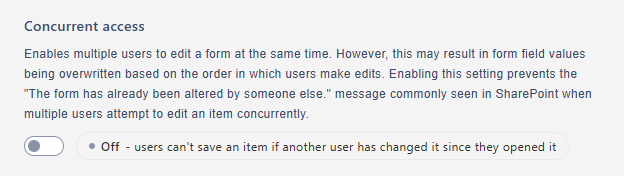
Off (default)
The first save wins. If the item was changed after you opened it (by another user, a Power Automate flow, or by you in another tab), your save is stopped and you see this message:
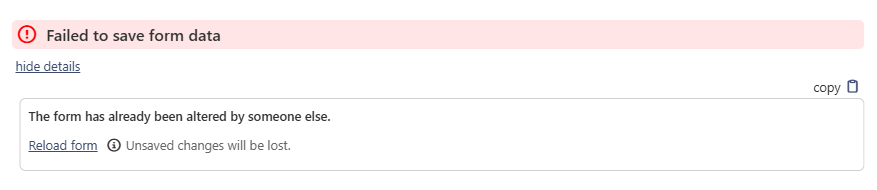
Select Reload form to load the latest version of the item, then make your changes again. Nothing is overwritten by accident.
Use it for most forms, especially approvals, where people must see the latest values before they change anything.
On
Several people can edit and save the same item at the same time. Each save changes only the fields that person changed. If two people change the same field, the last save wins.
For example, Anna changes Quantity and Ben changes Needed by at the same time. Both changes are kept. If both change Quantity, the value saved last stays.
Use it when several people fill in different parts of the same form, and the "altered by someone else" message gets in their way.
Good to know:
- Fields filled in automatically count as changes. A calculated field, or a value set by a rule, is saved when its value on your form differs from the one you opened. For example, Anna changes Quantity and saves. Ben opened the item earlier and changes Unit Price, so his form recalculates Total from the old Quantity. After Ben saves, Quantity is Anna's, but Total is Ben's and no longer matches it. If forms like this are edited by several people at once, keep Concurrent access off.
- The workflow is safe. The workflow status and history always come from the saved item, never from the open form, so a later save doesn't undo someone's workflow action. If the item has moved to another status in the meantime, an action that isn't available in the new status is refused.
Related: Settings Tab (Overview).