

Appearance
Action Input Fields
Designer › Workflow › an action › Input fields
Input fields let an action ask for values when someone does it. For example, when a manager selects Approve, the form asks for the delivery date. The values are saved to the item, together with the action.
Use it for information that belongs to the decision, such as an approved budget, a cost centre, a delivery date or the next reviewer.
Set it up
- In the Workflow tab, select the action, for example Approve.
- Under Input fields, turn on Ask for field values.
- Select the box Search for a field to add. In the list that opens, type the name of a field and pick it (or press Enter).
- Add more fields if you need them. Drag the handle on the left to change their order. The cross removes a field.
- Save the form.
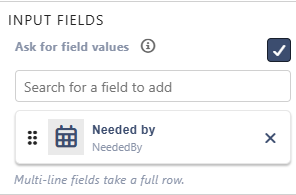
The fields don't have to be on the form's layout. You can ask for a field that people don't see anywhere else.
In the form
When someone does the action, a popup asks for the values:
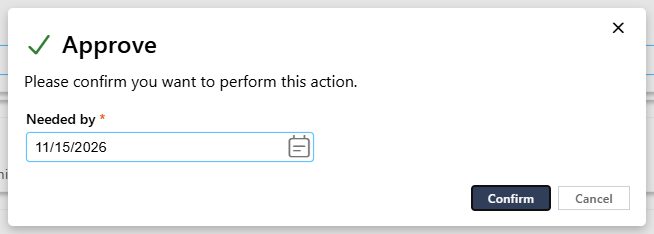
- The popup has the action's name and icon as its title.
- Each field starts with the item's current value, so people can confirm or change it.
- All fields in the popup are required. The field's own checks apply too, for example a minimum value.
- Confirm saves the values and does the action. Cancel closes the popup. Nothing is saved, and the action isn't done. Values typed into empty fields are kept for the next time.
- The popup shows even when Show confirmation popup is off. Then it has the text Please confirm you want to perform this action. and the fields. With it on, it also has your message and the comment, and the signature or sign-in come after Next.
Which fields can be asked for
Text, Multiline text (plain), Number, Currency, Percentage, Choice, Lookup, Person and Group, Yes/No, Date, Date Time and Hyperlink fields.
Not: Rich text, Enhanced rich text, Signature, Picture, calculated fields, related lists and libraries, attachments, and built-in columns such as Created.
Good to know
- Input fields work only when one person does the action. Under Quorum, choose Fixed number with People needed 1. With more people, or Everyone, the switch is greyed out with a note, and the fields aren't asked for. Your list is kept, so it works again when you set the quorum to 1.
- If a field you chose is deleted from the list, it shows as Deleted field, and you can't save the form until you remove it from Input fields.
- An action done by a flow (Allow automated submission) doesn't ask for values. The fields keep what they had.
Related: Workflow Actions, Workflow Tab (Overview).