

Appearance
Text Fields
Designer › Layout › Fields › Text, Multiline text, Rich text, Enhanced rich text
Text fields collect written answers. There are four types:
| Type | Use it for | Example |
|---|---|---|
| Text | Short answers on one line: names, codes, titles | Title: "Docking stations for the meeting rooms" |
| Multiline text | Longer answers on several lines | Justification: why the equipment is needed |
| Rich text | Longer answers with basic formatting: bold, lists, alignment | A description with a bulleted list |
| Enhanced rich text | Formatted text with headings, tables, images and video | Instructions with a picture of the equipment |
Enhanced rich text has its own article, because it stores images and has a bigger toolbar. See Enhanced Rich Text Editor.
Add a text field
- In the Layout tab, open Fields on the left.
- Drag Text, Multiline text, Rich text or Enhanced rich text into a section.
- Select the field. Its properties appear in the panel on the right.
The list column is created when you save the form.
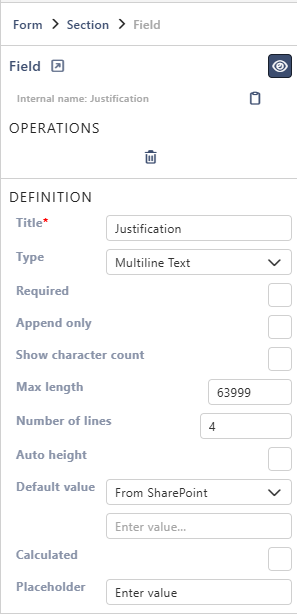
Properties
Each property is described in Field Properties. Text fields have these under Definition:
| Property | Text | Multiline text | Rich text | Enhanced rich text |
|---|---|---|---|---|
| Title | ✓ | ✓ | ✓ | ✓ |
| Type | ✓ (can't be changed) | ✓ | ✓ | ✓ |
| Required | ✓ | ✓ | ✓ | ✓ |
| Unique | ✓ | |||
| Append only | ✓ | ✓ | ✓ | |
| Show character count | ✓ | |||
| Max length | ✓ | ✓ | ||
| Number of lines | ✓ | ✓ | ✓ | |
| Auto height | ✓ | ✓ | ✓ | |
| Default value | ✓ | ✓ | ✓ | ✓ |
| Calculated | ✓ | ✓ | ✓ | ✓ |
| Placeholder | ✓ | ✓ | ✓ | ✓ |
Below them are the parts every field has: Select field instance, Behavior, Label and Field theme.
Good to know
For text fields:
- Unique exists only for Text. The other three types can't be unique.
- Max length for Text is 255 characters at most. Use Multiline text for longer answers.
- Default value: with Custom, type the text the field starts with.
On the form
One field of each type side by side, each named after its type:
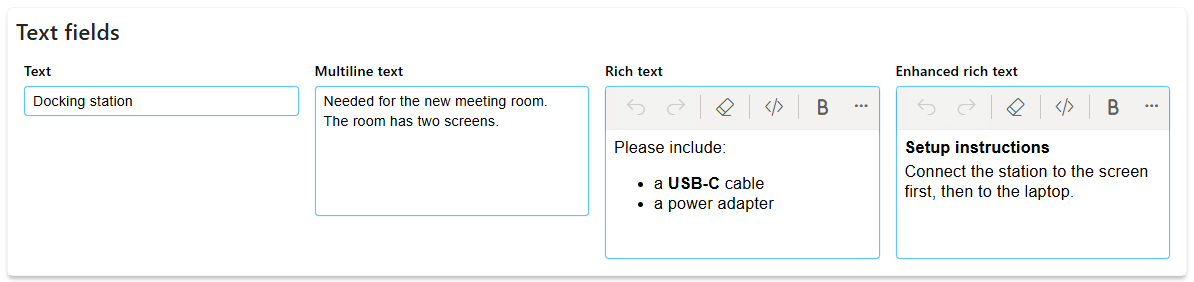
- Text is a one-line box.
- Multiline text is a larger box. Its height is set by Number of lines. With Auto height, it grows with the text. Without it, longer text scrolls inside the box.
- Rich text adds a toolbar while the field can be edited: undo and redo, clear all, source code, bold and italic, alignment, numbered and bulleted lists, indent and outdent.
- Enhanced rich text has a bigger toolbar, with headings, fonts and colours, links, images, video and tables. When the field is narrow, as in the example above, some buttons of both toolbars are under .... See Enhanced Rich Text Editor.
With Append only, people add new text in the box. Below it, the latest entry is shown with its author and date. Show more lists all earlier entries.
Good to know
- A calculated text field can build a value from other fields, for example a full name from a first and a last name.
- Help text for people filling in the form goes into the label's Tooltip. To show your own error message under the field, use the Logic step Field custom error.
Related: Field Properties, Layout Tab (Overview).