

Appearance
PDF Export
Designer › Settings › Form viewer › PDF export
PDF export lets users download an item as a PDF, exactly as the form shows it. It's available if your licence includes the PDF Export feature, and it's on by default. You find the settings in the designer: Settings → Form viewer → PDF export.
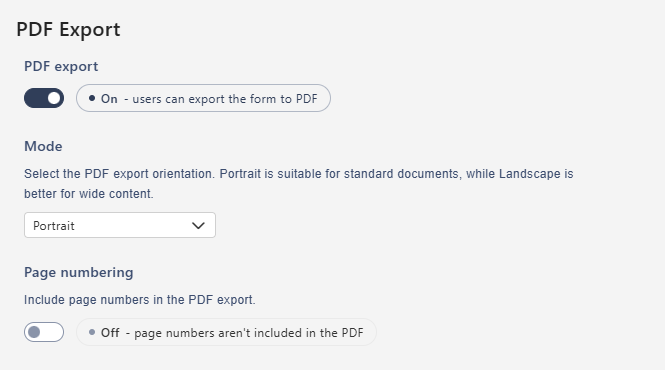
| Setting | What it does |
|---|---|
| PDF export | Turns PDF export on or off for this form |
| Mode | Portrait for standard documents, Landscape for wide forms or large tables |
| Page numbering | Adds page numbers to each page |
Exporting an item
Open a saved item. New items that haven't been saved yet have no Export PDF icon.
In the top bar, select the Export PDF icon. It's the first of the icons on the right.

The PDF downloads straight away. Its name is the form title, the item ID and the date and time, for example Equipment Requests-4-2026-10-23_14-30.pdf.
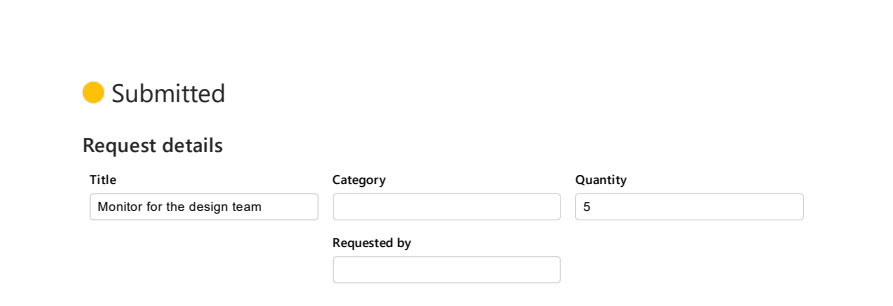
The PDF shows the form as users see it, with the workflow status at the top. Fields hidden by your rules are left out:
More ways to export
- A button in the form: add an Export to PDF button with the Buttons widget. Like the icon, it appears only on saved items.
- A link in an email: in a workflow email, type
{{and insert the[pdfUrl]token. The link opens the item and downloads its PDF. See How to Configure Workflow Email Notifications. - Hide or disable the button with logic: for example, allow the PDF only after approval. Add a Form features step and set PDF export button to Hidden or Disabled. See Understanding Steps.
Related: Settings Tab (Overview), License Information.