

Appearance
Calculated Fields
Designer › Layout › Field properties › Definition
A calculated field fills itself in with a formula. For example, a total, a full name, the number of days between two dates, or a priority based on other fields. Users can't edit it. The form keeps it up to date.
Formulas are JavaScript expressions with field tokens such as {{Quantity}}.
Which fields can be calculated
Text, multi-line text (also rich text) and number fields, on the main form and in columns of a related list. Number fields include currency and percentage.
Creating a calculated field
In the Layout tab, select the field.
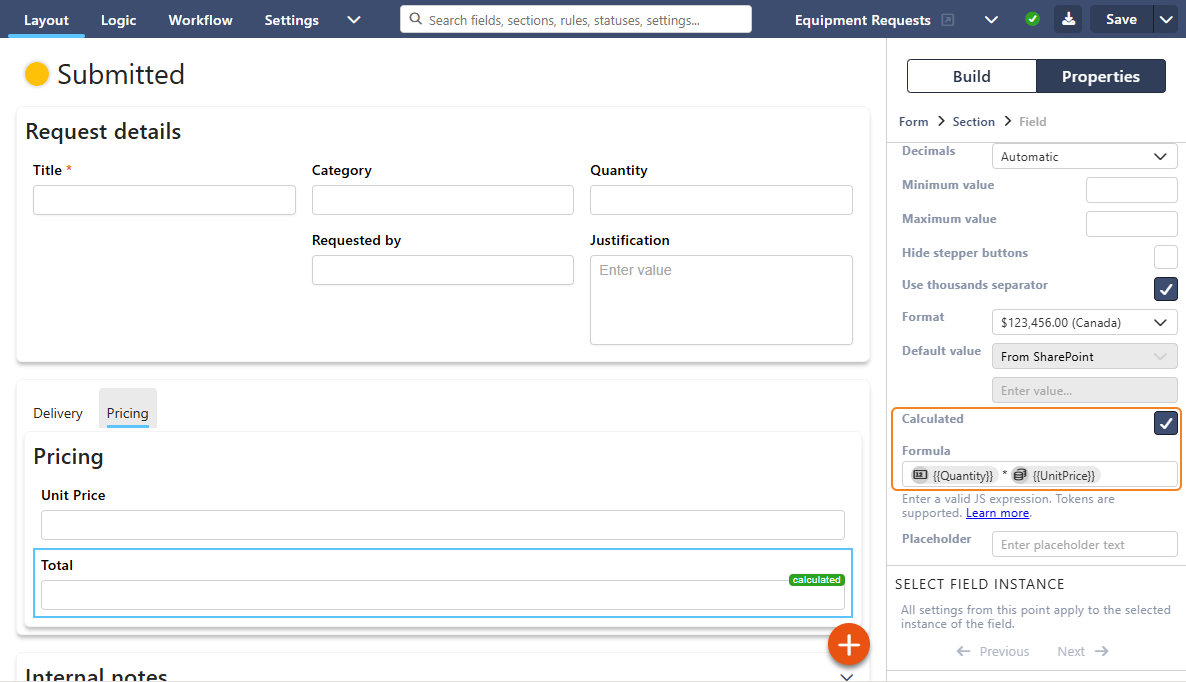
In the properties panel, open Definition and turn on Calculated.
Type the formula in Formula. Type
{{and pick a field from the list. It appears as a small tag. Calculated fields aren't in the list. To use one, type its token yourself, for example{{DaysOpen}}.Save the form.
A calculated field is read-only in the form and can't have a default value. It must be on the form. On the main form it can be hidden, for example when it's only used in a workflow or in another formula.
Referring to other fields
| Token | Gives you |
|---|---|
{{FieldName}} | The value of a field. In a related list column: the value of that column in the same row |
{{$parent:FieldName}} | In a related list column: the value of a field on the main form |
{{ListName:ColumnName}} | The values of a column in all rows of a related list, for sum(...), avg(...), min(...) or max(...) |
{{ListName:_Count}} | The number of rows in a related list |
{{_Count}} | In a related list column: the number of rows in that list. On the main form, always use {{ListName:_Count}} |
Use internal names, not labels. Picking fields from the {{ list inserts the right names for you. The _Count tokens aren't in the list. Type them yourself. ListName is the internal name of the related list field.
What value each field gives you
| Field type | The token becomes |
|---|---|
| Number, Currency | A number. An empty field becomes 0 |
| Percentage | A fraction. For example, 23% is 0.23. A calculated percentage field must also return a fraction |
| Text | Text. Rich text gives its HTML |
| Choice | Text. Multiple choice gives the choices joined with commas |
| Lookup (single value) | The label of the chosen item (a number if the label is a number) |
| Person or group (single value) | The person's name |
| Yes/No | The text "true" or "false" |
| Date and time | The date as text. Use new Date({{Field}}) to calculate with it |
Empty text, choice, lookup and person fields give empty text "". Multi-value lookup and person fields can't be used.
Writing the formula
- Don't put quotes around tokens. Text values are inserted with quotes already. Write
{{FirstName}} + " " + {{LastName}}, not"{{FirstName}}". - Write one expression. To pick between values, use
condition ? valueIfTrue : valueIfFalse, which you can chain. - Don't end with a semicolon. In text fields it causes an error.
- Line breaks are removed. When the formula is saved, the lines are joined without a space. Keep formulas on one line, or end each line with a space. Don't use
//comments. Everything after them is ignored. - Compare Yes/No fields as text. For example
{{Urgent}} === "true" ? "Priority" : "Standard". - Round numbers shown in text fields. Use
.toFixed(2). Number fields remove rounding errors (0.1 * 3gives0.3) and show the decimals set for the field. - Don't use methods that wait for the server or change the form. For example
getListItems,setValue,showMessage. The helperssum,avg,min,maxandDateTimework. See Using the JavaScript API in Logic.
When the value is calculated
When a form opens for a new item or for editing, and again shortly after any value on the form changes.
Not in view mode. In view mode, the form shows the saved value.
The value is saved with the item, like any other field. So a formula based on today's date (such as days open) shows the value from the last time someone edited the item.
A calculated field can use another calculated field. Don't let formulas depend on each other in a circle, for example A uses B and B uses A. The designer doesn't warn you, and the values keep changing.
If the formula fails, for example because of a typo, a number field shows 0 and a text field is emptied. The error is in the browser console (F12).
Examples
All examples use internal names. Replace them with yours.
Full name
A Full Name text field from First Name (FirstName) and Last Name (LastName):
text
{{FirstName}} + " " + {{LastName}}If First Name is Harry and Last Name is Potter, Full Name shows Harry Potter.
Invoice total
A Total currency field from Quantity (Quantity) and Unit Price (UnitPrice):
text
{{Quantity}} * {{UnitPrice}}If Quantity is 2 and Unit Price is $950, Total shows $1,900. If Quantity is empty, it counts as 0, so Total shows 0.

Days between two dates
A Number of days number field from Start Date (StartDate) and End Date (EndDate):
text
Math.round((new Date({{EndDate}}) - new Date({{StartDate}})) / 86400000)From 1 October to 13 October, Number of days shows 12.
Days open and urgency
A Days Open number field (DaysOpen) from a date field Request Date (RequestDate) whose default value is today:
text
Math.floor((new Date() - new Date({{RequestDate}})) / 86400000)An Urgency text field that uses Days Open:
text
{{DaysOpen}} >= 14 ? "Critical" : {{DaysOpen}} >= 7 ? "High" : {{DaysOpen}} >= 3 ? "Medium" : "Low"Both are recalculated only when someone edits the item, so they show the values from the last edit.
Yes/No to text
text
{{Urgent}} === "true" ? "Priority" : "Standard"Related lists: line totals and an order total
In a related list Order Lines (OrderLines), a Total number column (Total), calculated for each row:
text
{{Quantity}} * {{UnitPrice}}On the main form, an Order Total number field:
text
sum({{OrderLines:Total}})And the number of lines:
text
{{OrderLines:_Count}}VAT for each line, using a rate from the main form (VatRate, a rate such as 0.23 or a percentage field showing 23%):
text
{{Total}} * {{$parent:VatRate}}Rows the user removed aren't included. Empty number cells count as 0, also in avg and min. With no rows, sum(...) gives 0.
Formulas in the Field Value step
The logic step Field Value can also use a formula. Set Assignment mode to Formula. It works the same way, with these differences:
- It sets fields on the main form only.
- It runs when the rule runs, and the user can change the value afterwards.
{{ListName:ColumnName}}tokens aren't offered in the{{list. Type them yourself.- The
{{list also offers tokens such as[today]. They don't work in formulas. Usenew Date().
Related: Using the JavaScript API in Logic.