

Appearance
Yes/No Field
Designer › Layout › Fields › Yes/No
A Yes/No field asks a question with two answers, for example Is this urgent? or Approved by the manager?. It can look three ways: as Yes and No buttons, as a tick and a cross, or as a switch.
Add a Yes/No field
- In the Layout tab, open Fields on the left.
- Drag Yes/No into a section.
- Select the field. Under Display as, choose how it looks.
The list column is created when you save the form.
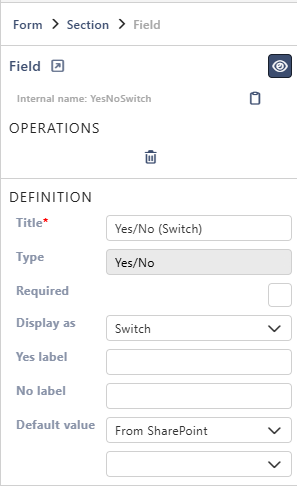
Properties
Each property is described in Field Properties. The Yes/No field has these under Definition:
| Property | Yes/No |
|---|---|
| Title | ✓ |
| Type | ✓ (can't be changed) |
| Required | ✓ |
| Display as | ✓ Text, Icon or Switch |
| Yes label, No label | ✓ |
| Default value | ✓ |
Below them are the parts every field has: Select field instance, Behavior, Label and Field theme.
Good to know
For Yes/No fields:
- Default value: with Custom, choose Yes or No. With Query Parameter and the parameter name
Urgent, the link…?form_Urgent=yessets the field to Yes. Onlytrue,yesand1, in lower case, give Yes. Any other value gives No. - Yes label and No label exist only when Display as is Switch.
On the form
Three Yes/No fields side by side, one for each Display as option, all set to Yes:

- Text: two buttons, Yes and No.
- Icon: a tick for Yes and a cross for No.
- Switch: a switch that is on for Yes. With Yes label and No label, a text next to the switch shows the answer, for example Urgent when it's on and Not urgent when it's off. Nothing is shown until the field is answered.
Good to know
- If the field isn't Required, people can leave it unanswered. Once answered, it can't be cleared again, only switched between Yes and No.
Related: Field Properties, Layout Tab (Overview).