

Appearance
Troubleshooting JavaScript
Designer › Logic › Custom JS
Your code doesn't do what you expect? This page shows how to find out why, and how to write code that fails gracefully. For the methods themselves, see Using the JavaScript API in Logic.
Where to look: the browser console
The form doesn't show errors in your code to the user. They go to the browser console:
- Open the form in your browser.
- Press F12 (or right-click the page → Inspect) to open the developer tools, and select the Console tab.
- Reload the page and do what runs your code.
Look for:
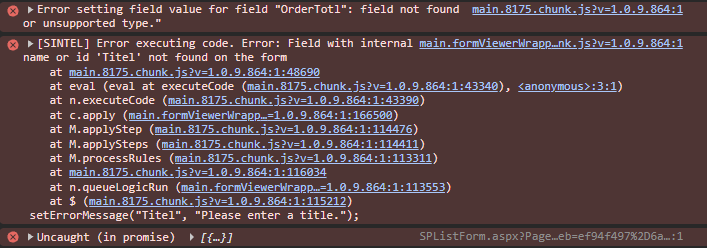
[SINTEL] Error executing code.: your code stopped because of an error. Expand the entry to see the error and your code.Uncaughterrors: an error after waiting for the server (in.then()or afterawait), or in a top bar button.[CUSTOM JS]: what your own code wrote withconsole.log.- Messages with your field name, such as
field not found or unsupported type.
Three ways code can fail
| What you see | What happened | Typical cause |
|---|---|---|
| Nothing happens, and the console has a message about a field | The method skipped the work | A wrong or misspelled internal name in most methods. A method used on the wrong field type, such as setNumberFieldValue on a text field |
[SINTEL] Error executing code. in the console, and the rest of the code didn't run | The code stopped | A wrong section, tab or panel ID. A wrong field name or ID in setErrorMessage, insertSublistItems or autocomplete. A wrong related list name. A typo in a method name. A JavaScript syntax error |
Uncaught (in promise) in the console | Something that waits for the server failed, and the code didn't handle it | A wrong list name in getListItems (the form also shows an error). No network. No permission |
For example, a misspelled field in setNumberFieldValue, a misspelled field in setErrorMessage and a wrong list name in getListItems show these three messages:
Find the problem: log what you get
Add console.log to see the values your code works with:
js
const amount = getNumberFieldValue("Amount");
console.log("Amount is:", amount);  // undefined? Check the internal name and the field type

const lines = getRelatedListFieldValue("OrderLines");
console.log("Lines:", lines);       // each row with its column names
Remove the console.log lines when you're done.
Common mistakes
Wrong field name. Methods use internal names, and they're case-sensitive. Copy them from the designer's properties panel instead of typing them.
Names that are taken. const max = 10; or let sum = 0; stops the whole script, because max and sum are API methods. Use other names, such as maxAmount or total. See The basics.
await without async. await works only inside an async function. Wrap your code: (async () => { … })();.
No return in a condition. A Custom JS condition without return is never met.
A Continuous rule that never stops. If the form gets slow, or a number keeps growing, your Continuous rule sets a different value on every run. Set a value only when it should change, or use hasFieldChanged.
Error messages that stay or don't appear. A message set with setErrorMessage in a Run once rule stays until the form is reopened. From a button or after waiting for the server, setErrorMessage doesn't work: use showMessage there. Put setErrorMessage in a Continuous rule. See setErrorMessage.
Make your code robust
Handle empty values
Most read methods return undefined when a field is empty. Give it a default:
js
const amount = getNumberFieldValue("Amount") ?? 0;
const title = getTextFieldValue("Title") || "";
const lines = getRelatedListFieldValue("OrderLines") || [];
Add .catch() to methods that wait for the server
js
const requester = getValue("Requester");
if (requester) {
  getUserManager(requester.emailAddress)
    .then(manager => {
      if (manager) setUserFieldValue("Manager", [manager.emailAddress]);
    })
    .catch(error => {
      console.log("Loading the manager failed", error);
      showMessage("We couldn't find the requester's manager. Please choose one.", "warning");
    });
}
Or with await:
js
(async () => {
  const requester = getValue("Requester");
  if (!requester) return;
  try {
    const manager = await getUserManager(requester.emailAddress);
    if (manager) setUserFieldValue("Manager", [manager.emailAddress]);
  } catch (error) {
    console.log("Loading the manager failed", error);
    showMessage("We couldn't find the requester's manager. Please choose one.", "warning");
  }
})();
When getListItems fails, the form already shows an error message to the user. In its .catch(), only log the error, or the user sees two messages.
Protect the rest of the code
If one part may fail, wrap it in try { … } catch { … } so the rest still runs:
js
try {
  openTab("main-tabs-id", 2);
} catch (error) {
  console.log("Couldn't open the tab", error);
}

// this still runs if the tab couldn't be opened
showMessage("Please complete the details on this tab.");
Tell the user, not just the console
The console is for you. When something matters to the user, show it with showMessage:
js
showMessage("We couldn't find your manager. Please choose one.", "warning", 0);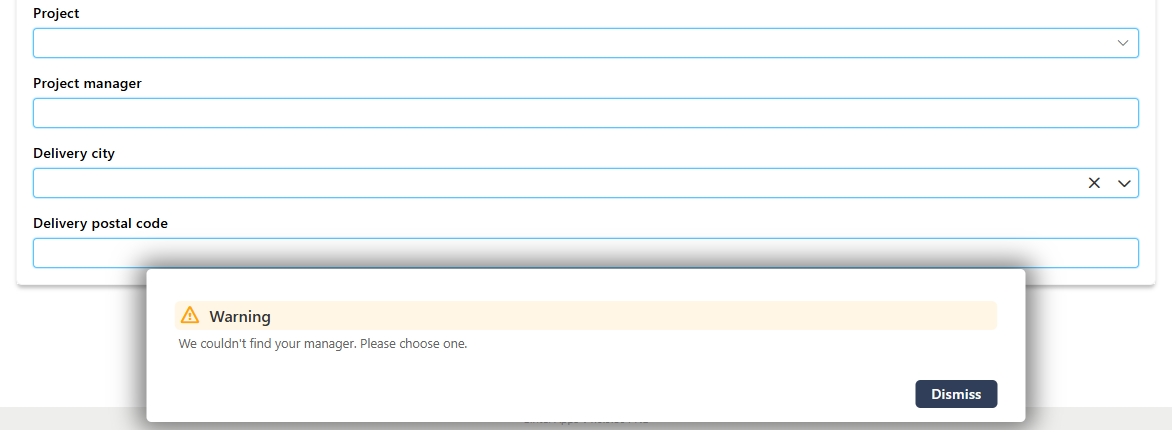
Related: JavaScript Example: Working with Related Lists, JavaScript Example: Data from Other Lists, JavaScript Example: Validation and Saving.