

Appearance
Hyperlink and Picture Fields
Designer › Layout › Fields › Hyperlink, Picture
Hyperlink and Picture fields store a web address and a short description. They differ in what the form shows:
| Type | Use it for | The form shows |
|---|---|---|
| Hyperlink | A link to a page or a document | A link people can open |
| Picture | An image that is already online | When viewed: the image, with the description under it if there is one |
Add a link field
- In the Layout tab, open Fields on the left.
- Drag Hyperlink or Picture into a section.
- Select the field. Its properties appear in the panel on the right.
The list column is created when you save the form.
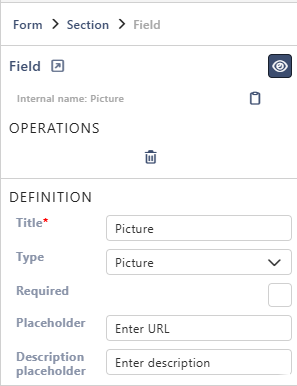
Properties
Each property is described in Field Properties. Both types have the same properties under Definition:
| Property | Hyperlink | Picture |
|---|---|---|
| Title | ✓ | ✓ |
| Type | ✓ | ✓ |
| Required | ✓ | ✓ |
| Placeholder | ✓ | ✓ |
| Description placeholder | ✓ | ✓ |
Below them are the parts every field has: Select field instance, Behavior, Label and Field theme.
On the form
While people fill in the form, both types have a box for the URL and one for the Description. Once a URL is typed, an icon next to it opens the address in a new tab. When you point at the field, a second icon copies the address:

When the item is only viewed, a Hyperlink shows as a link, and a Picture shows the image:

The link text is the description, or the address if there is no description. The link opens in a new tab.
Good to know
- The form doesn't check the address. Ask people to copy it from the browser's address bar.
- For a Picture, use the address of the image file itself, not of a page that shows it. Everyone who opens the form must be able to open that address.
- A Picture is also shown in the PDF export of the item.
- To let people upload a picture from their computer, use Attachments instead.
Related: Field Properties, Layout Tab (Overview).