

Appearance
Date & Date Time Fields
Designer › Layout › Fields › Date, Date Time
Date fields collect a day, or a day and a time. There are two types:
| Name under Fields | Type in the properties | Use it for | Example |
|---|---|---|---|
| Date | Date Only | A day | Needed by: 11/15/2026 |
| Date Time | Date Time | A day and a time | Delivery slot: 11/15/2026 9:30 AM |
Add a date field
- In the Layout tab, open Fields on the left.
- Drag Date or Date Time into a section.
- Select the field. Its properties appear in the panel on the right.
The list column is created when you save the form.
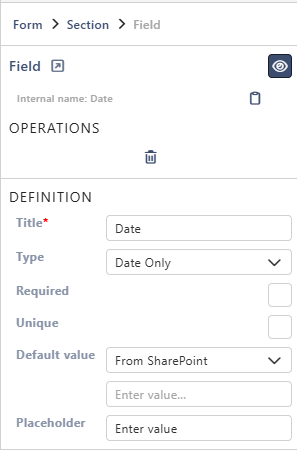
Properties
Each property is described in Field Properties. Date fields have these under Definition:
| Property | Date | Date Time |
|---|---|---|
| Title | ✓ | ✓ |
| Type | ✓ | ✓ |
| Required | ✓ | ✓ |
| Unique | ✓ | ✓ |
| Default value | ✓ | ✓ |
| Placeholder | ✓ | ✓ |
Below them are the parts every field has: Select field instance, Behavior, Label and Field theme.
Good to know
For date fields:
- Default value: Today fills in today's date when a new item is created. With a day offset, it fills in a date from today, for example 14 for two weeks later. A negative offset, such as -1, gives a date in the past. For Date Time, it uses the current date and time. With Custom, type a date in your site's regional format, as the hint in the box shows.
On the form
One field of each type side by side, each named after its type:

People type the date, or select the calendar icon and pick it. Dates and times are shown in your site's regional format. Times are in the site's time zone, which can differ from the person's own.
Good to know
- To set a date with a rule, use the Logic step Field value. It can set a date relative to now or to another date field, with an offset in hours, days, weeks or months. See Understanding Steps.
Related: Field Properties, Layout Tab (Overview).