

Appearance
Workflow Tab (Overview)
Designer › Workflow
In the Workflow tab you build the process an item goes through, for example Submitted, then Approved or Rejected. A workflow has two parts:
- Statuses: the stages of the process. Each item is in one status at a time.
- Actions: what people do to move an item to another status, for example Approve.
You decide who can do each action, whether they must confirm it or add a comment, and who gets an email.
If your form doesn't need approvals or stages, you don't need a workflow.
Turn workflow on or off
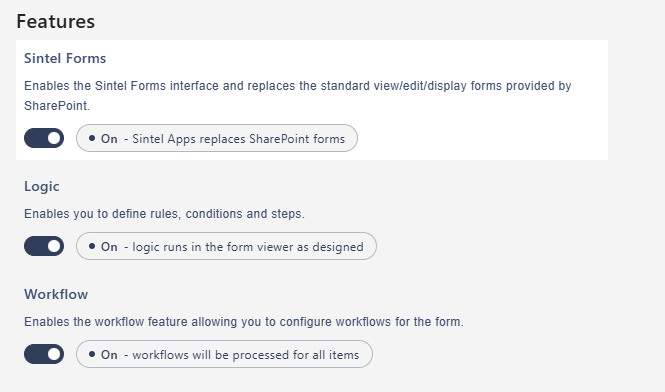
Workflow is on for new forms. You can turn it off in Settings › Features › Workflow. While it's off, the Workflow tab is inactive. See Settings Tab (Overview).
The screen
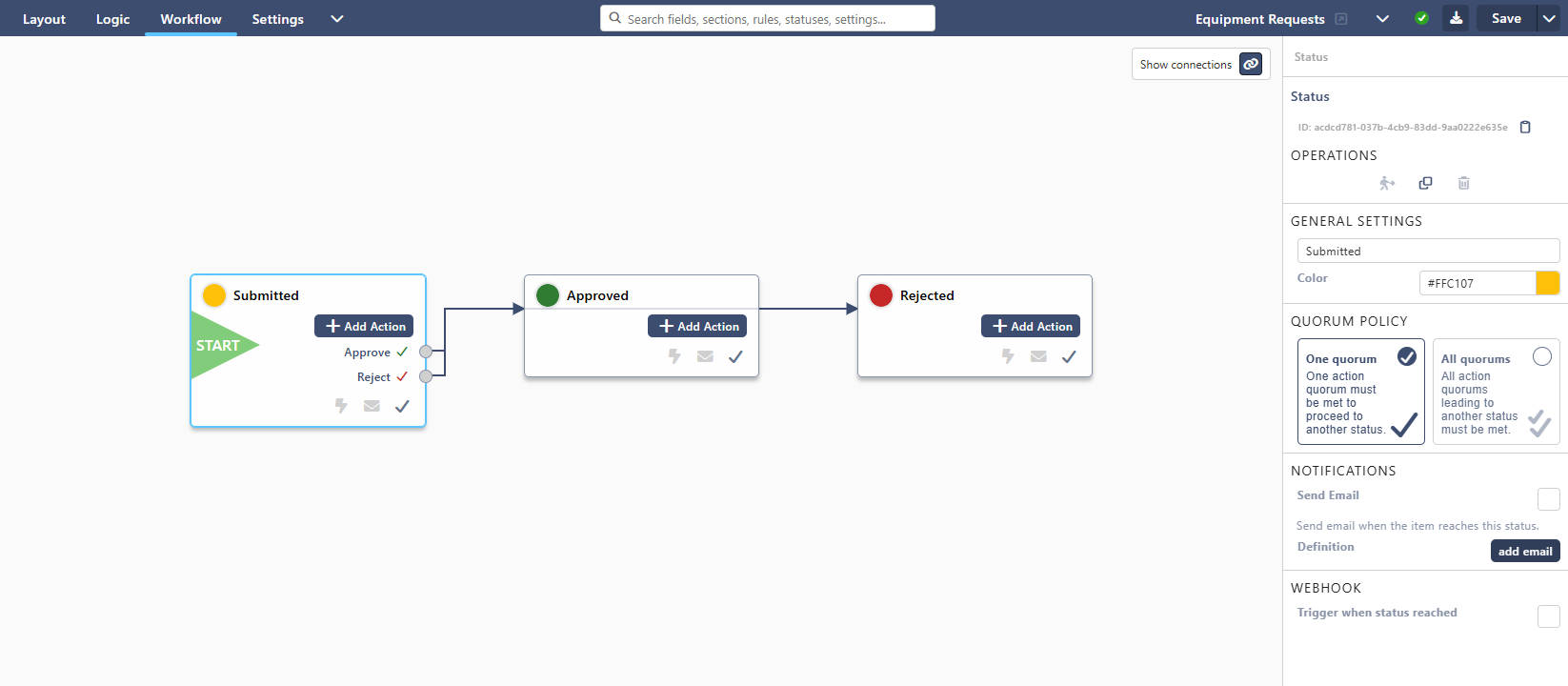
- The canvas in the middle shows the statuses as cards. A green START marks the status every new item begins in.
- Each card lists its actions. The icon next to an action has the colour of the status it leads to.
- Show connections at the top right shows or hides the arrows from each action to its target status.
- The + button at the bottom right adds a status.
- Select a status or an action on the canvas. Its settings appear in the panel on the right.
The three small icons at the bottom of a card show what's set for the status. The lightning bolt lights up when a webhook is on. The envelope lights up when Send Email is on and the email is written. A single check mark means One quorum. A double check mark means All quorums.
Statuses
Select the + button to add a status. Each new status is called New. The first one becomes the initial status. Rename them to fit your process.
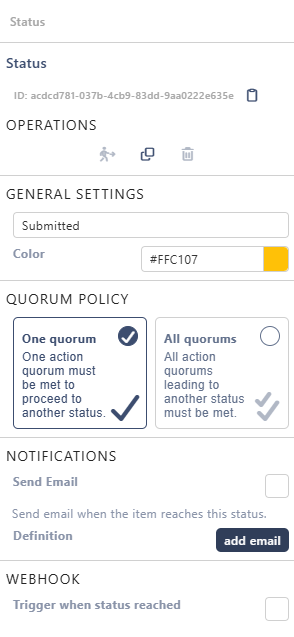
| Part of the panel | What it does |
|---|---|
| Operations | Initial status makes new items start in this status. You can also clone the status, or delete it |
| General Settings | The name and the Color. People see both at the top of the form |
| Quorum policy | Matters only when two or more actions lead to the same status. One quorum: the item moves when one of them is complete. All quorums: all of them must be complete |
| Notifications | Send Email when an item reaches this status. Select add email to write the email |
| Webhook | Trigger when status reached: calls a web address, for example a Power Automate flow, when an item reaches this status |
A status without actions is the end of the process, like Approved in the example.
More: Workflow Statuses, Email Notifications, Power Automate Webhook.
Actions
Select Add Action on a status card to add an action to that status. Then select the action on the card to see its settings.

| Part of the panel | What it does |
|---|---|
| Operations | Move the action up or down in the list, clone it, or delete it |
| General Settings | The name, the Target status the item moves to, an Icon and a Tooltip |
| Validation | Ignore validation: the action works even when the form has errors |
| Audience | Who can do the action. Public: every SharePoint user. Specific users: people, SharePoint groups, or a people field of the form |
| Quorum | How many people must do the action before the item moves: a Fixed number, or Everyone in the audience |
| Confirmation | Show confirmation popup before the action runs, with a message, a comment, a signature or a new sign-in |
| Input fields | Ask for field values: the popup asks for values of chosen fields, for example a cost centre (see Action Input Fields) |
| Redirect | Where people go after the action |
| Notifications | Send Email to the people in the audience when the item reaches this action's status |
| API Integration | Allow automated submission: a flow or another system can do the action (see API Integration) |
Important: a new action is Public. Anyone who can edit the item can then do it. For approvals, choose Specific users. Emails can't be sent for Public actions.
More: Workflow Actions.
What people see in the form
The form shows the item's current status at the top, with its colour. To hide it, turn off Show workflow status in the form's properties on the Layout tab.
People find the actions in the Actions menu at the top of the form:
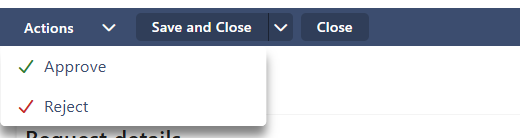
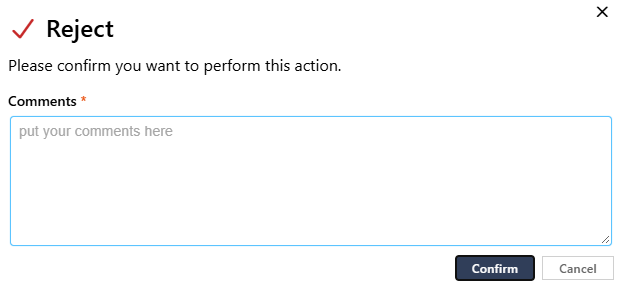
With Show confirmation popup, the action asks first. In the example, Reject needs a comment:
Good to know:
- People see only the actions of the item's current status that they are allowed to do.
- An action is greyed out while the form has errors, unless Ignore validation is on.
- Doing an action saves the item and closes the form. Then Redirect applies.
- A rule in the Logic tab can hide or disable an action, with the step Workflow Action.
More in Workflow Actions.
Example: a simple approval
The sample form Equipment Requests has this workflow:
- Submitted is the initial status. It has two actions:
- Approve moves the item to Approved.
- Reject moves it to Rejected. It shows a confirmation popup with a required comment.
- Both actions have the audience Specific users: the SharePoint group Equipment Approvers. Other people don't see the actions.
- Approved and Rejected have no actions. They end the process.
When someone saves a new request, it gets the status Submitted. An approver opens it and picks Approve or Reject in the Actions menu.
More examples: How to Build Common Workflow Patterns.
Items that existed before the workflow
Items saved before you added the workflow have no status yet. The Workflow Status widget shows No status found for this form. The next time someone saves such an item, it gets the initial status.
Warnings in the designer
A warning icon on a card, and in the top bar, shows that something isn't finished. For example:
- Unreachable status: no action leads to this status, and it isn't the initial status.
- Target status not defined: the action doesn't say where the item goes.
- Audience not defined: the action is set to Specific users, but nobody is chosen.
- Empty name: a status or an action has no name.
An action without a target status, or with Specific users but nobody chosen, doesn't appear in the form.
Test the workflow
- Select Save.
- Create an item and check that it gets the initial status.
- Open it as a person in the audience. Check the Actions menu, do an action, and check the new status.
- Open it as someone outside the audience. The actions shouldn't be there.
Related: Layout Tab (Overview), Logic Tab (Overview).