

Appearance
Understanding Conditions
Designer › Logic › Conditions
A condition decides when a rule applies. If the conditions are met, the rule runs its Steps when conditions are met. If not, it runs its Steps when conditions are NOT met.
Drag a condition from the Build panel (Conditions) into the rule's Conditions area, then set it up in the Properties panel.
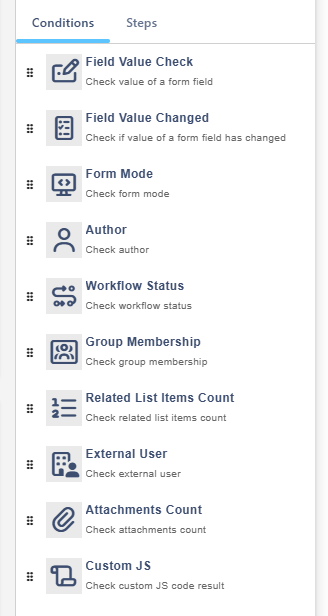
Conditions
Field Value Check
Compares a field with a value. Choose the Field, the Operator and the Value.
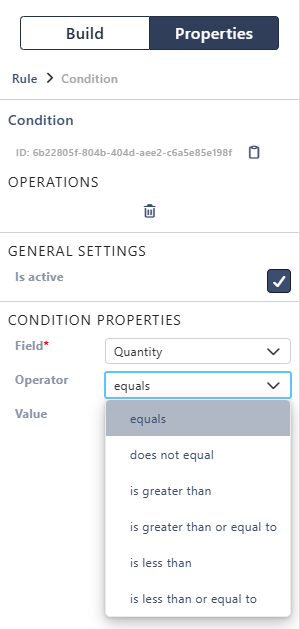
The operators depend on the field type:
| Field type | Operators |
|---|---|
| Number, Date | equals, does not equal, is greater than, is greater than or equal to, is less than, is less than or equal to |
| Text, Choice, Lookup, Person, Hyperlink | equals, does not equal, contains, does not contain, begins with, not begins with |
| Yes/No | equals, does not equal (with Yes / No buttons) |
Good to know:
What to type in Value:
| Field type | Value |
|---|---|
| Text, Choice | The text. Upper and lower case don't matter |
| Number | A number with a dot for decimals and no thousands separators: 1500.5, not 1,500.50. Otherwise the value isn't read as a number, and only does not equal is ever met. For percentage fields, type 1 for 100% |
| Date, Date Time | YYYY-MM-DD, for example 2026-12-31. Without a time, equals compares the day. With a time, add it after a T: 2026-12-31T14:30. Or type [today] (today, from midnight) or [now] (this moment). There are no offsets such as [today]+7: use a Custom JS condition for that |
| Lookup | The item's label. equals also accepts the item's ID, for example 3. contains and begins with check the label only |
| Person | The person's full name or email address, or [me] for the user filling in the form. contains and begins with check the name and the email address |
| Hyperlink, Picture | The web address. The description isn't checked |
Good to know:
- For fields with several values, equals, contains and begins with are met when any value matches. does not equal, does not contain and not begins with are met only when no value matches.
- To check that a field is empty, use equals with an empty Value. For number fields, 0 also counts as empty.
Example: Amount is greater than 10000.
Field Value Changed
Met right after the chosen Field changes, and only then. Use it in a Continuous rule to react to a change once, for example to set Priority to Normal with a Field Value step when Category changes. Put it as the first condition of the rule.
Form Mode
Checks whether the form is in View, Edit or New mode. For example, show guidance only while an item is created.
Author
Checks whether the current user created the item: user is author or user is not author. On a new item, everyone counts as the author.
Workflow Status
Checks the item's workflow status: equal to or not equal to a Status. For example, lock a section once the status is Submitted.
Group Membership
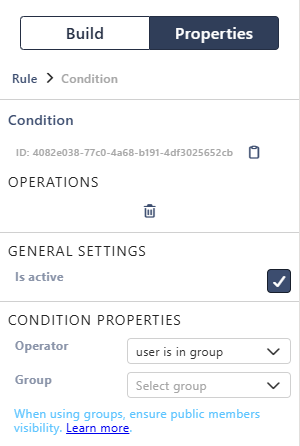
Checks whether the current user is in a SharePoint group: user is in group or user is not in group. Only SharePoint site groups count. Microsoft Entra ID or Microsoft 365 groups added to a SharePoint group aren't recognised. The Everyone group does work.
Related List Items Count
Checks how many rows a related list has: equal to, less than or greater than a Count. New, unsaved rows count; removed rows don't. For example, require at least one order line.
External User
Checks whether the form is used by an external user: user is external or user is not external. For example, hide internal sections from external users. See External Access & Sharing.
Attachments Count
Checks the number of attachments: equal to, less than or greater than a Count. For example, require a file before saving.
Custom JS
Runs your JavaScript and uses its result. The code must return true when the condition is met, or false when it isn't:
js
return getNumberFieldValue("Amount") > 1000 && getCurrentUserGroups().includes("Finance");See Using the JavaScript API in Logic.
Combining conditions
Conditions sit in a group. Each group has an AND | OR switch:
- AND (default): all conditions must be met.
- OR: at least one condition must be met.
Select Add group to add a group inside a group, up to three levels deep. That's how you build conditions such as Category equals Laptop AND (Title contains Urgent OR Quantity is greater than 5). The outer group is set to AND, the inner one to OR.
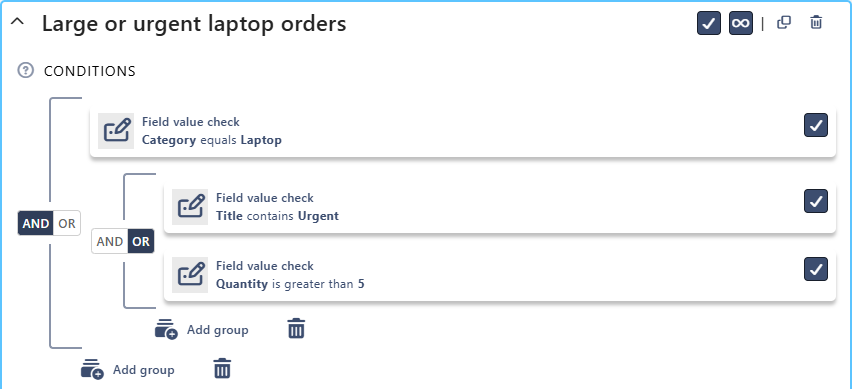
Here the rule applies to laptop requests that are urgent or for more than 5 items. A laptop request for 2 items titled Urgent: new starter meets it. A laptop request for 2 items without "Urgent" in the title doesn't.
Good to know:
- A rule without conditions is always met.
- A condition that is switched off, or has no field, group, status or count chosen, is ignored.