

Appearance
Configuring Power Automate Webhook
Designer › Workflow › a status › Webhook
A webhook lets your workflow start a Power Automate flow. When an item reaches a status, for example Approved, Sintel Apps calls the flow and tells it which item it is. The flow can then do anything Power Automate can: create an item in another list, update a record in another system, post a message in Teams.
Before you start
You need:
- A Power Automate flow you can edit, and a licence that lets it use an HTTP trigger.
- A tenant administrator, once, to give the consent in step 3.
- Access to the form's designer.
Step 1: Create the flow
- In Power Automate, create a flow with the trigger When an HTTP request is received.
- Save the flow. Power Automate then shows the trigger's URL.
- Copy the URL.
Tip: start with a small test flow that only receives the call. Add your real steps when you see it run.
Step 2: Add the webhook to a status
- In the designer, open the Workflow tab and select the status that should start the flow, for example Approved.
- In its properties, under Webhook, turn on Trigger when status reached.
- Paste the flow's URL into URL.
- Save the form.
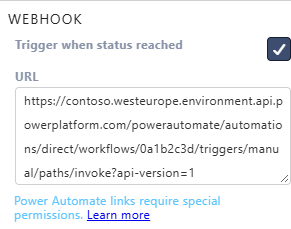
When the address is a Power Automate one, the designer shows the note Power Automate links require special permissions. That is step 3.
Step 3: Give the consent (once per tenant)
Power Automate accepts the call only when Sintel Apps may call flows on behalf of your users. A tenant administrator gives this consent once.
- Open the Sintel Apps Admin panel: https://app.sintelapps.com/admin.
- Select App Permissions.
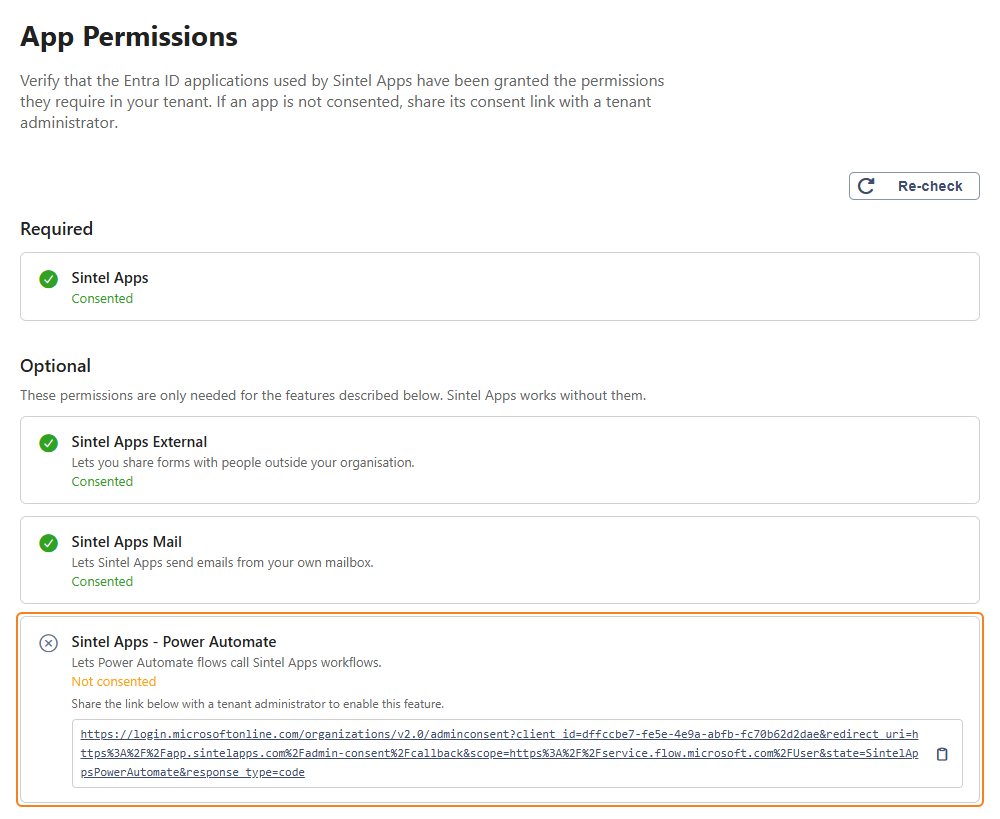
- Find Sintel Apps - Power Automate under Optional. If it shows Not consented, copy the link below it.
- Send the link to a tenant administrator. They open it, review the permissions on the Microsoft page, and accept.
- Back on App Permissions, select Re-check. The entry now shows Consented.
Step 4: Test it
- Open an item in the form and do an action that moves it into the status with the webhook.
- In Power Automate, open the flow's Run history. A new run shows the call. It can take a few seconds to appear.
What Sintel Apps sends
A POST request with a JSON body like this:
json
{
  "listId": "0a1b2c3d-1111-2222-3333-444455556666",
  "itemId": 42,
  "statusId": "7e8f9a0b-aaaa-bbbb-cccc-ddddeeeeffff",
  "statusName": "Approved",
  "previousStatusId": "1c2d3e4f-aaaa-bbbb-cccc-ddddeeeeffff",
  "previousStatusName": "Submitted"
}| Field | Meaning |
|---|---|
listId | The ID of the form's SharePoint list |
itemId | The ID of the item. Use it in the flow, for example in Get item, to read the item's values |
statusId, statusName | The status the item has reached |
previousStatusId, previousStatusName | The status it came from |
The names are case-sensitive, so use them exactly as shown. When a new item gets the initial status, the previous status fields are empty. The call doesn't carry the item's field values. Read them in the flow with itemId.
To use the fields in later steps, paste the example above into the trigger's Request Body JSON Schema with Use sample payload to generate schema.
Example: create an item in another list
Equipment Requests → status Approved → webhook → flow → Create item in the list Purchase Orders.
- The trigger receives the call.
- Get item reads the request with
itemId. - Create item adds a purchase order with the request's title and total.
Good to know
- The webhook runs when the item reaches the status, whichever way it gets there: by an action, by the API, or as the initial status of a new item. It doesn't run again while the item stays in that status.
- The flow is called on behalf of the person who moved the item. For an action done through the API, that's the account that called the API. If Sintel Apps can't get their sign-in for Power Automate, for example for an anonymous or external user, the call is skipped.
- A failed call isn't shown to the person in the form, and it isn't tried again. If nothing happens, check the flow's Run history.
- Webhooks to other services. The URL can be any web address, for example your own service. Sintel Apps sends the same JSON body, without a Microsoft sign-in. The consent in step 3 is only needed for Power Automate.
- For what Sintel Apps can do on its own, such as emails and approvals, use the workflow itself. A flow is one more thing to look after.
Troubleshooting
| Problem | Check |
|---|---|
| The flow doesn't run | The whole URL is in URL, and the form is saved. The flow is turned on |
| Still nothing | On App Permissions, Sintel Apps - Power Automate shows Consented |
| A run appears but fails | Open the run in Run history to see which step failed |
| Nothing for anonymous or external users | Expected: the call is skipped for them (see Good to know) |
Related: Workflow Statuses, The Workflow Actions API Integration, Workflow Tab (Overview).