

Appearance
Settings Tab (Overview)
Designer › Settings
The Settings tab holds the options that apply to the whole form: which features are on, how the form behaves for users, emails, PDF export, external access and more.
To open it, open your form in the Sintel Apps designer and select Settings in the top bar. The menu on the left jumps to each section. Changes take effect when you save the form.
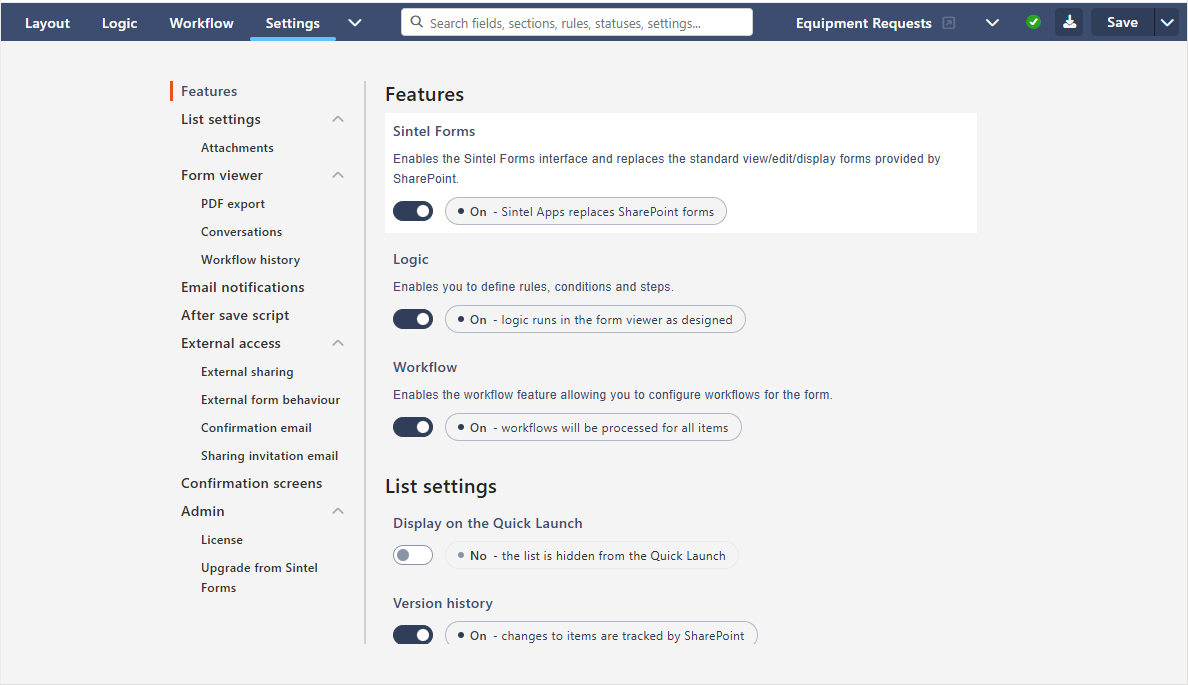
Some settings are part of a licence (marked 🔑 below). If your licence doesn't include one, the section shows a message with a View license information link, and its settings are greyed out.
Features
Turn the main parts of the form on or off.
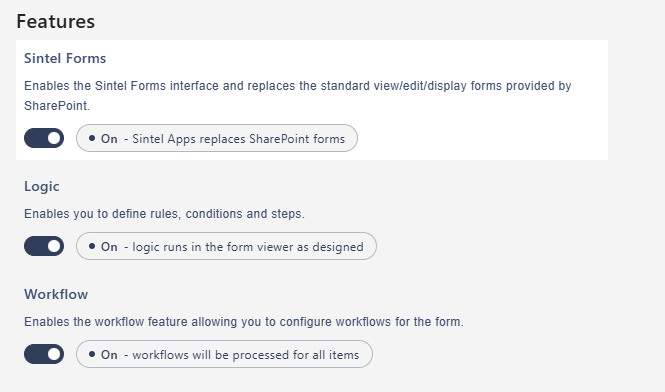
| Setting | What it does |
|---|---|
| Sintel Forms | On: Sintel Apps replaces the standard SharePoint new, edit and display forms of the list. Off: SharePoint's own forms are used, and external access stops working. The form is built in the Layout tab |
| Logic | Rules you build in the Logic tab. Off: rules don't run in the form |
| Workflow | Statuses and actions you build in the Workflow tab. Off: workflows aren't processed for any item |
When a feature is off, its tab stays in the designer with a note that the feature is off and a link back to Settings.
List settings
These change settings of the SharePoint list behind the form.
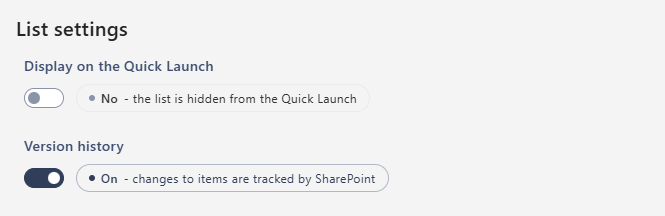
| Setting | What it does |
|---|---|
| Display on the Quick Launch | Shows the list in the site navigation |
| Version history | SharePoint keeps track of changes to items |
Attachments
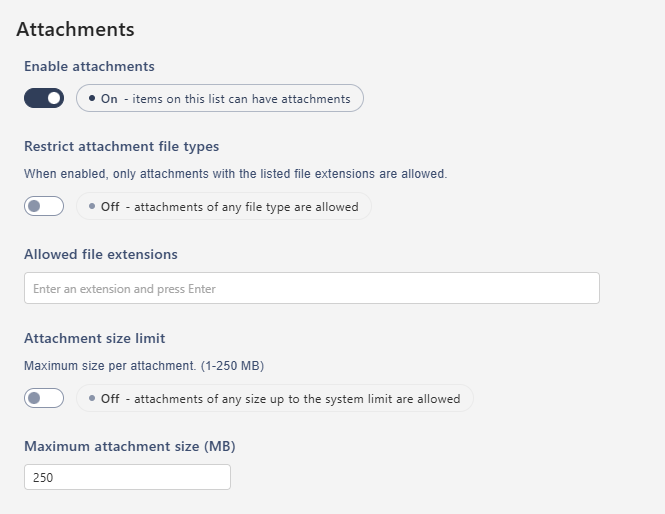
| Setting | What it does |
|---|---|
| Enable attachments | Items can have attachments |
| Restrict attachment file types | Only the file extensions you list in Allowed file extensions can be attached. Type an extension (for example pdf) and press Enter. The dot and capital letters don't matter: pdf, .PDF and .pdf are the same. Only the last part of a file name counts, so report.pdf.zip is a .zip file |
| Attachment size limit | Files larger than Maximum attachment size (MB) are rejected. You can set 1 to 250 MB. Without a limit, files up to 250 MB can be attached |
If you turn on Restrict attachment file types and leave the list empty, no files can be attached.
For every form, empty files and files with names longer than 255 characters are rejected. People see why, for example File type is not allowed. or File is too large.
Form viewer
How the form behaves for the people who fill it in.
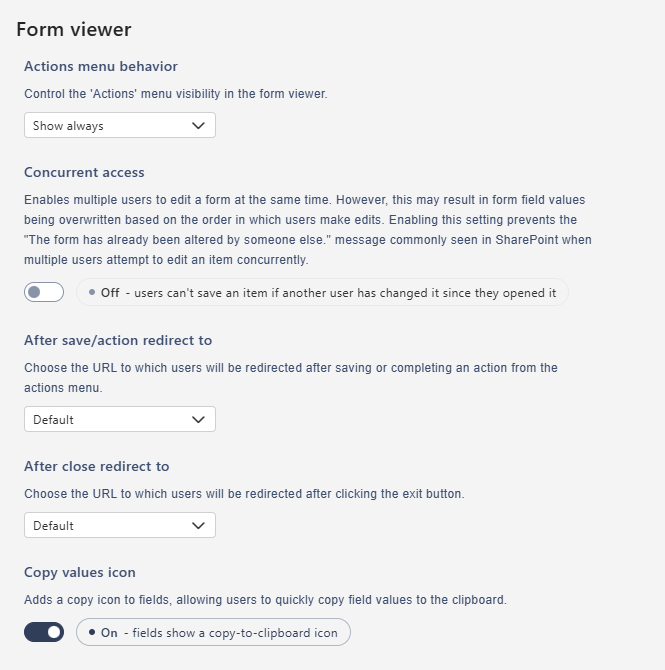
| Setting | What it does |
|---|---|
| Actions menu behavior | When the Actions menu shows: Show always, Hide if no actions or Always hidden. See Actions Menu Behavior |
| Concurrent access | Whether several users can edit the same item at the same time. Off by default. See Concurrent Access |
| After save/action redirect to | Where users go after Save and Close or a workflow action. See After save/action redirect to |
| After close redirect to | Where users go after they select Close. See After close redirect to |
| Copy values icon | Adds a copy icon to fields, so users can copy a value to the clipboard |
Both redirect settings offer the same choices, for example back to the list, the same item again, or a page you choose. The two articles linked above explain them.
🔑 PDF export
| Setting | What it does |
|---|---|
| PDF export | Users can download an item as a PDF |
| Mode | Portrait for standard documents, Landscape for wide content |
| Page numbering | Adds page numbers to the PDF |
See PDF Export.
Conversations
| Setting | What it does |
|---|---|
| Conversations | Users can read and post comments on items. External users don't see them |
See Conversations.
Workflow history
How the workflow history is shown to users.
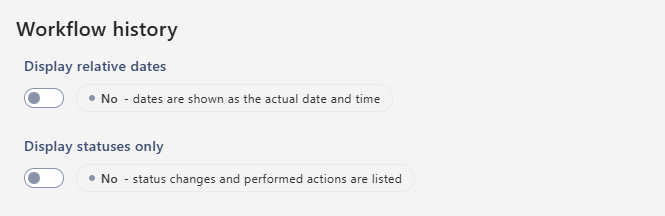
| Setting | What it does |
|---|---|
| Display relative dates | Shows dates such as "2 days ago" instead of the date and time, in the Workflow History widget and in the workflow history panel |
| Display statuses only | The workflow history panel lists only status changes, without the actions users ran. For a Workflow History widget, use its own Display as property instead |
Email notifications
| Setting | What it does |
|---|---|
| Notifications | Off: the form sends no emails, neither to your users nor to external users. This includes workflow emails and emails about @mentions in conversations. One-time verification codes for external users are still sent |
| 🔑 Outgoing email sender | Send emails from Sintel Apps (Default Sintel Apps) or from one of your own addresses set up in the Admin panel. See Custom Emails |
After save script
| Setting | What it does |
|---|---|
| After save script | Runs your script on the server after each save, for example to build a reference number from the item ID. Write it in the Script box |
See After save script.
🔑 External access
Let people outside your organisation, with no access to SharePoint, use the form. The full guide is in External Access & Sharing.
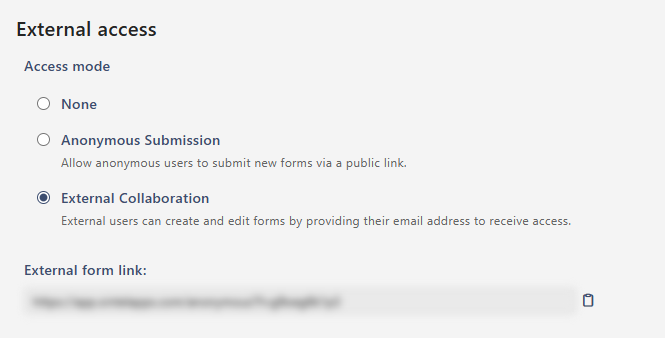
| Setting | What it does |
|---|---|
| Access mode | None: no external access. Anonymous Submission: anyone with the link can submit a new item. External Collaboration: external users give their email address to get access, and can create and edit their own items |
| External form link | The link to share with external users. It appears when you choose Anonymous Submission or External Collaboration. Save the form before you share it. Select the copy icon to copy it |
🔑 External sharing
| Setting | What it does |
|---|---|
| External sharing | Your users can share a single item with an external person. Works with any Access mode |
External form behaviour
| Setting | What it does |
|---|---|
| After external save redirect to | Where external users go after they save. Leave it empty to show the standard confirmation page |
| Captcha | People submitting a new item complete a captcha when they save. We recommend leaving it on |
| People pickers behaviour | How people fields look to external users, separately for New forms and Existing forms: Hidden, Disabled (shown, read-only) or Enabled. People pickers can show information about your users, so they are hidden by default |
| Widget visibility | Whether external users see the Workflow history widget: Hidden or Visible |
Confirmation email
| Setting | What it does |
|---|---|
| New item submission confirmation email to author | Sends the external user an email after they create an item. On by default, with a ready-made Subject and Body that you can change. Only for External Collaboration |
Sharing invitation email
| Setting | What it does |
|---|---|
| Invitation email | Sends the external person an email with a link to the shared item. On by default, with a ready-made Subject and Body that you can change. Needs External sharing |
Confirmation screens
Show your own message after an item is saved, with Save, Save and Close or a workflow action.
| Setting | What it does |
|---|---|
| Confirmation screen for new forms | Shown after a new item is saved |
| Confirmation screen for existing forms | Shown after an existing item is saved |
Write the message in Confirmation screen content. Type {{ to insert values from the item, for example {{ID}}. Select Preview to see the result. See Confirmation Screens.
Admin
- License information: select View license information to see your licence and the features it includes. See License Information.
- Upgrade from Sintel Forms: for forms made with the older Sintel Forms product. See Upgrade from Sintel Forms.