

Appearance
Related Library
Designer › Layout › Fields › Related library
A Related library shows the files of a SharePoint document library inside the form. Each file belongs to the item that is open. For example, a request can have its quotes and delivery notes, or a contract its signed copies.
It works like a Related List, but each row is a file.
Related library or attachments?
| Use the Attachments widget when | Use a Related library when |
|---|---|
| People just add a few files to the item | Files need their own columns, for example Document type or Valid until |
| The files only matter together with the item | The files are managed in a library: versions, views, permissions |
See Attachments.
Add a related library
- In the Layout tab, open Fields on the left.
- Drag Related library into a section. Give it a Title, for example Quotes.
- Select edit fields to choose the columns. They work as for a related list. A new library shows Type and Name.
- Save the form.
When you save, Sintel Apps creates a new document library with the field's title, with a Parent column that links each file to its item. To use a library you already have, open Existing on the left. It shows the libraries that have a lookup column to the form's list.
Properties
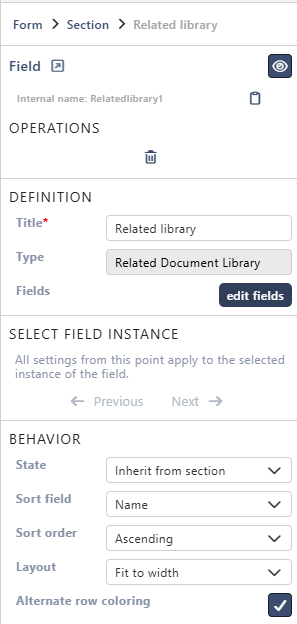
Each property is described in Field Properties. The Related library has the same properties as a Related List, except Edit mode:
| Property | Related library |
|---|---|
| Title | ✓ also the name of the new library |
| Type | ✓ Related Document Library, or Related Picture Library for a picture library from Existing (can't be changed) |
| Fields | ✓ edit fields |
| State (Behavior) | ✓ |
| Sort field, Sort order (Behavior) | ✓ sorted by Name to start with |
| Layout (Behavior) | ✓ |
| Alternate row coloring (Behavior) | ✓ |
Select field instance, Label and Field theme are the same as for every field.
The library also has a hidden column Thumbnail. Show it in edit fields to see a small preview of each picture. Other files show an icon.
On the form
The related library of the demo form, with two files:
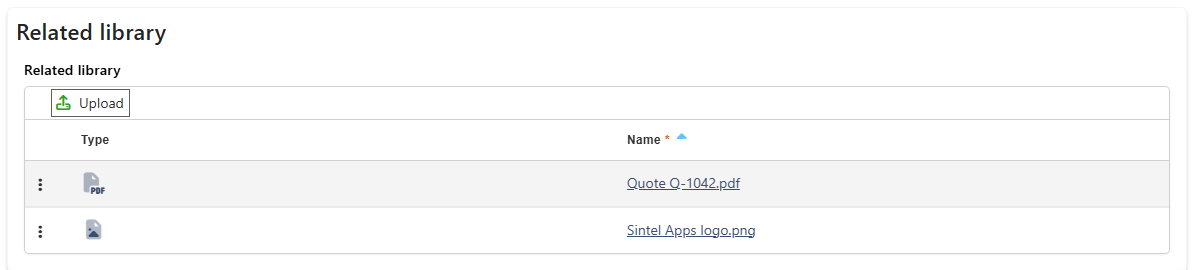
- Upload adds files. People can also drop files onto the field.
- If a file with the same name is already there, the form asks: A file with the same name "…" already exists. Do you want to replace it?
- Selecting a file name opens the file in a new tab.
- The row menu (the three dots on the left) has Remove.
- Files can be added to a new item too. They are uploaded when the item is saved.
In view mode, or when the field is read-only, there is no Upload and files can't be removed.
Good to know
- Remove deletes the file from the library when the item is saved. It doesn't only unlink it.
- People need permissions to add, change and delete files in the library itself.
- Sintel Apps keeps the files of each item in folders of their own in the library. Files added directly in SharePoint, outside these folders, don't show in the form.
- In the Logic tab, the condition Related list items count and the step Related list behaviour work for related libraries too, for example to require at least one file.
Related: Related List, Field Properties, Layout Tab (Overview).