

Appearance
Layout Tab (Overview)
Designer › Layout
In the Layout tab you design the form. You add fields and widgets, group them in sections and tabs, and set how each of them looks and behaves.
The layout can also change while the form is filled in. Rules in the Logic tab can show or hide fields, sections and tabs, make them read-only or mandatory, and set field values. Statuses and approvals are set up in the Workflow tab.
The screen
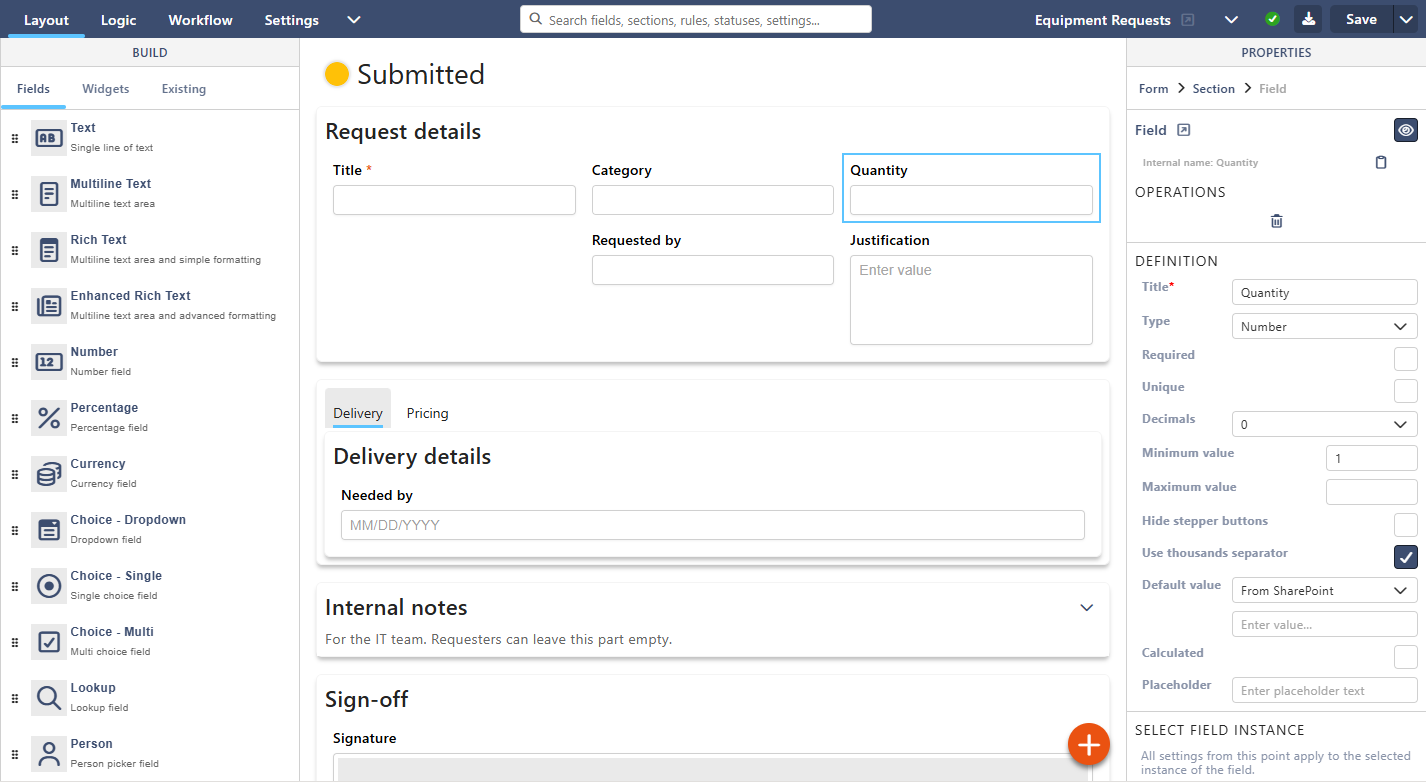
- Left: three tabs. Fields and Widgets add new items. Existing places items that already exist. These are list columns that aren't on the form yet, or another copy of a field that is already on it.
- Middle: the form. Drag items onto it and move them around. Select anything to change it.
- Right: the properties of what you selected, such as the form, a section, a tab, a field or a widget.
This is the layout in a wide window (about 1600 pixels or more). In a smaller window, for example on most laptops, there is one panel on the right. Switch between Build (things to add) and Properties.
Changes are saved when you select Save in the top bar.
Fields
The Fields tab adds a new column to the SharePoint list behind the form. Drag a field type onto a section. The column is created when you save the form. (Related List and Related Library create a separate list or library instead.)
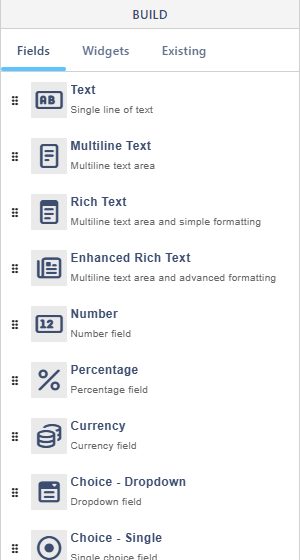
| Field type in the list | Article |
|---|---|
| Text, Multiline Text, Rich Text | Text Fields |
| Enhanced Rich Text | Enhanced Rich Text Editor |
| Number, Percentage, Currency | Number, Currency & Percentage Fields |
| Choice - Dropdown, Choice - Single, Choice - Multi | Choice Fields |
| Lookup | Lookup Fields |
| Person, Group, Person Or Group | Person and Group Fields |
| Yes/No | Yes/No Field |
| Date, Date Time | Date & Date Time Fields |
| Hyperlink, Picture | Hyperlink and Picture Fields |
| Related List | Related List |
| Related Library | Related Library |
| Signature | Signature Field |
Any text or number field can also be calculated with a formula.
Widgets
Widgets show information or add controls. They don't create list columns.
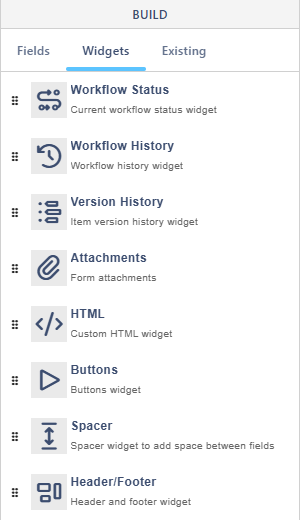
| Widget | What it does |
|---|---|
| Workflow Status | The current workflow status of the item |
| Workflow History | The statuses and actions the item went through |
| Version History | Earlier versions of the item |
| Attachments | Files attached to the item |
| HTML | Your own text, images and links, with field values inside |
| Buttons | Save, Close, Export to PDF, workflow actions and your own buttons |
| Spacer | Empty space, or a line of text, between items |
| Header/Footer | A title, subtitle and images at the top or bottom of the form |
Existing
The Existing tab lists the columns the list already has, so you can put them on the form:
- On the form: already placed. A field can be placed more than once. See Using the Same Field More Than Once.
- Unused: columns that aren't on the form yet.
- New unsaved: fields you added that will be created when you save.
- Awaiting deletion: columns you deleted from the list. They are removed when you save.
- Widgets: widgets already on the form.
Groups appear only when they have something in them.
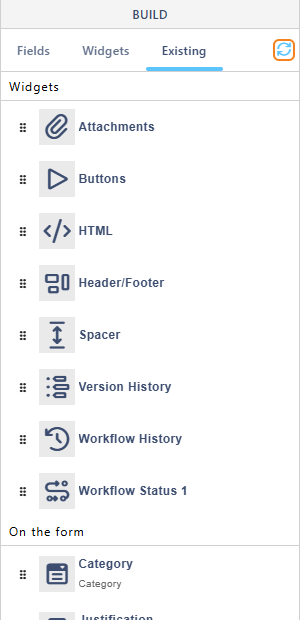
Lists that already have a lookup column to this list also appear here, and can be added as a related list.
If someone added a column in SharePoint while the designer was open, select the refresh icon (two round arrows) to the right of the tabs. Its tooltip is Refresh existing fields. The icon is shown only on the Existing tab.
Sections and tabs
Everything on the form sits in a section. A new form starts with one. Select the orange + button on the form to add a Section or a Tabbed section, which shows one part of a long form at a time.
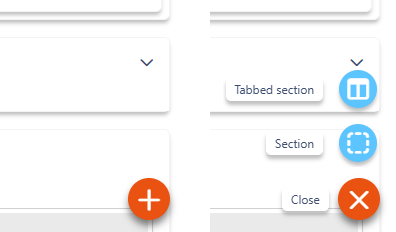
Select a section's title to change its columns, state, icon, whether it can be collapsed, and more. See Sections and Tabs.
Form properties
When the designer opens, the whole form is selected. To get back to it later, select Form in the path at the top of the properties panel (Form > Section > Field), or select the empty area outside the sections.
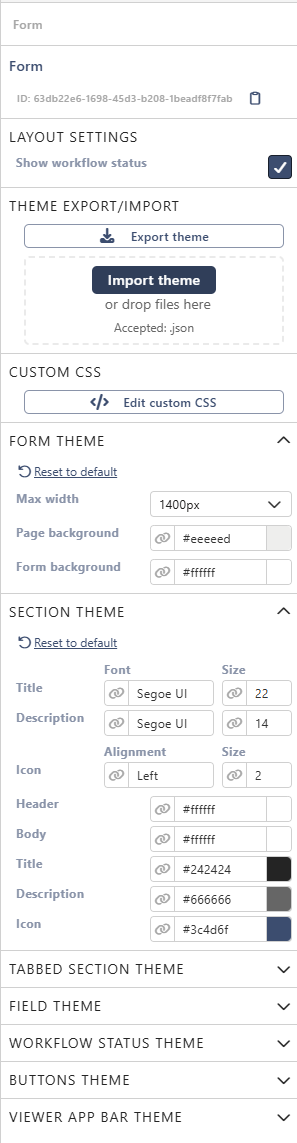
- Layout settings → Show workflow status: shows the current workflow status at the top of the form.
- Theme Export/Import: copy the look to another form. See Use the same theme on another form.
- Custom CSS: your own CSS for the form. See Custom CSS.
- The theme groups, from Form theme to Viewer app bar theme: colours, fonts and sizes of the whole form. See The theme groups.
Field properties
Select a field to see its properties in the panel on the right. Every field type has the same parts:
- At the top: the field's internal name, the eye icon that hides the field, a link to the column in SharePoint, and Delete.
- Definition: the settings of the list column, for example Title, Required and Default value. Each field type adds its own settings here.
- Select field instance: which copy you are changing, when the field is on the form more than once.
- Behavior: the field's State on the form (mandatory, optional, read-only).
- Label and Field theme: the label's text, position and tooltip, and the colours and fonts.
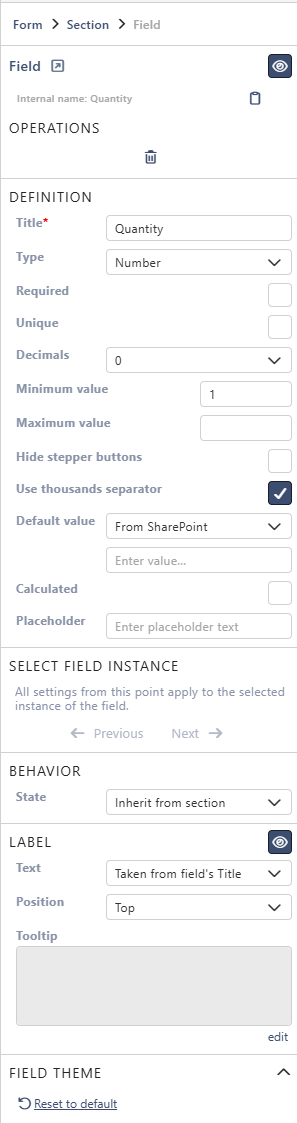
Every property is described in Field Properties, with the field types that have it.
Copying values
In the Settings tab, Copy values icon adds a copy button to fields. It appears when users point at a field with a value, and copies the value with one click. It works for text, number, date, choice and lookup fields, on the whole form.

Tips
- Group related fields in sections with clear titles. Use a tabbed section for long forms.
- Keep labels short. Put explanations in the Tooltip.
- Build the layout first, then add rules in the Logic tab.
- Save often. New fields become list columns only when you save.